Did you ever wonder about the age of a computer you are using for a long time? Unfortunately, there are no easy ways to find the exact manufacturing date of a PC as various components have different manufacturing dates. So, the age or manufacturing date should be the final assembly date for the sake of easiness. You can use some approximate methods to find when your computer was assembled and how long it’s been in use.
Mac Vs PC
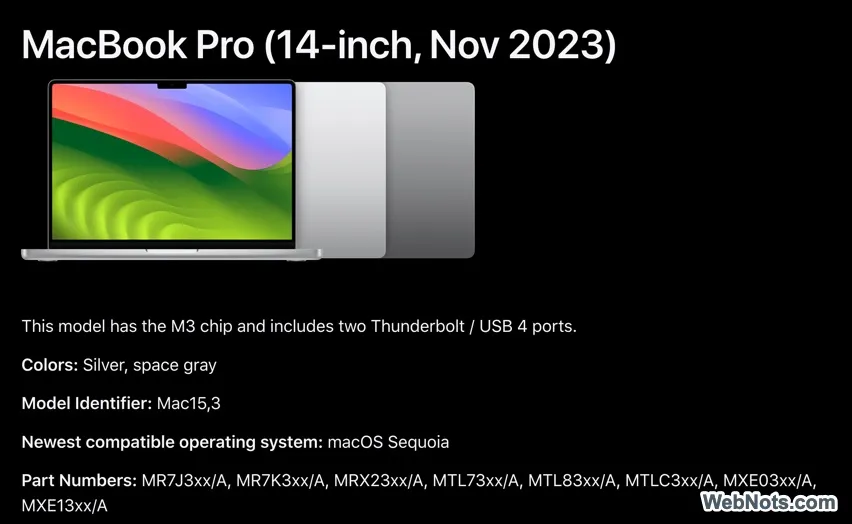
Generally, Mac computers (laptop as well as desktop models) come with a model year – for example, MacBook Pro (14-inch, Nov 2023). This model year information is used for many validations like the latest macOS support, get technical specifications, user guides and customer support.
Since you do not have such a model year for Windows based PC, you may need to find the details using alternate options. This age information is useful especially to get the approximate resale value of your system.
Note: The date of purchase is nothing to do with the date of manufacturing. Sometimes, the purchase date can be many years later than the original assembly date.
1. Find Details Using Serial Number
This is the correct and easy method. Each computer comes with a unique serial number which can be used to find information about the system’s manufacture date.
- You can find the serial number of laptops on backside either embossed or on a sticker. For desktops, you can find it typically on the CPU box. Don’t worry if you can’t find it from the sticker, check our earlier article to find serial number of PC using various methods.
- Go to the manufacturer’s support website and enter your serial number. The website should provide details about your system, including its original ship date.
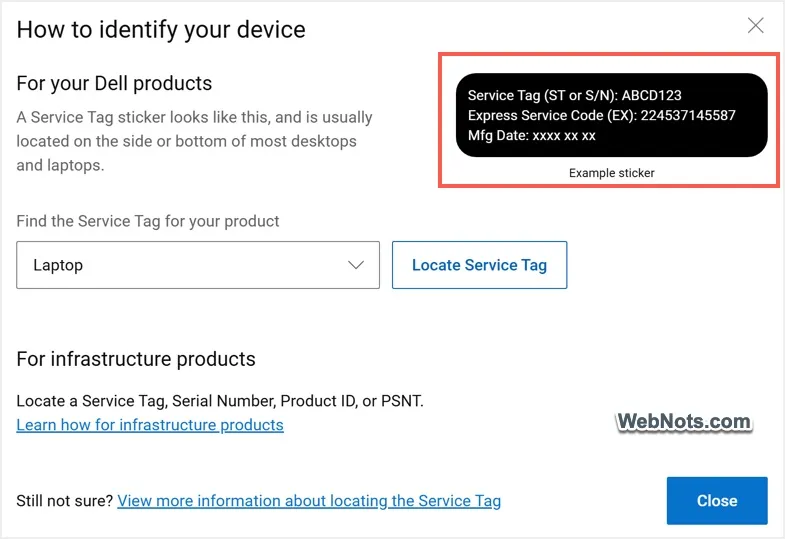
Note that not all manufacturers use serial number. For example, Dell use Service Tag or Product ID for identification purposes. As you can see the example sticker from Dell, it clearly shows the manufacturing date (Mfg Date) on the sticker itself. Otherwise, you can go to Dell website and find your system details using the Service Tag.
2. Check BIOS or UEFI Installation Date
Whenever the computer is assembled, BIOS (Input/Output System) or UEFI (Unified Extensible Firmware Interface) is the first thing needed for running the system. So, checking the installation date of BIOS / UEFI can give you a good idea of how old the computer is. Good thing, you don’t need to access BIOS/UEFI for this, it can be found from the System Information app.
- Find and open System Information app.
- Click the “System Summary” option on the left sidebar.
- On the right pane, check “BIOS Version/Date” option. This date will give you a clue about when the computer was manufactured.

As you can see, it shows HUAWEI 1.17, 3/10/2022. So, around the system was assembled around this date 3/10/2022.
Note: Keep in mind that if the BIOS was updated, the date shown might reflect the latest updated date rather than the original installation date.
3. Check Windows Installation Date
Another method is checking when the operating system was installed. While this won’t necessarily tell you exactly when the computer was made, it can give you an idea of when it was first set up, especially if Windows hasn’t been reinstalled or updated to major version since purchase.
- Type cmd in Windows Search box and open Command Prompt app.
- Simply type systeminfo in the prompt and press enter.
- The Original Install Date line will show when the current major Windows version was installed.

You can also find the BIOS date from Command Prompt using systeminfo command.
4. Check the Release Date of the Processor (CPU)
Your computer’s processor (CPU) is one of its most important components, and its release date can give you a rough estimate of your computer’s age.
- Open System Information app and go to “System Summary” section.
- Check against “Processor” to find the name of your processor.
- Go to manufacturer’s website and look up its release date on the.
- If your CPU was released five years ago, for instance, and your computer has that chip, then your system is likely from that period.
5. Check Hard Drive or SSD Date
The hard drive or solid-state drive (SSD) in your computer will have a manufacturing date that might give you an idea of how old the machine is (if you haven’t changed it).
- Search and open Command Prompt app.
- Type the following command in the prompt and press enter.
- Note down the model number and search in manufacturer website to get the original manufacture date of that drive.
wmic diskdrive get model, serialnumber
6. Using a Third-Party Tool
There are many third-party apps to find the hardware details of your computer. Though these tools show most of the information from System Information app, they offer easy to use interface.
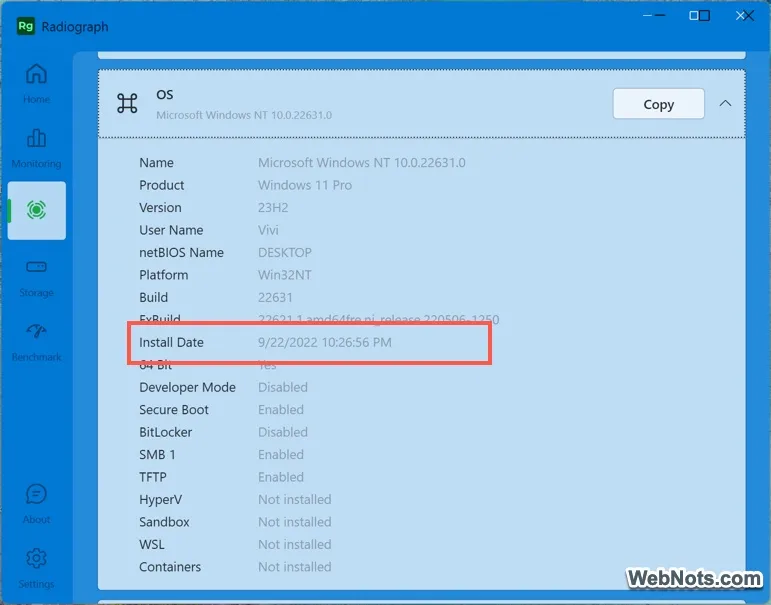
- Go to Microsoft Store and install Radiograph app.
- Navigate to “Driller” section from the left sidebar.
- You can find CPU, GPU, Motherboard, OS, TPM and various hardware information.
- For example, click on the OS section where you can find the “Install Date” of your Windows.
Conclusion
It is fairly easy to find the age or manufacturing date for the new PCs. However, if you have purchased the PC from resale or used for many years, you may need to dig deep as explained above. The most accurate information will be from the manufacturer’s website which you can get using the serial number.