Microsoft frequently releases new features and security patches for the Edge browser, available on Windows, Mac, and mobile devices. Knowing your browser version is important when troubleshooting issues, ensuring compatibility, and keeping your system secure. Here is how to quickly find the Edge browser’s version you are using on your device.
Edge Auto Update
The browser will be automatically updated to the latest available version when connected to internet. So, in general, you should always have the latest version installed. However, you may be using the older version if you are not closing the app for long time or disabled the update service. Below methods also will help to find the type of the Edge version you are using like beta or developer version.
1. Using edge://version Command
Open Edge app, type edge://version in the address bar and press enter key. This command will show the currently installed version and click the copy button to copy the version number to clipboard.

This is a recommend method as you can find all other details like Chromium backend, operating system, etc. Another advantage is that this command will simply display the details without triggering automatic update service.
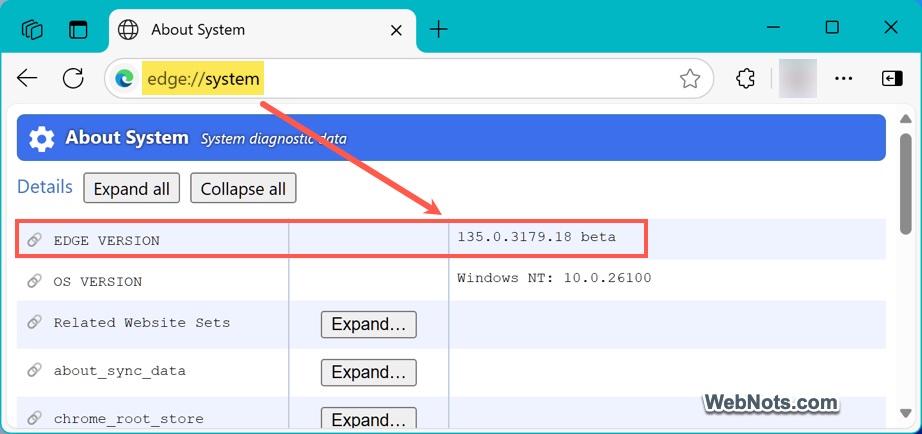
2. Using edge://system Command
You can use the edge://system command URL instead of edge://version command. It will show similar details like Edge and OS versions without triggering auto update.
3. Using Edge Settings Page
- Open Edge and click the three-dots “Settings and more” menu in the top-right corner. Alternatively, press “Alt + F” to open the menu in Windows PC.
- Now, select “Settings” from the dropdown.
- In the left-hand menu, select “About Microsoft Edge” option (you may need to scroll down if you are on a smaller screen).
- You can find the Ege version details under “About” section.

Alternatively, you can type edge://settings/help command URL directly in the address bar and press enter to reach the same Settings page. Though this method is similar to edge://version and edge://system, the difference is that this will automatically check for updates and apply them if available.
4. On Android or iOS Edge App
- Launch Microsoft Edge on your mobile device.
- Tap the three-dot menu at the bottom (iOS) or top (Android).
- Select “Settings” from the list.
- Scroll down and tap “About Microsoft Edge” option.
- From there you can find the Edge version number.