Most commercial themes and plugins need a license key to activate the premium features. You need to get a key from the developer’s website and activate through your WordPress admin panel. Once activate, the key will be hidden and can’t be viewed anymore. The problem comes when you forgot the key and wanted to reactivate again. The only option is get it from the developer’s site again. However, many users do not know that WordPress saves the license keys in database and you can find them easily right from your admin panel or from hosting account.
Example Case
Let’s say, you have purchased Astra Pro add-on (which is a premium plugin) and activated the license on one site. After some time, you switch to a different theme and stop using Astra. A few months later, you decide to use the Astra theme again and reinstall it. When you reinstall Astra, the license is automatically reactivated, and you are not required to re enter the license key. This happens because WordPress stores the license key in wp_options database table and reuses it when the same theme or plugin is activated again.
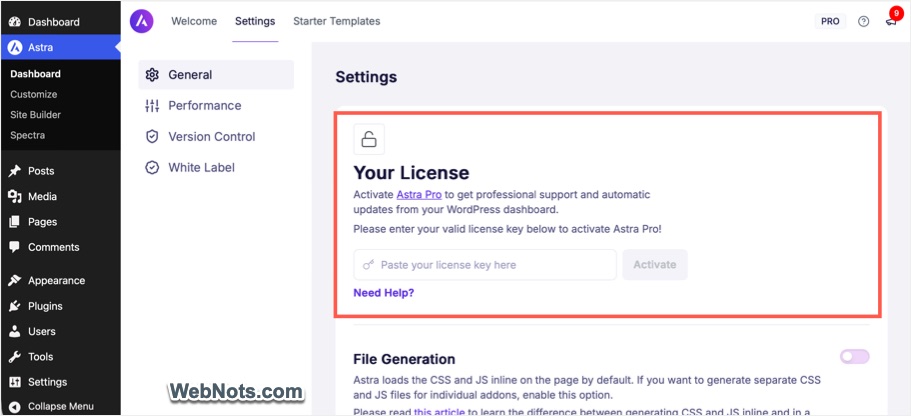
As long as the relevant entries in the wp_options table have not been deleted, the license key remains stored in your database. You can retrieve the key at any time if needed. If your license allows usage on multiple sites, you may copy the key and use it on another website, a localhost setup, or a staging environment (without searching for it or logging into developer’s site).
Important Note: Some themes and plugins provide a clean uninstall option that removes all related database entries during deletion. If this option was enabled or used, the license key may be permanently removed from the database, and you will not be able to find it in wp_options table.
Accessing WordPress Database
There are two ways to access your database:
- Using a tool like phpMyAdmin from your hosting account.
- Using a plugin and access from WordPress admin panel.
The plugin option is easier as you don’t need to access the hosting account.
1. Database Access Plugin from WordPress Admin
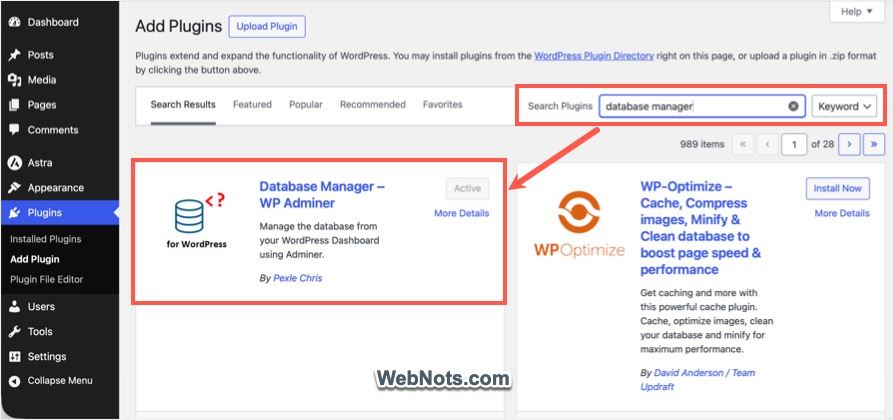
- Login to your WordPress admin panel and navigate to “Plugins > Add Plugin” section.
- Type “database manager” in “Search plugins” search box.
- Find “Database Manager – WP Adminer” plugin, install and activate it.
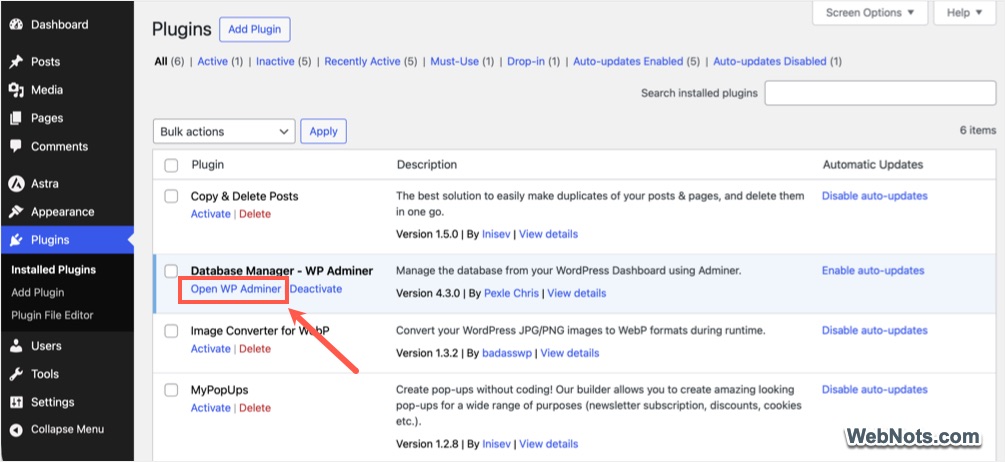
- Go to “Plugins > Installed Plugins” section and click “Open WP Adminer” link showing below the “Database Manager – WP Adminer” plugin.
1.1. Finding License Key from Options Table
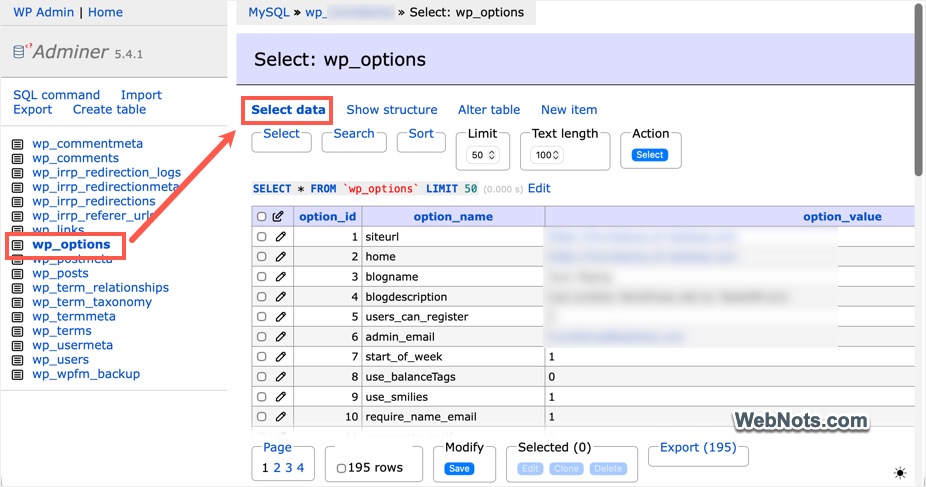
- When you are in the Adminer, click “wp_options” table from the sidebar and then click “Select data” link to view its content.
- Click the “Search” link and select the followings:
- Key (1st item): option_name
- Operator (2nd item): LIKE %%
- Keyword (3rd item): enter the theme or developer name.
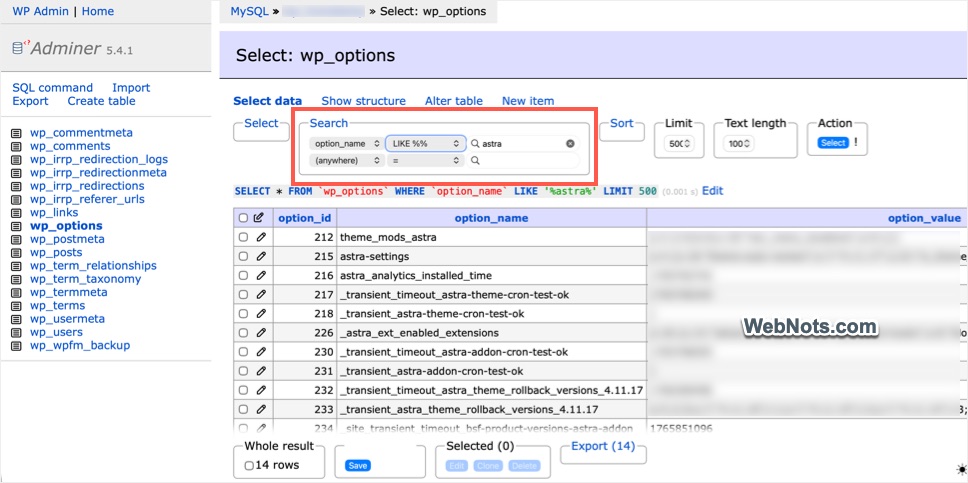
- Press enter to filter the table entries and find the option_name against which the license key is stored.
- You can find the key in “option_value” column either visibly or double-click on the value to find it buried it long text.
- Copy the key and reuse anywhere you need.
Once found your key, click “WP Admin” link on top left corner to get back to your admin panel. Now, you can uninstall and delete the plugin if not needed any more.
2. Using phpMyAdmin
- If you don’t want to install a plugin, then login to your hosting account.
- Find phpMyAdmin app or tool and open it. Generally, you can find it under Databases or MySQL section and below is an example from SiteGround.
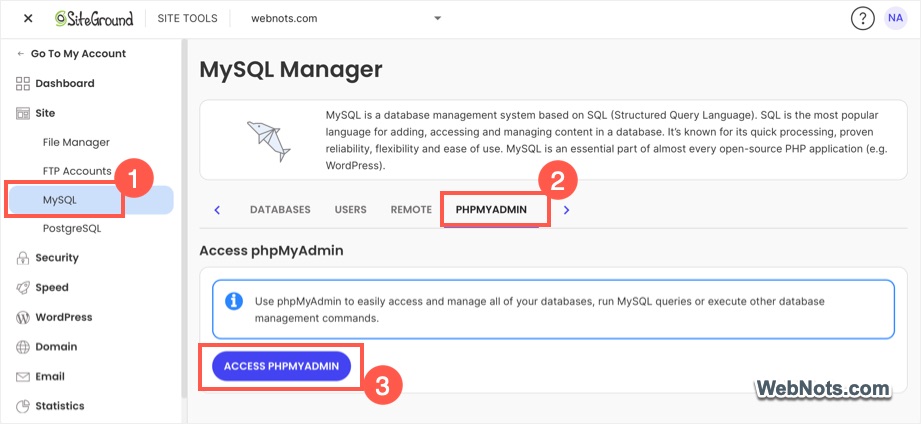
- When you in phpMyAdmin, make sure to select the correct database from the left sidebar and navigate to wp_options table.
- Use the search box to filter the options based on your keyword.
- The license key can be found against an appropriate “option_name” in “option_value” field.
Some Examples
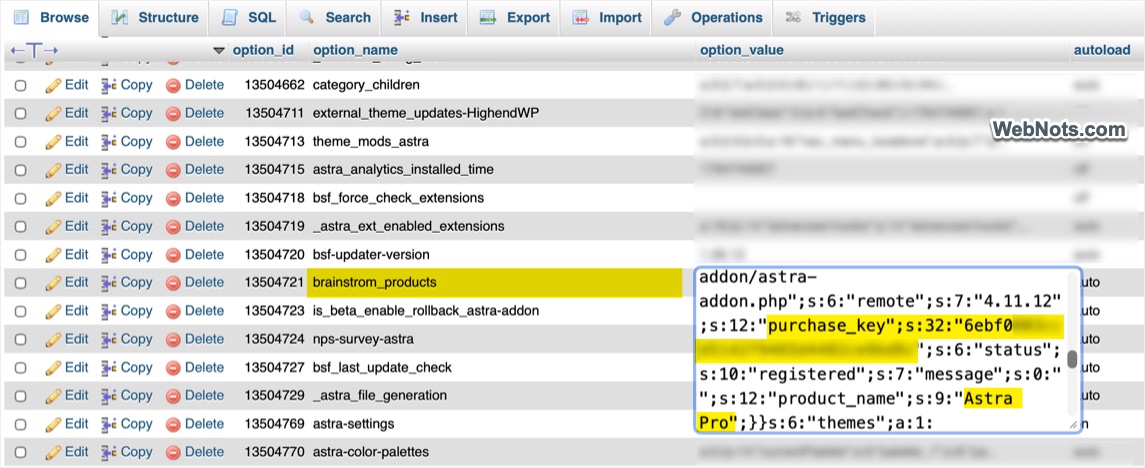
Here are some examples of the license key stored in wp_options table:
- Astra pro add-on key is stored in brainstorm_products and you need to double-click on the option_value to find it as a “purchase_key”.
- For Highend theme, the key is stored in hb_license_key and you need to find it from the long text in option_value.
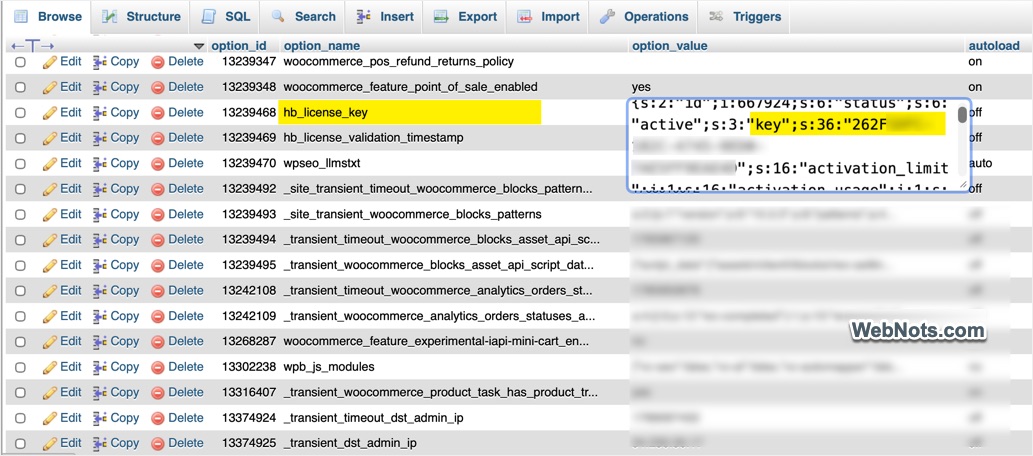
The only problem is to find the correct option name and you may need to dig through the table entries for that.
Note: wp_options is the standard table name in WordPress database. However, your WordPress installation may use different prefix instead of wp_. Most hosting companies change this wp_prefix to a custom prefix for security purposes. So, make sure to find and search in the correct table.