Weebly offers a cool drag and drop website builder to create your online store. Though Weebly editor is easy to use it also has some hidden features. Sticky navigation is one such feature which allows to keep the top navigation section fixed while scrolling down on the page. If your site is not using sticky navigation by default, here is you can enable sticky navigation in Weebly sites, both free and premium. Also, learn how to add horizontal and vertical navigational menu in Weebly.
Theme and Navigation
Unfortunately, all Weebly themes do not support fixed or sticky navigation by default. So, make sure to select a theme that supports the feature or else you need to manually add a piece of CSS code to customize your theme.
Enable Sticky Navigation
- Login to your account and edit the site in which you want to enable sticky navigation.
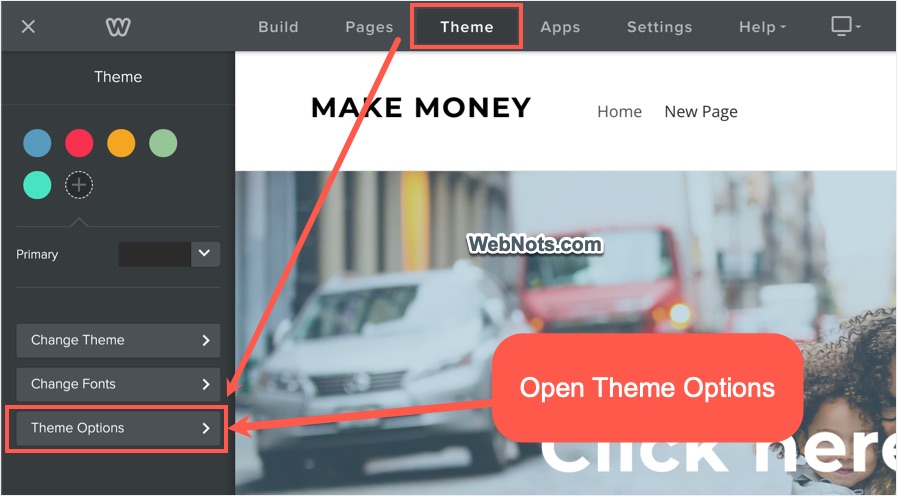
- When you are in Weebly editor, go to “Theme” tab and click on “Theme Options” button.
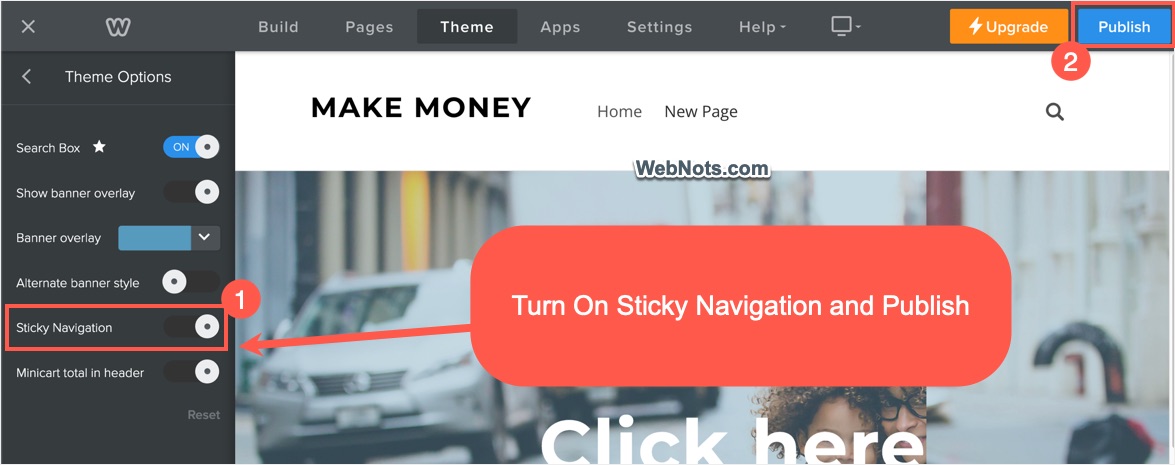
- Find “Sticky Navigation” option and turn it on.
- Click the “Publish” button to apply the changes.
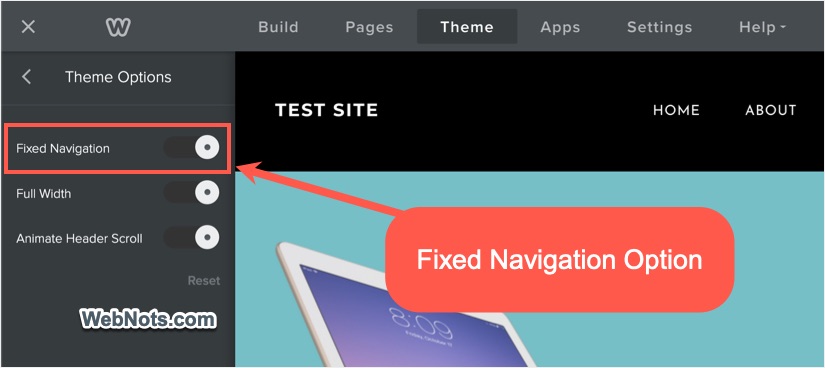
Note that some of the themes will show “Fixed Navigation” instead of “Sticky Navigation” and turn that option on.
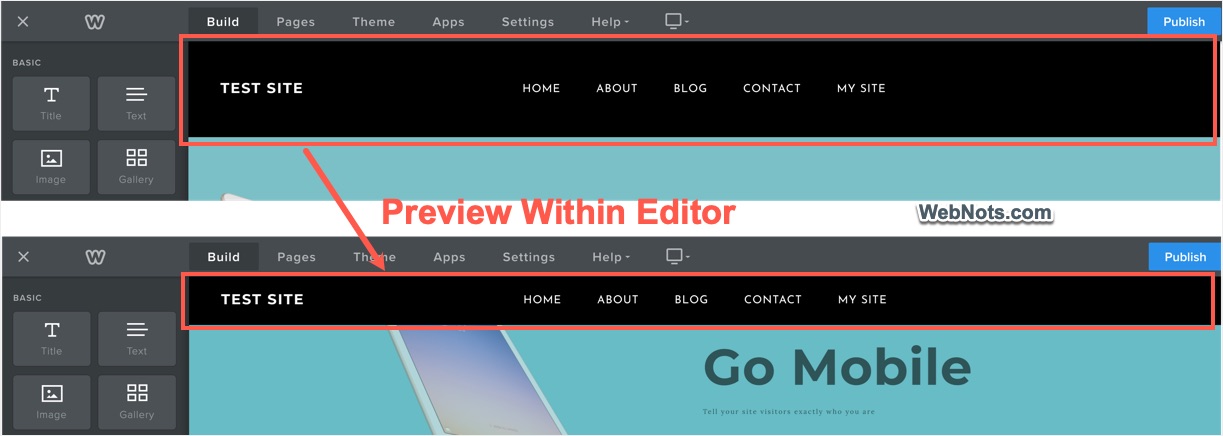
The changes will be applied instantly inside the editor. You can scroll down the content and check how the sticky navigation works. Otherwise, publish it to view your site in a new browser tab and scroll down on the page to see the navigation menu is behaving as fixed in the top area.
Manually Enabling Sticky Navigation
If you can’t find “Theme Options” button or “Sticky / Fixed Navigation” option under “Theme Options” section, then your theme is not supporting the feature.

In this case, you can either change to one of the supported themes or follow the below steps to manually enable sticky navigation.
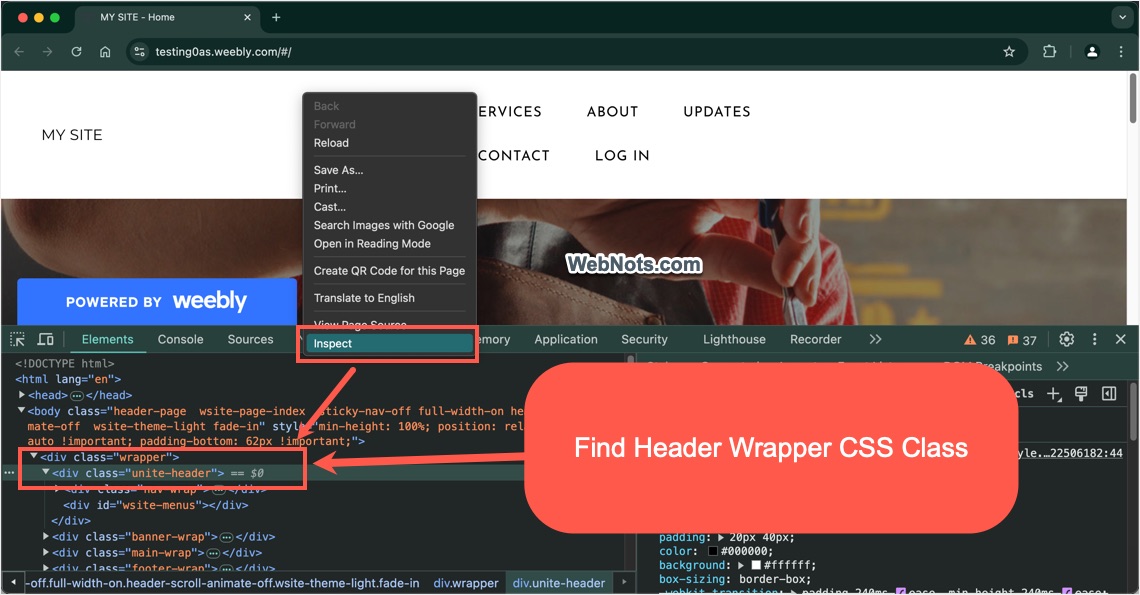
- First, open your site in a new browser tab, right-click on the header navigation and select “Inspect” option.
- This will open browser’s developer console section. Find the header class which should be something like “header-wrap” or “themename-header”. For example, “unite-header” is the navigational header CSS class for the Unite theme.
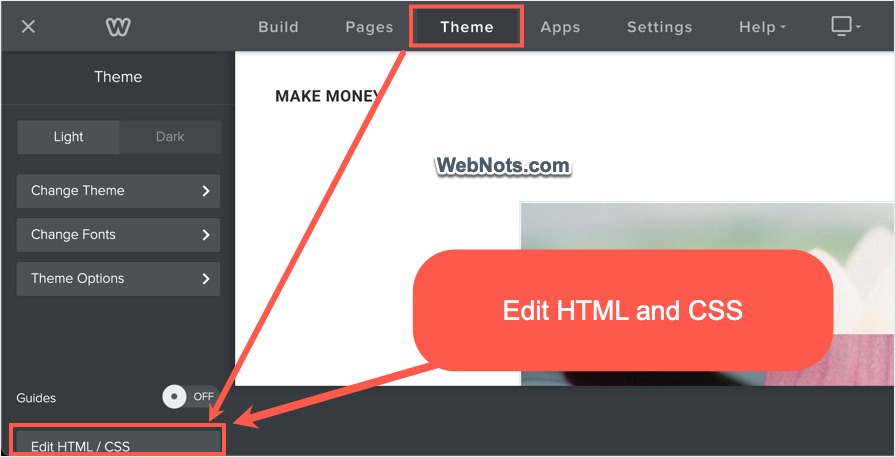
- Once you find the CSS class, go to Weebly editor and navigate to “Theme” tab.
- Click the “Edit HTML / CSS” button showing on bottom left corner of the screen.
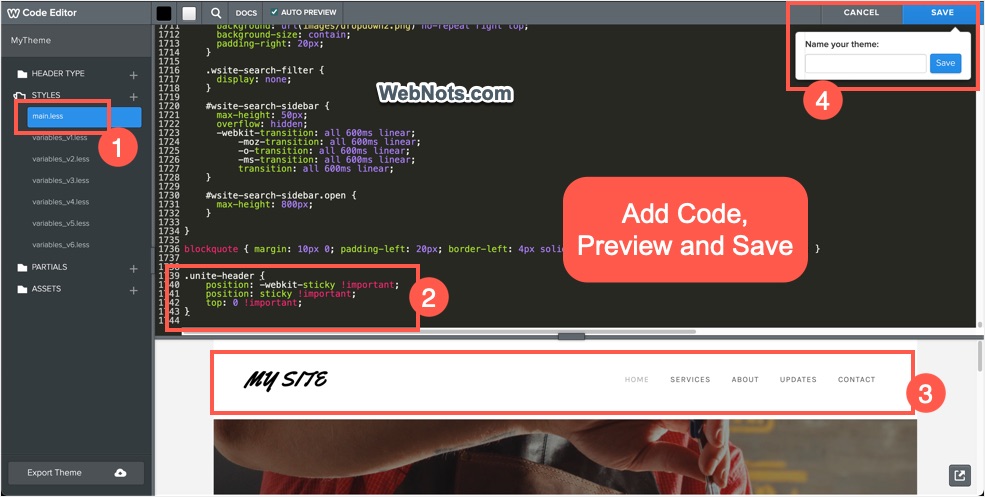
- This will take you Weebly Code Editor and navigate to “main.less” file under “Styles” section.
- Paste the following code at the end of the code by replacing the themename-header with your theme’s CSS class name.
.themename-header {
position: sticky !important;
position: -webkit-sticky !important;
top: 0 !important;
}- You can live preview the navigation below the code section to check it works. Click the “Save” button and provide a custom name for your theme.
- Click “Publish” button in content editor to apply the changes.
Now, open your site in a new browser tab and check the navigation is sticky or fixed on top.
Note: You can also add the CSS code in nav.less or navigation.less file if that is available in your theme.