Scareware is a shady tactic cybercriminals use to trick you into thinking your device is infected. It often takes the form of alarming pop-up messages claiming you’ve got viruses, urging you to download fake antivirus software – or worse, call a scam number. The goal? Scare you into handing over money or giving up control of your device. Microsoft Edge now includes built-in protection against this kind of manipulation, with a feature called Scareware Blocker. Here’s what it does, how it works, and how to make sure it’s active on your browser.
What is the Scareware Blocker in Edge?
Edge already has a setting to protect from dangerous sites and downloads using Microsoft Defender SmartScreen. However, this works based on the historical scams previously happened. The new Scareware Blocker is powered by AI and is part of Microsoft Edge’s enhanced security settings. It detects a new scam based on the machine learning model and blocks malicious websites or scripts that try to imitate system alerts, display fake virus warnings, or prompt you to call a fake support number.
How to Enable Scareware Blocker in Edge?
Though Microsoft announced this feature in early 2025, it’s not fully rolled out and yet in the preview (beta) stage. So, make sure to update your browser and follow the below steps:
- Open Microsoft Edge app on your device.
- Click the three-dot menu (⋯) in the upper-right corner and select “Settings” menu.

- On the left sidebar, click “Privacy, search, and services” section.
- Click the “Security” option on the right pane.
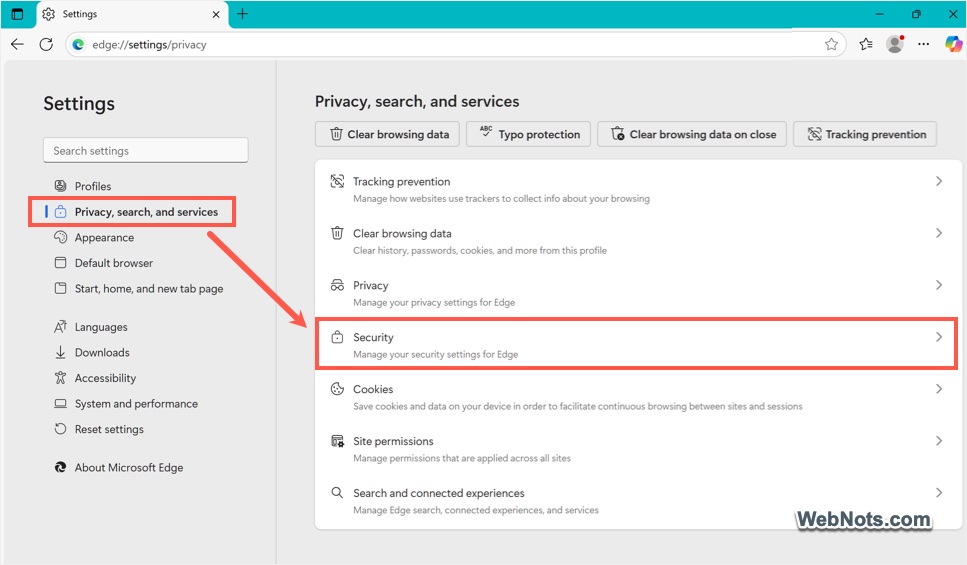
- Look for “Scareware blocker” option and turn it on.

How Scareware Blocker Protects You?
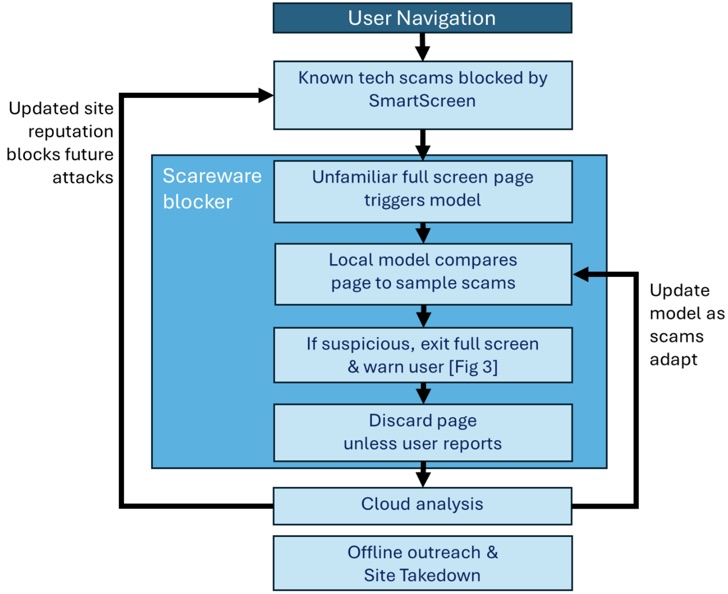
As mentioned, it uses AI to protect from “tech scams” and works along with Defender SmartScreen.
- Dangerous site is blocked by Defender based on historical data.
- Site opens and forces a full screen page (pop-up or video) triggers Scareware Blocker model.
- Edge analyzes the page for scam, quits full screen mode if the site is dangerous and displays a warning message.
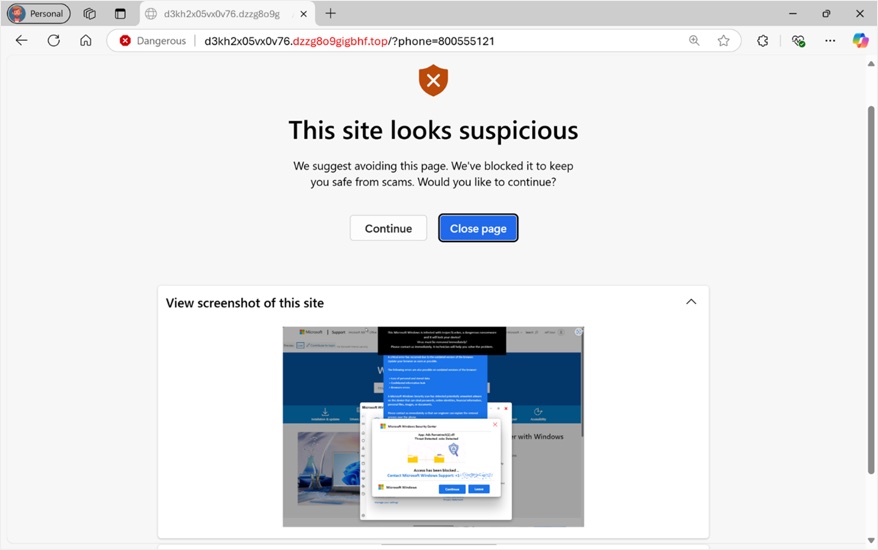
- User can now close the page and send a feedback for improving the AI model.
Good thing is that the analysis is done on device without sending your data to Microsoft. Below is the diagram provided by Microsoft explaining these steps.
What to Do If You See a Scareware Message?
If a fake alert slips through Defender SmartScreen and Scareware Blocker, follow the below things:
- Generally, pressing escape key will not work on a full screen scareware sites. However, you can press and hold the escape key till quitting the full screen mode.
- Don’t click anything in the pop-up – not even the “X”. If long pressing escape key also does not work, open Task Manager (Press Control + Shift + Escape) and force-close Edge app.
- Clear browsing data on restart to remove any lingering scripts.
- Run a full scan with Microsoft Defender (Windows Security) or another trusted antivirus tool.
Add Exclusions for Scareware Blocker
As it’s a new feature, there are possibilities for wrong detections. If you’re sure about a website’s credibility warned by Edge’ Scareware Blocker, you can exclude that site from blocking.
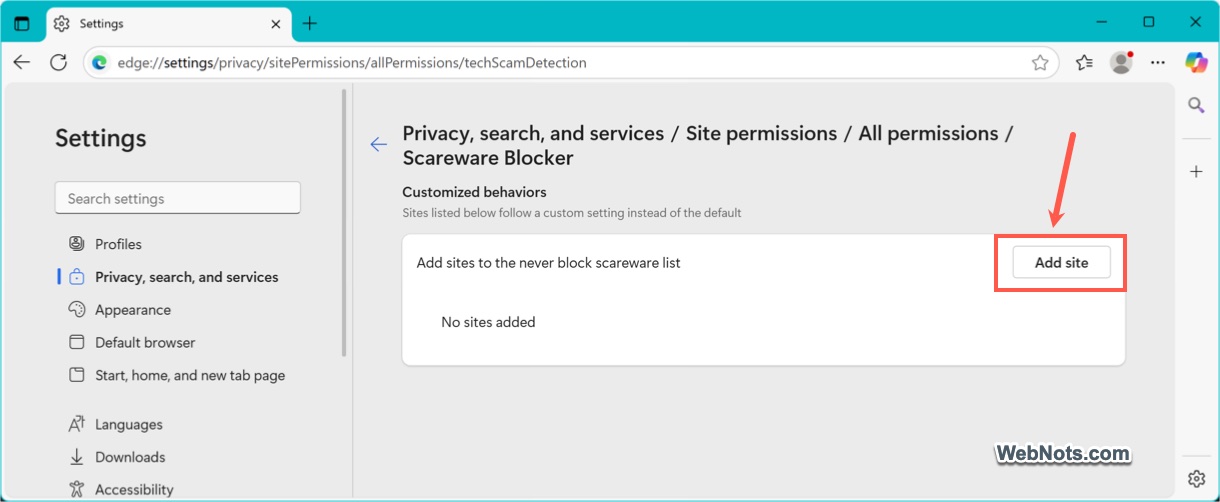
- Open Edge settings page and navigate to “Privacy, search, and services” section.
- Go to “Site permissions > All permissions” section.
- Select “Scareware Blocker” and then click on the “Add site” button.
- Provide the site’s URL and add it in the exception list.
Final Words
The Scareware Blocker in Microsoft Edge gives you real-time defense against fake alerts and tech scams. In addition, make sure SmartScreen is on, enable unwanted app blocking (part of SmartScreen) and keep your browser updated. It’s a simple step that can save you from falling for a very expensive lie.