The Messages app on macOS is Apple’s native tool for sending texts, photos, videos, and documents through SMS, MMS, and iMessage. Typos and accidental messages often occur when using the Messages app frequently. Good thing is that you have options for unsending (undoing) and editing previously sent messages, making communication more flexible and forgiving.
Requirements
Here is what needed for using unsend and edit features in Messages app.
- Your Mac needs to run macOS Ventura or a later version.
- These features are available for iMessages (blue bubbles), not for standard SMS/MMS messages (green bubbles). You should turn on iMessage option under “Settings > Apps > Messages” section.
- Both sender and recipient must be using Apple devices with compatible software to see the edits and notifications as intended.
Remember that whether you unsend or edit a sent message, the recipient also will see those actions. It’s not something like undo sent email in Mail app to edit the message before it delivers to the recipient’s inbox. While the ability to edit or unsend is helpful, it’s best to minimize mistakes by reviewing your message first.
Unsend a Sent Message on Mac
Sometimes you send a message and immediately realize it’s incorrect, premature, or sent to the wrong person. Here’s how to retract your message:
- Open the Messages app on your Mac.
- Navigate to the conversation containing the sent message you want to unsend.
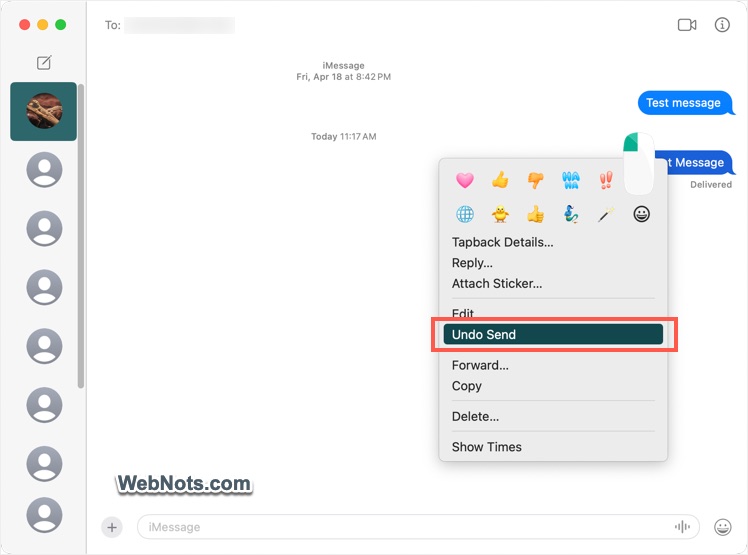
- Control-click (or right-click) on the specific message bubble.
- From the contextual menu, select “Undo Send” option.
- The message will be removed from both your chat and the recipient’s chat if their device supports the feature.
Limitations of Unsend
- You can only unsend messages within two minutes of sending them.
- If the recipient’s device runs an older version of iOS, iPadOS, or macOS, the message may not be deleted from their chat, and a note may indicate that you deleted a message.
- This feature only works for iMessages and not with SMS/MMS messages.
Edit a Sent Message on Mac
If you spot a typo, factual error, or want to clarify your previous message, you can edit it:
- Open the Messages app on your Mac.
- Find the conversation and the message you wish to edit.
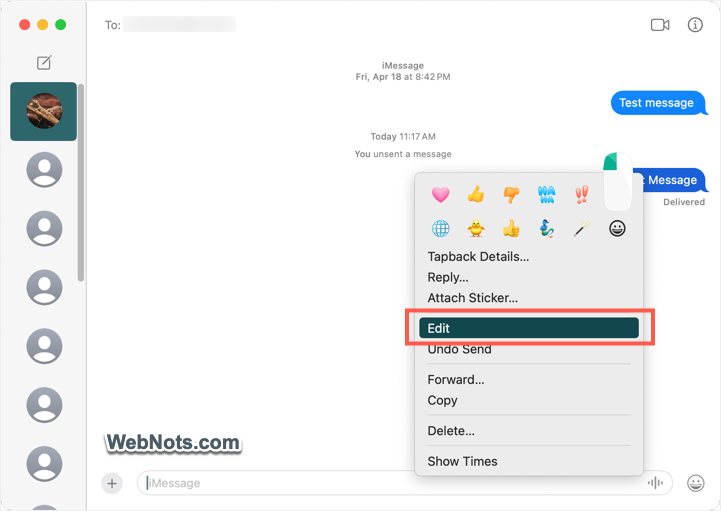
- Control-click (or right-click) the message bubble.
- Choose “Edit” from the menu.
- Modify your message in the text field that appears.
- Press enter key to submit your changes.
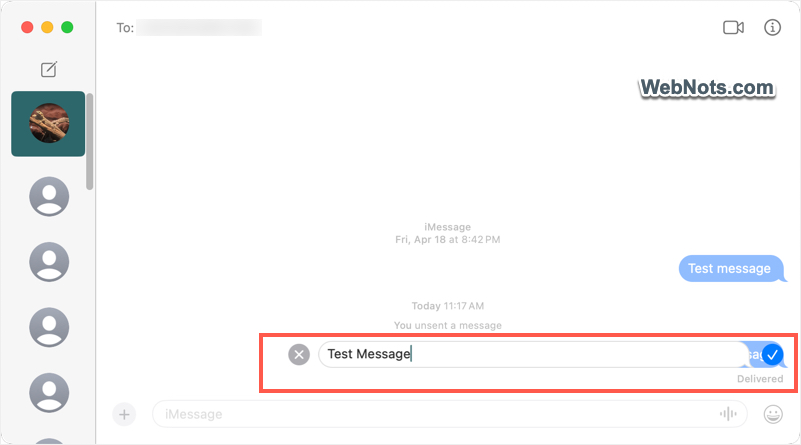
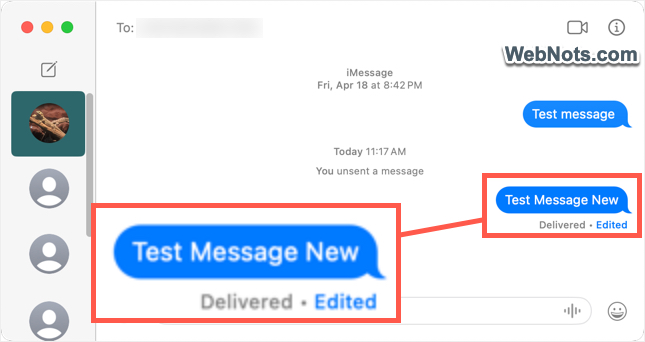
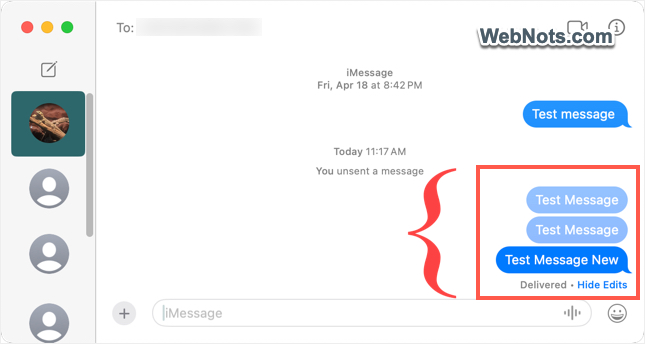
You will see a “Edited” link below the sent message and tap on that to preview the list of all edits.
Limitations of Editing
- You can only edit messages within fifteen minutes of sending them.
- Each message can be edited up to five times. After that, the “Edit” option will be unavailable.
- Recipients with older software versions will receive the edited message as a follow-up message, showing both the original and edited text.
- This feature is exclusive to iMessages and won’t work for SMS/MMS.
How Edits and Unsend Appear to Recipients?
On compatible devices, the message will be updated or removed seamlessly.
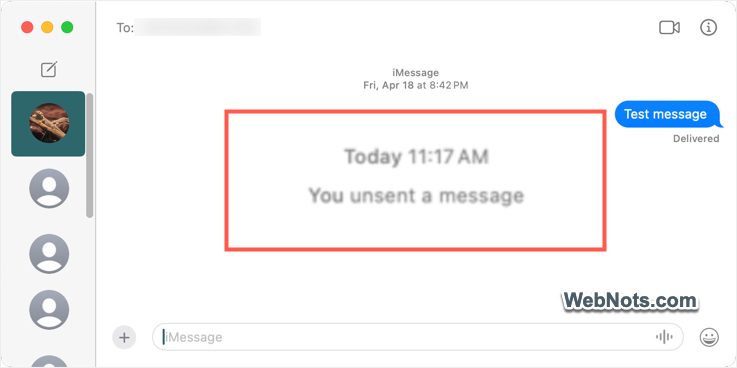
- Unsend: Recipients see an indicator in Messages app that a message was unsent.
- Edit: The latest edited message will show with “Edited” link below that (similar to sender’s device). Tap on the “Edited” will list all the corrected messages.
On older devices, a notification may appear, or the original message may persist.
Frequently Asked Questions
No. These features only work for iMessages sent between Apple devices. SMS/MMS messages to non-Apple devices cannot be unsent or edited.
After two minutes (unsend) or fifteen minutes (edit), your message cannot be changed. You may need to clarify with a follow-up message.
Yes. Edited messages will show as updated in group chats, and all participants will see the edit history if they have compatible devices.
The recipient sees an indicator that a message has been edited or removed, depending on their device’s software version.