Even when your iPhone is locked, you can access the camera easily from Lock Screen. Though it’s useful for quicker access, it will be annoying if you accidentally open the camera app. Good thing? You can completely disable the camera app’s access from Lock Screen and here is how you can do that.
Access Camera from Lock Screen
There are three ways to access the camera from Lock Screen on latest iPhone models:
- Using the camera widget icon (from iOS 7).
- Simply swiping screen to the left (from iOS 10).
- By pressing Camera Control button on the side (from iPhone 16).
First, make sure to update your iPhone to the latest iOS and follow the below steps to disable all three options.
1. Remove Camera Icon on Lock Screen
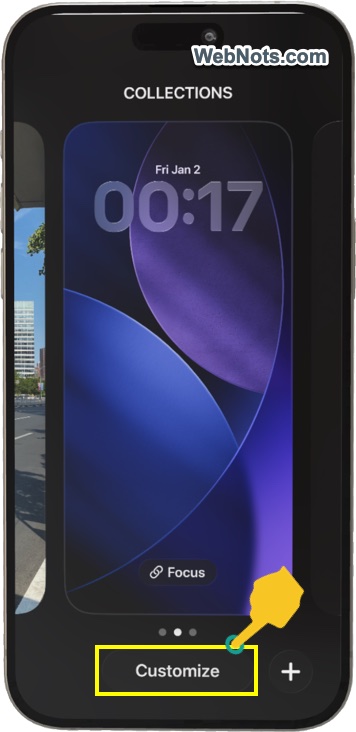
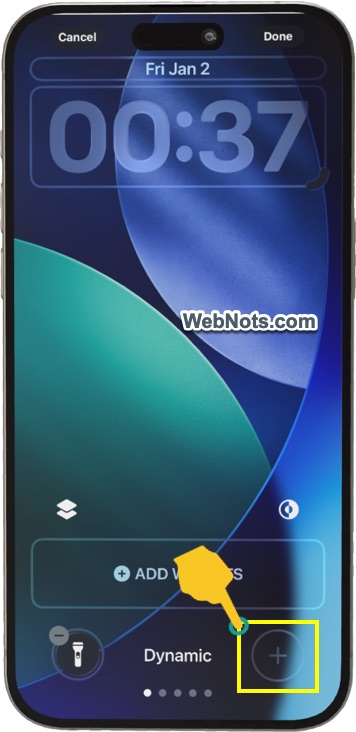
- Long press on the Lock Screen and select “Customize” button.
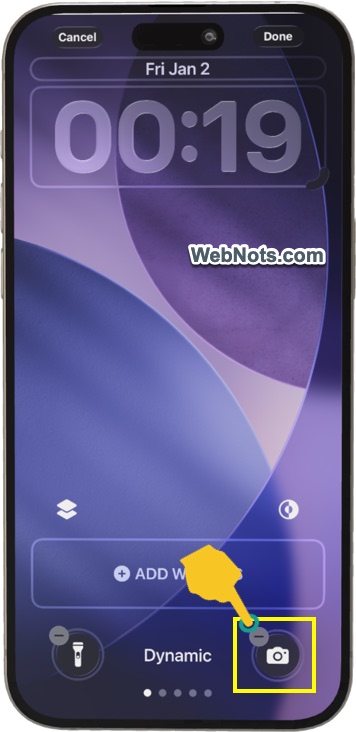
- Now, tap the minus icon on the camera icon to remove it.
- If want to add an icon, tap on the ⨁ icon and select an item from the list. you can add Home, Translate, Calculator, or any other widget from the list.
2. Disable Left Swipe Gesture on Lock Screen
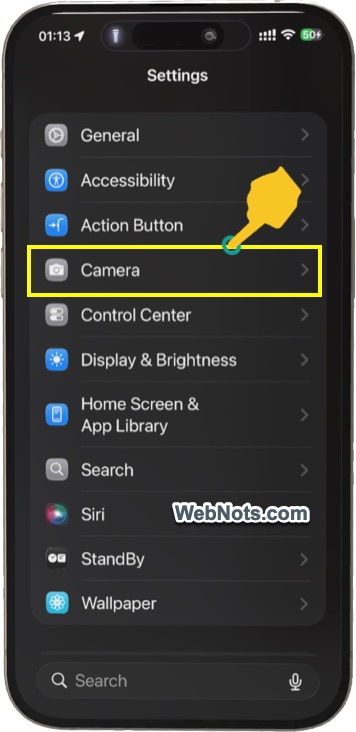
- Open Settings app and tap on “Camera”.
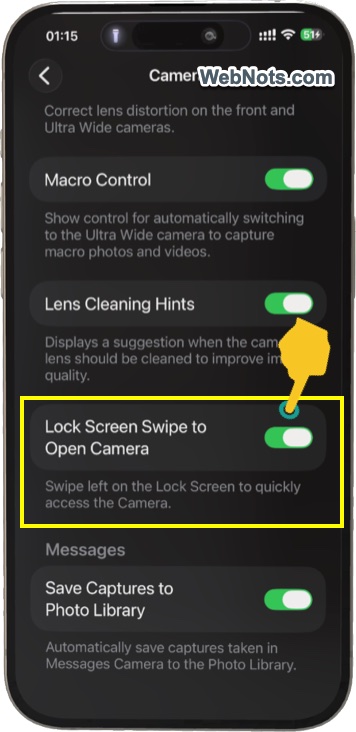
- Scroll down to the bottom and turn off “Lock Screen Swipe to Open Camera” option.
3. Disable Camera Control Button
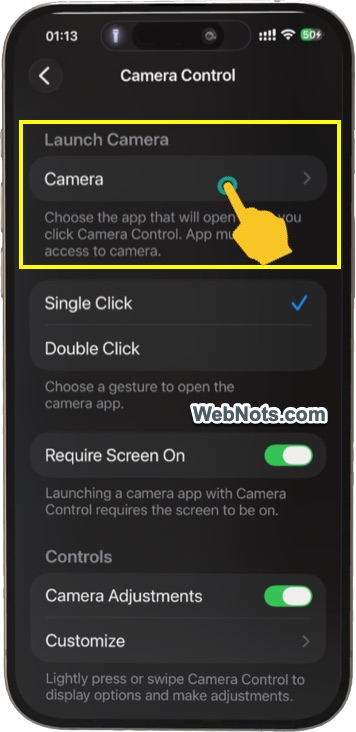
- Open Settings app and go to “Camera” section.
- Tap on “Camera Control” option under “System Settings” heading.
- By default, “Camera” app is selected for “Launch Camera” option.
- Tap on “Camera” and select “None” to disable the button action.
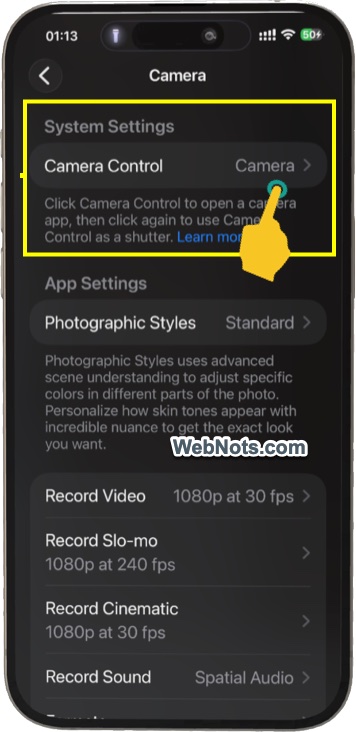
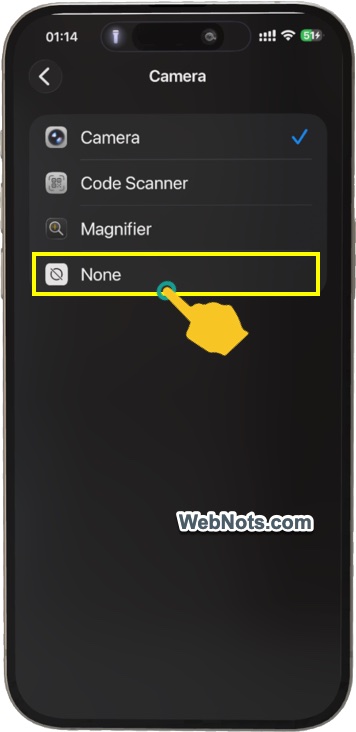
Instead of selecting “None”, you can also choose “Code Scanner” or “Magnifier” to change the function of Camera Control button.
Final Words
The problem with the camera access on Lock Screen is not just an accidental access. If someone accessed your camera, they could simply tap on the last picture preview showing on bottom left corner and then start viewing your entire Photo Library. This will be a privacy nightmare if you have private pictures in Photos app. So, by disabling the camera access from Lock Screen, both Camera and Photos apps can only be accessed after the device is unlocked, providing better protection for your private content.