Windows 11 comes with an enhanced clipboard experience that includes clipboard history. This feature allows users to copy and store multiple items (text, images, links, etc.) and access them with the “Windows key + V” shortcut. While convenient, clipboard history may sometimes contain sensitive or unnecessary information, making it important to know how to delete it. In this article, we’ll explore various ways to delete clipboard history in Windows 11 – whether you’re looking to clear a single item, wipe everything, or disable the feature altogether.
Clipboard History
Whenever you press “Control + C” keys or use Copy menu, Windows will start accumulating the copied content into clipboard. Last 25 items are kept in the clipboard and you can insert any of the item from history panel. It will also sync across all your devices when logged in with the same Microsoft account. As mentioned, this could create privacy problems like accidentally exposing a previously copied private picture into your clipboard.
Windows will automatically delete all items from the clipboard when you logout of the account or restart the system. If you don’t want to logout or restart, then follow one of the below suggestions.
1. Clear Individual Clipboard Items
If you only want to remove specific items from your clipboard history:
- Press “Windows key + V” to open the Clipboard History panel.
- Scroll through the list and find the item you want to remove.
- Click the three-dot menu (•••) next to the item and select “Delete”.
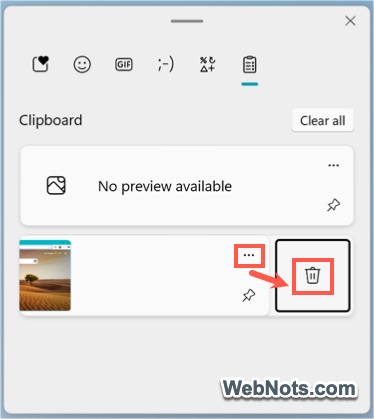
This deletes just that individual item while leaving the rest of your clipboard history intact.
2. Clear All Clipboard History via Settings
To remove all items from clipboard history at once:
- Press “Windows key + I” to open Settings app.
- Go to “System > Clipboard” section.
- Scroll down and click on the “Clear” button next to “Clear clipboard data”.
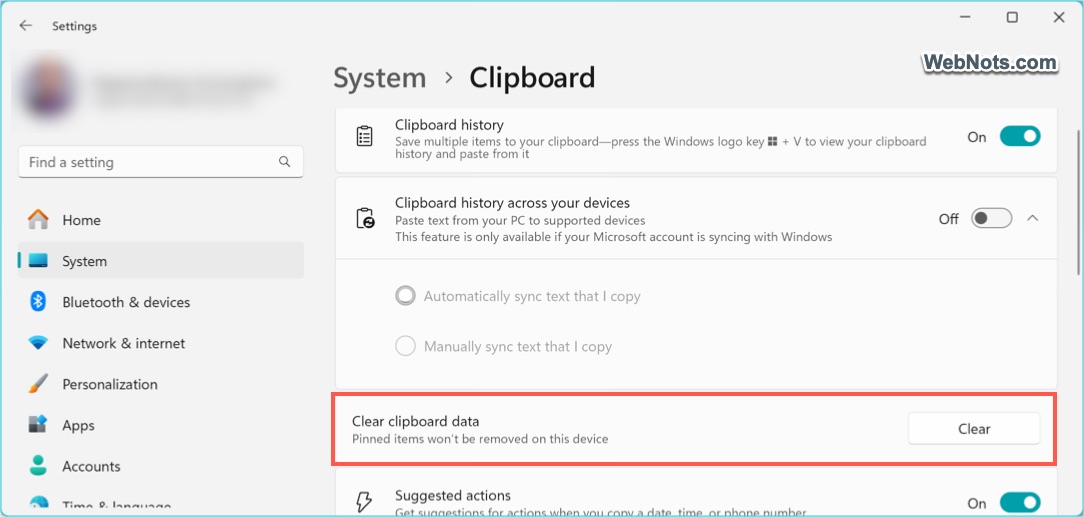
Note: This removes all clipboard history except pinned items. You’ll need to unpin them first if you want a completely clean slate.
3. Clear Clipboard History from the Clipboard Panel
Another quick method to delete all items from the clipboard is using the Clipboard panel:
- Press “Windows key + V”.
- Near to the upper-right corner, click “Clear all” button.
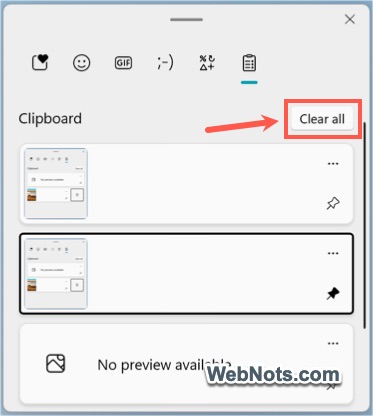
As with the Settings method, pinned items will not be removed unless unpinned manually.
4. Toggle Clipboard History from Settings
It also works that Windows will automatically delete all clipboard items if you simply turn it off and then turn it on.
- Press “Windows key + I” to open Settings app.
- Navigate to “System > Clipboard” section.
- Turn off the switch against “Clipboard history” option.
- Turn it on again and then press “Windows key + V”.

5. Disable Clipboard History Entirely
If privacy is a major concern and you want to prevent Windows from saving multiple clipboard entries:
- Open Settings and go to “System > Clipboard” section.
- Turn “Clipboard history” option to “Off”.
This disables the clipboard history feature completely. Only the most recent item will be saved.
6. Using Group Policy (for Advanced Users or Admins)
If you’re managing multiple systems (like in an enterprise environment), you can disable clipboard history using Local Group Policy Editor:
- Press “Windows key + R”, type gpedit.msc, and press enter.
- Navigate to Computer Configuration > Administrative Templates > System > OS Policies section.
- Find “Allow Clipboard History” and double-click on it.

- Set it to “Disabled”.

- This prevents users from turning the clipboard history feature in Settings app. The feature will be greyed out and there will be a notification showing “Some of these settings are managed by your organization”.

7. Use Third-Party Tools (Optional)
Some clipboard manager tools offer enhanced control over your clipboard data, including easier bulk deletion, auto-expiry, and encryption. Examples include Ditto Clipboard Manager, Clipboard Magic and ClipClip.

These can be useful if you want more control than what Windows provides natively.
Final Thoughts
Clipboard history is a useful feature for multitasking, but it’s important to manage it carefully to protect your privacy and stay organized. Whether you want to clear a single item or shut down the feature completely, Windows 11 provides several ways to do it.