There are various programs available to use Google’s advertising networks and allow publishers to monetize their online content. However, Google AdSense is the starting point and reliable option for beginner level bloggers and site owners. Compared to other advertising programs, AdSense offers large number of custom reports for monitoring and optimizing your revenue. Using custom channels in AdSense reporting is one of the easy ways to track the performance of an individual or group of ads in your account. In this article, we will explain how to create a custom channel and use it in reporting.
Using Custom Channels in AdSense Account
Earlier days, AdSense interface was offering an option to assign a custom channel when creating a new ad unit as shown below. However, this option was removed and now you need to use custom channels in reporting section. So, it is not necessary to use them unless you have a need. For example, if you have two ad units placed on top and bottom of the page, it is easy to get the performance report of each individual ad with default reports. But if you want to check the performance of two ads together in a single report, then create a custom channel and assign both ad units to this channel.

Other scenario could be using ads on multiple sites. When you have two different ads on two different sites, then channel will help to track the performance of those two ads together in a single report.
Create a Custom Channel in AdSense Account
Now that you have got an overall idea of what custom channels are, the next step is to create a one in your account.
- Login to your AdSense account and navigate to “Reports” section.
- Click the gear Settings icon showing on top right corner (just below your profile icon).
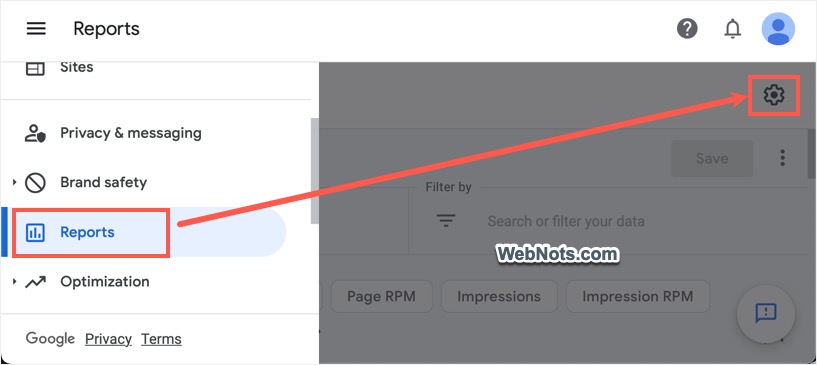
- Select “Manage custom channels” option from the menu items that appear.

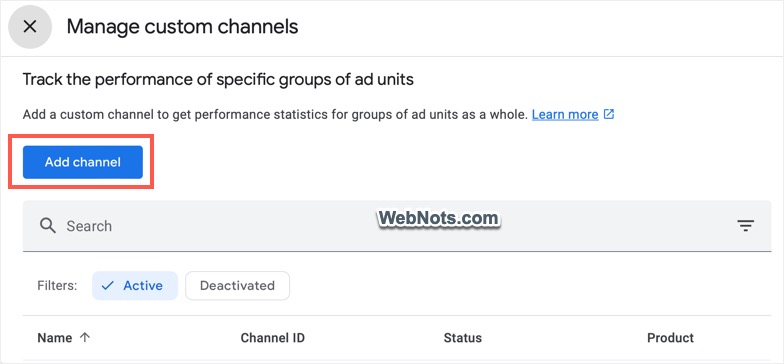
- On the next screen, click on the “Add channel” button.
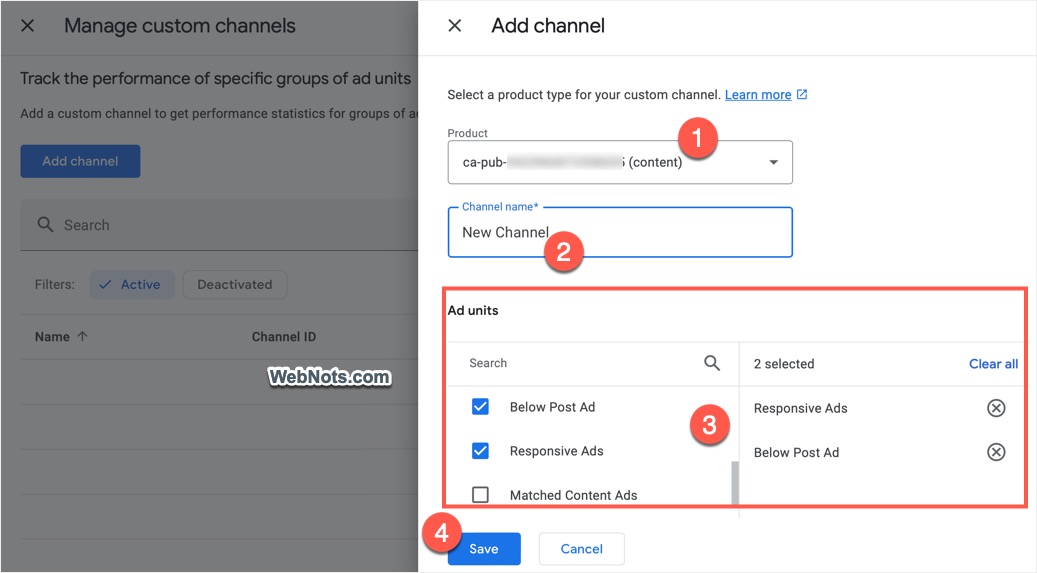
- Select the “Product” from the dropdown list as content or search or any other options applicable for your account and type the name for your channel.
- Use the search box under “Ad units” column to find and select the required units.
- Selected units will be automatically added to the right column and click the “Save” button.
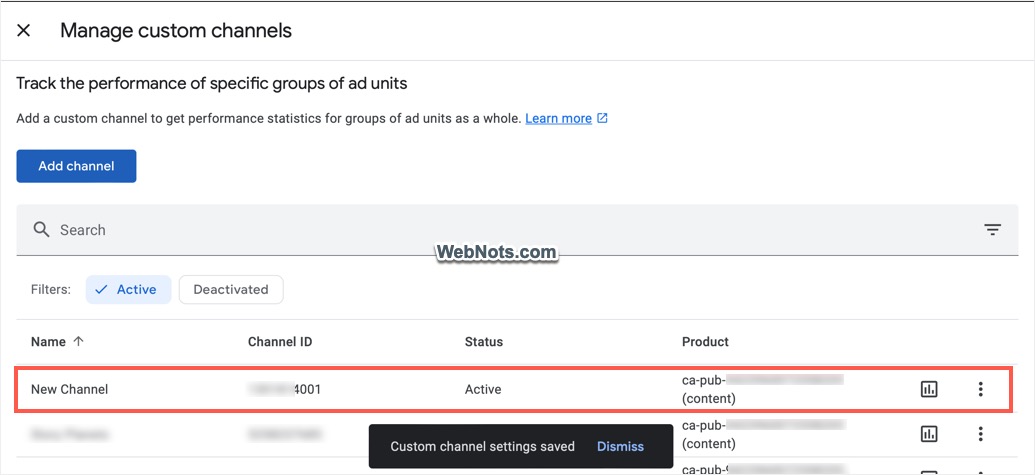
- You will see a notification showing “Custom channel settings saved” and the channel name will appear in the list of channels.
Edit or Delete Channels
When you want to edit or delete a channel, go to “Manage custom channels” section. Click the three vertical dots showing against the name of your channel. Select “Edit”, “Remove” or “Deactivate” as per your need.

Creating a New Report for a Custom Channel
- When you are in AdSense account, go to “Reports” section and click the gear Settings icon.
- Select “Manage custom channels” option and view all existing channels.
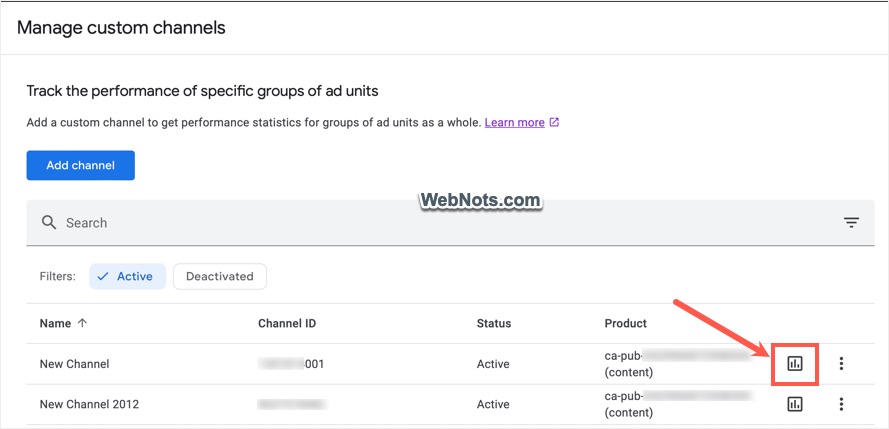
- Click the “See Report” icon showing against the name of the channel.
- This will open a reporting screen where you can see the estimated earnings and customize the parameters.
- Click “Save” button to save your customized changes for that report.
Viewing Default Custom Channels Report
AdSense also offers a default report to view estimated earnings from all your custom channels.
- When you are in AdSense account, go to “Reports” section.
- Scroll the list of existing reports down to find and click on “Custom channels” report.
- This report will show the estimated revenue generated by all your existing custom channels.

You can also customize this report and change the parameters as per your need.
Using Custom Channel ID with Ad Unit
There is also another possibility if you are convenient in editing AdSense ad unit code. After creating a channel, you can find a 10-digits ID under “Channel ID” column and copy that ID. Use that ID, in your ad unit code as shown below to track the performance of that ad unit under that channel.
<script async src="https://pagead2.googlesyndication.com/pagead/js/adsbygoogle.js?client=ca-pub-1234"
     crossorigin="anonymous"></script>
<!-- Fixed Header -->
<ins class="adsbygoogle"
     style="display:block"
     data-ad-client="ca-pub-1234"
     data-ad-slot="1234"
     data-ad-format="auto"
     data-ad-channel="1234567890"
     data-full-width-responsive="true"></ins>
<script>
     (adsbygoogle = window.adsbygoogle || []).push({});
</script>
Important Note: Recently Google sent an email to all AdSense publishers that custom channel reporting can be used for AdSense for Search and AdSense for Domains only when you have minimum of 100 clicks per day. However, this change was withheld and not implemented as of now.