Have you ever wondered how much of your hard disk capacity is actually available as a free storage? Many of us overlook the space occupied by the Windows OS as it comes preinstalled on a new machine or automatically updated existing setup. However, it’s important to know how much space it takes up – both before and after installation. Whether you’re setting up a new machine, upgrading, or just trying to free up storage, checking the OS size helps to plan your disk usage and avoid running into performance issues.
Why Check the Size of Windows OS?
Here are some of the reasons knowing the Windows OS size help:
- Avoid Running Out of Space: Windows needs sufficient space to run program and apps smoothly. If your disk is too full, updates may fail, and performance will tank (especially when playing HD games or working with graphics apps that need dynamic storage allocation).
- Plan for Installations: When installing from a USB or ISO, you need to know if your device has enough storage.
- Clean Up Smartly: Knowing how much space the OS uses helps identify what’s essential and what can be removed.
- Manage Partitioning: Useful when setting up dual-boot systems or resizing partitions.
Now, let’s break down how to check both the size of the new OS files and the size of an already-installed Windows OS.
1. Check Installed Windows OS Size
First, let’s check the size of your current Windows OS installation as you might be using it for longer time or it came preinstalled with the purchase. Note that once Windows is installed, the actual space it uses grows – thanks to updates, drivers, and built-in apps.
1.1. Using Windows Storage Settings
- Press “Windows Logo + I” keys to open Settings app.
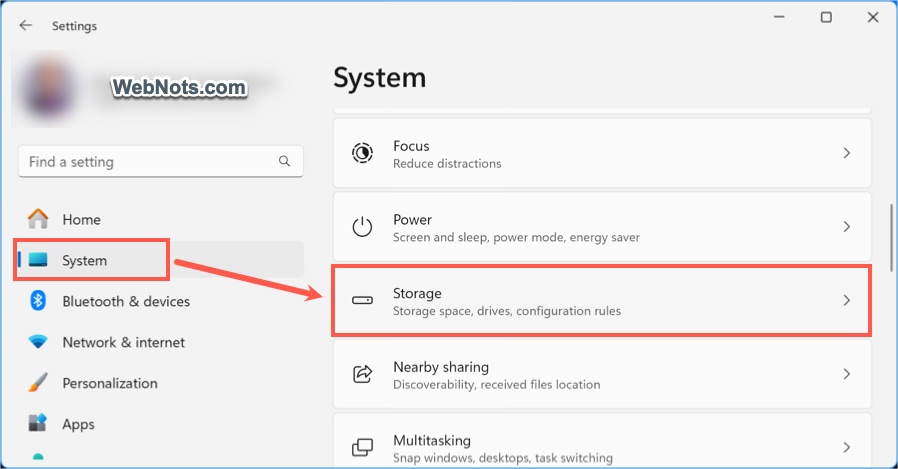
- Go to “System” section and select “Storage” option.
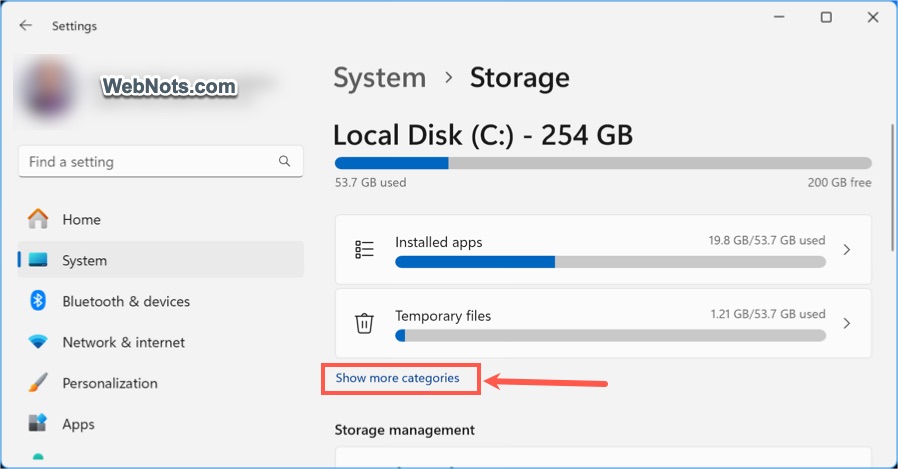
- If you’ve multiple drives, select “Local Disk (C:)” and click on “Show more categories” link.
- Look for “System & reserved” item and its size — this section includes the core Windows OS files.
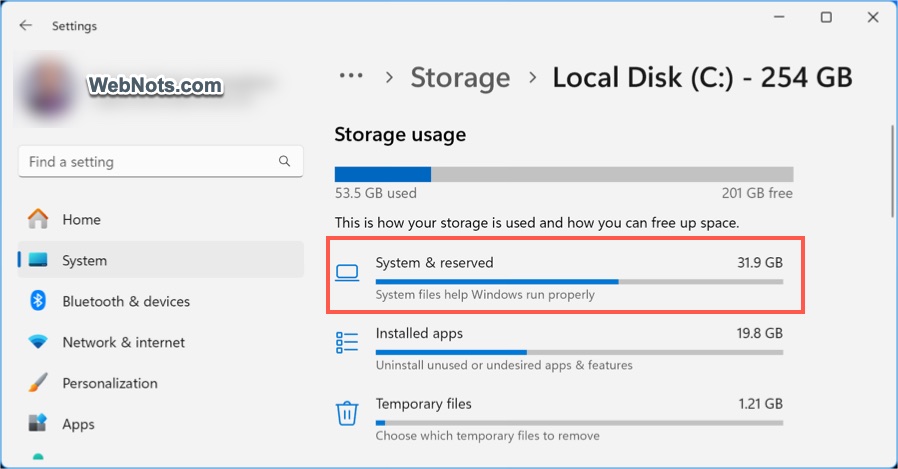
- Click on the “System & reserved” item to view the individual storage size for System files, Reserved storage, Virtual memory, and Hibernation file.
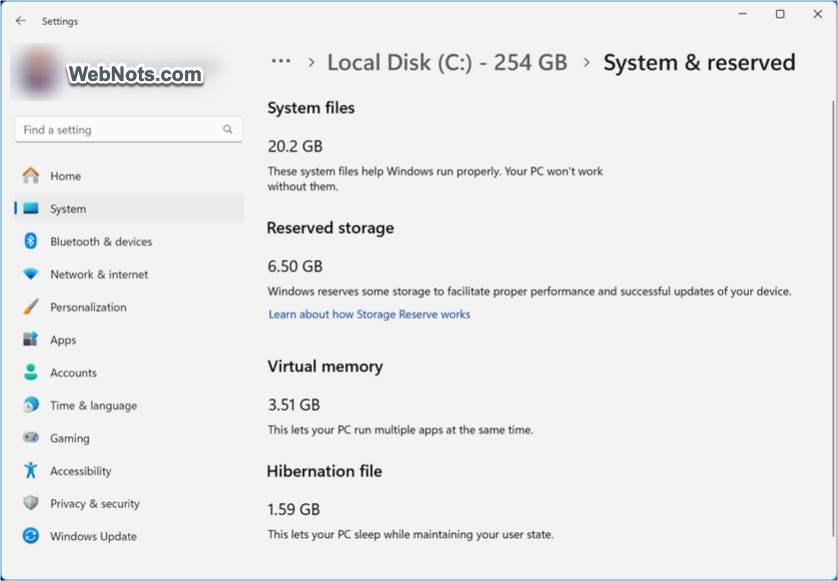
As you can see in the screenshot, here is an allocation:
- Total storage of C: drive – 234 GB
- System files – 20.2 GB (mandatory files for Windows to work properly).
- Reserved storage – 6.5 GB (automatically reserved for Windows updates and proper performance).
- Virtual memory – 3.51 GB (allows multiple apps to run simultaneously).
- Hibernation file – 1.59 GB (to keep the system activities while PC is on sleep mode).
So, totally ~31.9 GB is consumed out of 254 GB which is ~12.6% of the drive’s space. In addition, there will be around 10% of drive’s space is allocated for Recycle Bin.
1.2. Using File Explorer
This method will not show details as explained above but helps to get a quick estimation of Windows OS files.
- Open File Explorer and go to “This PC > Local Disk (C:)”.
- Find “Windows” folder, right-click on it, and select “Properties”.
- Check the “Size on disk” to find the overall estimated size of installed OS.
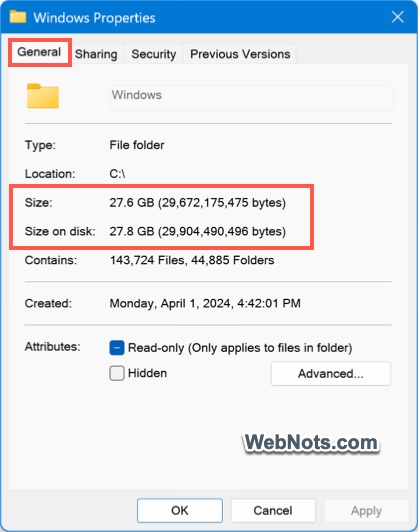
As you can see, this is 27.8 GB which is similar size (system + reserved + hibernation) as found in Windows Storage Settings.
Note: Use Disk Cleanup or Storage Sense (found in Settings > System > Storage) to clear temporary files, old Windows updates, and system junk if space is tight.
2. Check the New Windows OS File Size (ISO or Installation Media)
This is the size of the Windows installation files – usually downloaded as an .ISO file or created via the Media Creation Tool.
2.1. If You Have a Windows ISO File
- Locate the .iso file on your drive.
- Right-click on it and select “Properties”.
- Look at the “Size” or “Size on disk” field.
2.2. If You Have a USB Installation Drive
- Plug in the USB drive.
- In File Explorer, right-click the USB drive and select “Properties”.
- Check the “Used Space” – that’s the size of the installation media.
Microsoft recommends 8 GB empty USB for creating the Windows installation file.
Typical Windows OS Size
Here is a typical size of Windows OS:
| Version | Installed Size | ISO Size (64-bit) |
|---|---|---|
| Windows 10 | 15–25 GB | ~4.5 GB |
| Windows 11 | 20–30 GB | ~5.2 GB |
As you can see, ~5GB of ISO installation file needs ~30 GB size after installation.
Final Thoughts
In summary, you need almost 25% of the C: space for Windows installation, Recycle Bin, etc. Understanding the space Windows uses – before and after installation – help you avoid problems when upgrading and managing disk partitions. It also helps in deciding your storage needs before purchasing a PC. A little prep now can save you a lot of hassle later.