
Motherboard is the heart of your computer facilitating communication between components like processor, RAM, hard disk, etc. There are also ports in motherboard for connecting external hardware like USB, Ethernet and audio ports. connections. So, you may need to check the PC’s motherboard details in many troubleshooting situations for finding the appropriate solution. It is also a possible scenario that you are looking for the model to upgrade your PC. Whatsoever is the reason, here is how to check your motherboard model, manufacturer and version number in your PC.
1. Use System Information App
System Information is an in-built app in Windows operating system which you can use to find motherboard and other device details.
- Type “system info” in Windows Search box and open System Information app.
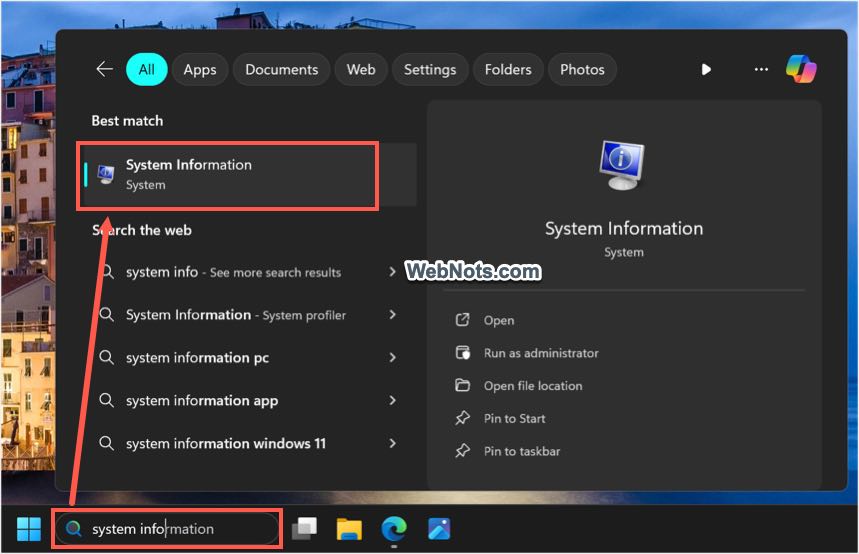
- In “System Information” app, go to “System Summary” section.
- Scroll down on the right-pane and find BaseBoard Manufacturer, BaseBoard Product and BaseBoard Version details.

BaseBoard is the motherboard in your PC. You can also type “baseboard” in “Find what:” search box and press “Find” button to go to the items quickly.
2. Find Motherboard Details with Terminal App
Next option is to use the Command Prompt or PowerShell in Windows Terminal app.
- Right-click on the Start button and open “Terminal (Admin)” option.

- Terminal will show a Command Prompt or PowerShell tab depending upon your profile settings.
- Type the following command in Command Prompt and press enter.
wmic baseboard get
- You will get the complete motherboard specifications with the above command. It is also possible to get only the required parameters by adding it at the end of your command like below to get serial number, product name, manufacturer name and version.
wmic baseboard get serialnumber,product,manufacturer,version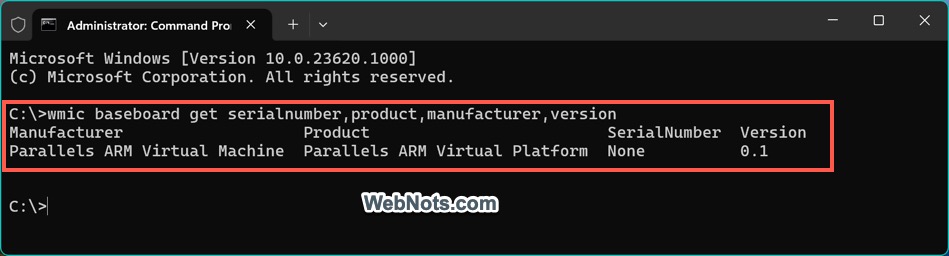
- If you are using Windows PowerShell, you can still use the same above commands. Since wmic is deprecated, it may not be available in future. In that case, you can use the following command in PowerShell and press enter.
Get-WmiObject Win32_BaseBoard serialnumber,product,manufacturer,version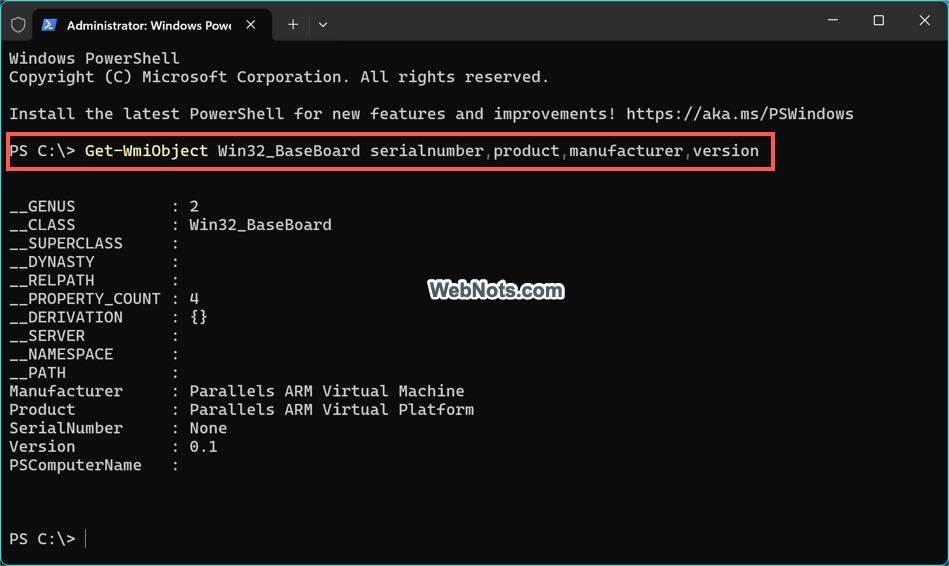
Note: When you are in Terminal app, press “Control + Shift + 1” to open a Command Prompt tab and press “Control + Shift + 2” to open a PowerShell tab. Check the complete list of keyboard shortcuts for Windows Terminal app.
3. Using Third-Party Apps
Though the above methods are easy, they only show details like manufacturer, version, serial number and product name. There are apps like HWiNFO to find the comprehensive information about your motherboard and monitor the performance. This is a free app for non-commercial purpose, so you can use it to find hardware details on your computer.
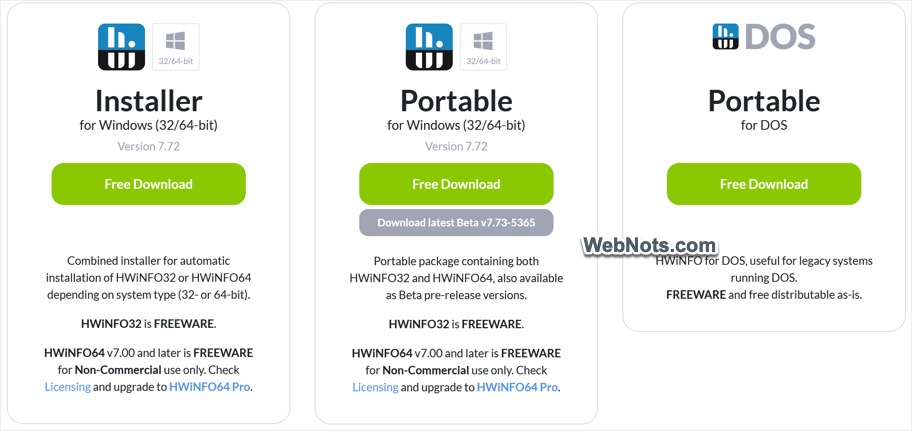
- Go to HWiNFO website and download the Installer or Portable version of the app.
- After installing, open the app to find the complete hardware details are showing for CPU, GPU, memory, etc.
- Check the “Motherboard” section to find the required details.

Other Options to Check Motherboard Details in PC
Below are some of the additional options you can try:
- From BIOS/UEFI Settings – Access your BIOS/UEFI settings when booting the PC (normally by pressing F2 or Delete key) and check the hardware information section.
- Check Manufacturer’s Documentation – If you have purchased a new PC, this will be the easy option to check details from the manual or documentation supplied from the manufacturer or retailer.
- Physically Checking Motherboard – If you are skilled enough, open your PC case and check the model number printed on the motherboard itself. Use this number to search online and find other relevant details that you need.

Note: Opening PC case is easy when you have large desktop with separate CPU box. Otherwise, it is not recommended on compact laptops which are generally machine packed and hard to open the case.


