Let’s be honest: most of us don’t think twice before hitting “Get” on an app (it install an app). We see something fun or useful, we download it, and we move on. But behind that cheerful icon, a lot of apps are quietly collecting data, sometimes because they need to, and sometimes just because they can. If you’ve ever wondered what’s really going on under the hood, here’s how to check what apps are collecting, what the different types of data mean, and why it’s worth a few minutes of your time.
Start Before You Download: App Store “Privacy Labels”
Think of these like nutrition labels, but for your data. Before you even install an app, you can see exactly what it plans to collect.
- Open the App Store and search for the app you want to install.
- Scroll down to the “App Privacy” section and tap the arrow next to that heading.
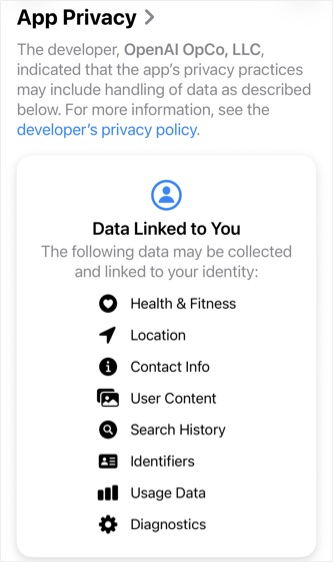
You’ll see a clean breakdown of what the developer says they collect. It’s not always comforting, but it’s informative. Apple groups this info into few main buckets:
- Data Used to Track You – This is data that follows you around the internet. It’s used to serve targeted ads or shared with data brokers. Examples include Device ID, Advertising ID, your email (if it’s used across apps), or location data for ad targeting. If an app tracks you, it’s usually because your behavior is valuable to advertisers.
- Data Linked to You – This is information that can be tied directly back to your identity. Examples include your name, email, phone number, home address, purchase history, photos, or precise location. This kind of data is often used to personalize your experience but it also creates a pretty detailed profile of who you are.
- Data Not Linked to You – This is collected in a way that doesn’t identify you personally. Examples include crash logs, anonymous usage stats, or diagnostic info. It’s generally lower risk, but still worth being aware of.
Check Who’s Asking to Track You
Even if an app wants to track you, iOS gives you the power to say no. Go to “Settings > Privacy & Security > Tracking” page. Here you’ll see a list of apps that have asked for permission to track you across other apps and websites. You can deny tracking for individual apps or flip the master switch to “Allow Apps to Request to Track” off entirely. If you’re not into personalized ads or being followed around the web, turning this off is an easy win.
Review App Permissions (Location, Camera, Mic, etc.)
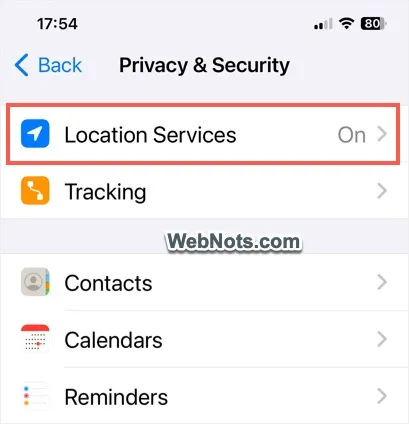
Apps also collect data by asking for access to parts of your phone. Go to “Settings > Privacy & Security” page to see who has access to what. You’ll see a list of categories like Location Services, Camera, Microphone, Photos, Contacts, Bluetooth, and Health.
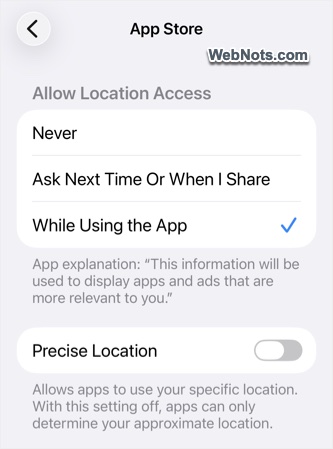
Tap any category to see which apps have permission. Ask yourself: Does this app really need this? A weather app might need your location. A flashlight app? Probably not. For location, you can choose one of these options: Never, Ask Next Time, While Using the App, or Always. In most cases, “While Using the App” is more than enough.
Go Deeper with App Privacy Reports
Check back after a few days and you’ll see:
- How often apps access your location, camera, microphone, and more.
- Which third-party domains apps are contacting in the background.
Want to know what apps are actually doing not just what they claim? Your iPhone can show you. Go to “Settings > Privacy & Security > App Privacy Report” section and turn it on.

It’s like a behind-the-scenes look at your apps’ behavior. And sometimes, it’s genuinely surprising.
What Kind of Data Do Apps Actually Collect?
Here’s a quick rundown of the most common types along with the level of privacy risk involved:
| Data Type | Examples of Data Collected | Why Apps Collect It | Privacy Risk Level |
|---|---|---|---|
| Contact Info | Name, email, phone number, address | Used for accounts, login verification, and marketing communications. | Medium |
| Location Data | GPS location, travel patterns, approximate location | Enables navigation, weather updates, ride-sharing, and location-based services. | High |
| Identifiers | Device ID, Advertising ID, user ID | Helps apps track usage across platforms for analytics and targeted advertising. | Medium – High |
| Usage Data | Time spent in app, buttons tapped, searches performed | Used to improve app performance, personalize content, and understand user behavior. | Low – Medium |
| Purchases | Purchase history, subscriptions, payment information | Required for processing transactions and managing subscriptions. | Medium – High |
| Sensitive Info | Health records, photos, messages, contact lists | Needed for certain app features, but highly personal and should only be shared with trusted apps. | Very High |
Why Should You Care?
Not all data collection is bad. In fact, some of it helps apps work better. But problems start when your data is shared with third parties you don’t know, sold to advertisers, ends up in a data breach, and an app accesses stuff it has no business touching.
- Targeted Advertising – When apps track you, they build a profile: where you go, what you buy, what time you’re active. That profile is used to sell you things. Over time, it becomes a surprisingly detailed picture of your life.
- Data Breaches – Big companies get hacked. Small ones do too. The more apps that have your info, the more places it can leak from.
- Identity Theft & Scams – Even small bits of data can be used in phishing attacks, account takeovers, or social engineering scams. It adds up faster than you’d think.
- Loss of Privacy – Location data alone can reveal where you live, where you work, and where you go on weekends. That’s not something you want floating around.
A Few Simple Habits to Protect Yourself
- Only download apps you actually use.
- Check the “App Privacy” label before installing.
- Deny tracking unless there’s a good reason.
- Set location access to “While Using the App”.
- Review permissions every now and then.
- Delete apps you no longer need.
Final Thoughts
Privacy isn’t about being paranoid. It’s about being aware. Most apps aren’t out to get you. But many of them ask for more than they need and it’s up to you to decide what to share. The great thing? Your iPhone already has the tools to help you stay in control. You just have to take a few minutes to use them.