Perfmatters is one of the best performance optimization plugins available for WordPress sites. You can remove the bloating code and improve the page loading speed with few clicks. However, features like removing unused CSS can break your layout and need lot of testing. It will be a hassle to deactivate the plugin every time when you do the testing. The solution is to bypass Perfmatters plugin without deactivating it so that you can compare the layouts with and without the plugin.
Perfmatters Features Affecting Layout
There are few features in Perfmatters plugin that may tend to break page’s layout:
- Remove unused CSS site wide.
- Delaying or deferring JavaScript.
- Disabling CSS and script files using Script Manager.
- Disabling WooCommerce widgets.
- Testing option for logged in users.
- Custom code snippets.
Follow one of the options to bypass Perfmatters plugin without deactivating it.
1. Use ?perfmattersoff String in URL
To bypass Perfmatters, simply add ?perfmattersoff at the end of any of your page URL. Let’s say, your page URL is https://yoursite.com/page/. You should use https://yoursite.com/page/?perfmattersoff URL to open the page in a browser tab.

This will skip the following Perfmatters related features so that you can check how the original layout looks.
- Remove unused CSS.
- Defer or delay JS.
- Lazy loading and preloading.
- Local Google Fonts and CDN rules.
However, the query string will NOT disable features under “General” settings like disabling emoji, removing feed, comments, etc. Unfortunately, there are no options to bypass the items under “General” settings at this point.
2. Only Bypass Remove Unused CSS
As mentioned, clearing used CSS from top menu bar or from “CSS” section of the plugin settings is a hassle. Also, larger sites will consume huge server resources for building used CSS and hence you should not delete and rebuild the used CSS frequently. Whenever you want to test, add ?perfmatterscssoff query to your page URLs to bypass remove unused CSS feature without clearing used CSS or deactivating the plugin.
3. Only Bypass Delay and Defer JavaScript
Many jQuery based themes rely on JavaScript heavily with custom scripts for supporting pop-up, sliders, portfolio filters, etc. Delaying and deferring JavaScript will mostly affect these features. Good thing is that you do not need to disable those features every time when you want to test. Simply add ?perfmattersjsoff query at the end of your URLs to bypass delay and defer JS features in Perfmatters plugin.
4. Testing Script Manager
Script Manager allows you to remove scripts and CSS files per page basis. You can also disable plugin or theme files conditionally on specific post types. It will be a tricky task to test Script Manager in live test and Perfmatters does not offer an option for that. However, what you can do is to test it as a logged admin user so that the changes will NOT affect other users visiting live site.
- Edit any post or page and click the “Script Manager” option from top “Perfmatters” menu.
- Go to “Settings” menu and turn on “Testing Mode” option.
- Click “Save Changes” button showing at the bottom.

This will deactivate all the items enabled/disabled under “Script Manager” and “Global View” sections for live users. Anyone having admin access can login to your site, open pages in a new browser tab and test Script Manager settings are working or not. After confirming everything is working fine, you can go back to “Settings” tab and disable “Testing Mode” option so that the changes will be applied on live site.
5. Testing WooCommerce Widgets
If you are using WooCommerce plugin, it will add lot of widgets under “Appearance > Widgets” section. You can use these widgets on sidebar and footer area to showcase your products. If these widgets are missing or not working properly, then Perfmatters settings could be the reason.
- Go to “Settings > Perfmatters” menu and navigate to “General” section.
- Scroll down to bottom of the page and turn off “Disable Widgets” option under “WooCommerce” section.
- Click “Save Changes” button to bring the widgets back. If you have already inserted widgets in sidebar or footer, those widgets will start showing up after saving the settings.

If you are using a caching plugin, make sure to delete the cache and also clear used CSS in Perfmatters before you retest the page.
6. Disable Perfmatters for Logged in Users
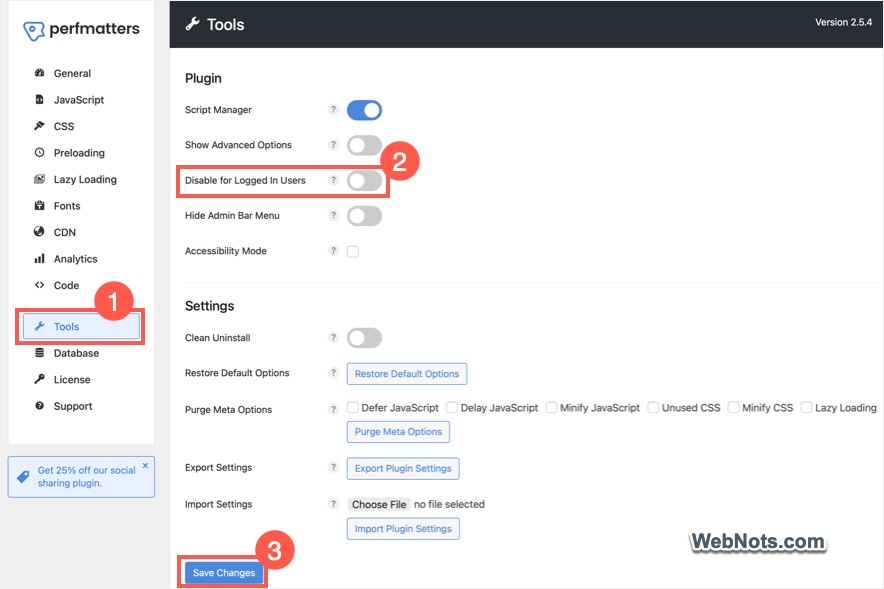
The latest plugin version has an option to disable all optimizations (except “General” settings) for logged in users. This is very useful to test the site when you are logged in to WordPress admin panel.
- Go to “Settings > Perfmatters” menu and navigate to “Tools” section.
- Find “Disable for Logged in Users” option and turn it on.
- Click “Save Changes” button to apply the setting.
7. Use Safe Mode to Deactivate Custom Code Snippets
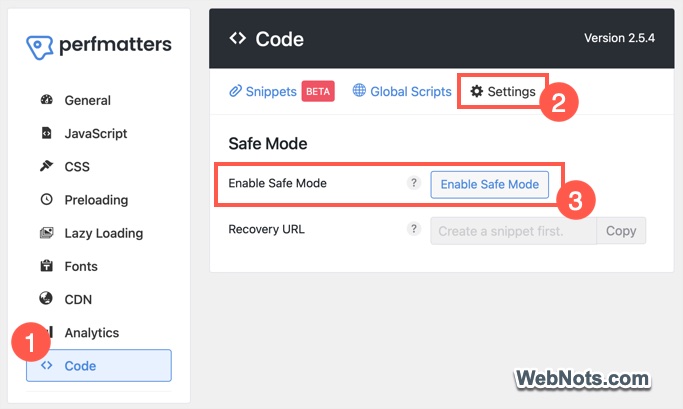
Sometimes, the custom code snippets (especially PHP scripts) can break the layout of your site. In this case, go to “Settings > Perfmatters > Code > Settings” section and click the “Enable Safe Mode” button. This will disable all code snippets (though they are showing as active under “Snippets” section) and help you to recover the broken page.