Unwanted calls from unknown or private numbers can be frustrating and disruptive. Thankfully, iPhones come equipped with built-in features that allow you to block unknown callers and maintain your peace of mind. Whether you’re trying to avoid spam calls, telemarketers, or anonymous numbers, this guide will walk you through the simple steps to block unknown callers on your iPhone.
Why Block Unknown Callers?
Blocking unknown callers can help:
- Minimize spam and robocalls.
- Protect your privacy.
- Reduce interruptions during work or personal time.
- Avoid scams and unwanted solicitations.
Apple makes it easy to filter out these calls without needing any third-party apps.
1. Block Unknown Callers Using Settings
The iPhone’s Silence Unknown Callers feature automatically silences any call from a number not saved in your contacts. Here’s how to enable it:
- Unlock your iPhone and navigate to the Settings app.
- Scroll down to the bottom and tap on “Apps”.
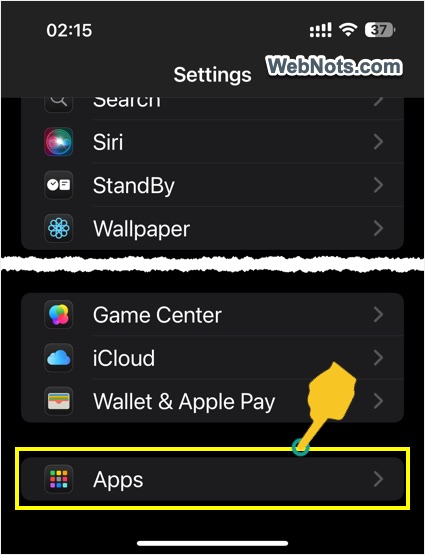
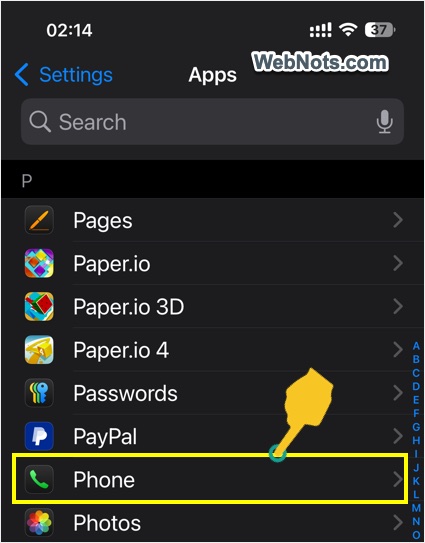
- Go to letter “P” section to find Phone app and tap on it.
- Scroll down to the bottom and tap on “Silence Unknown Callers” option.
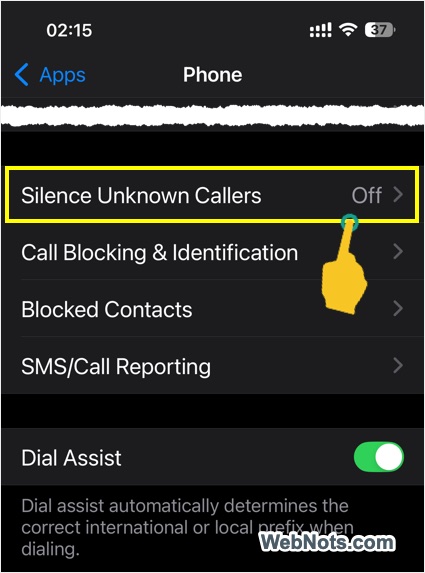
- Switch the “Silence Unknown Callers” toggle to the ON position (it will turn green).
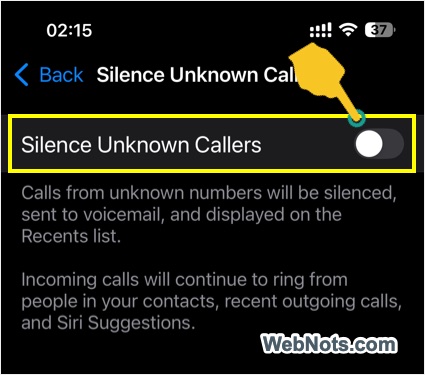
Once enabled, calls from unknown numbers will be silenced, sent to voicemail, and appear in your call log – but your phone won’t ring.
2. Using Focus Mode
Another option to block calls from unknown contacts is to use the Do Not Disturb option.
- Open Settings app and then tap on “Focus” option.
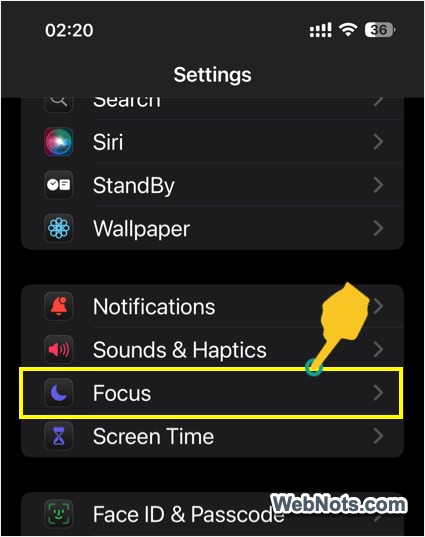
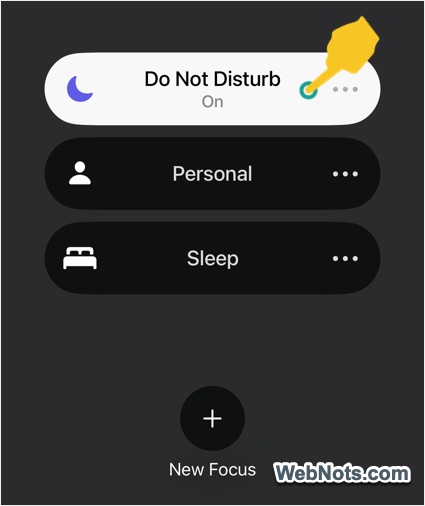
- You will find multiple modes like Do Not Disturb, Personal, Sleep, and tap on “Do Not Disturb” option.
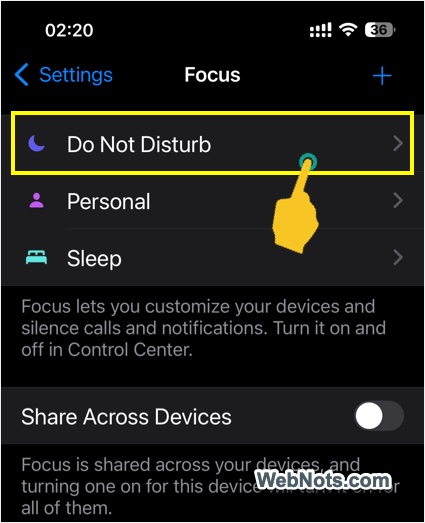
- Tap on “People” option.
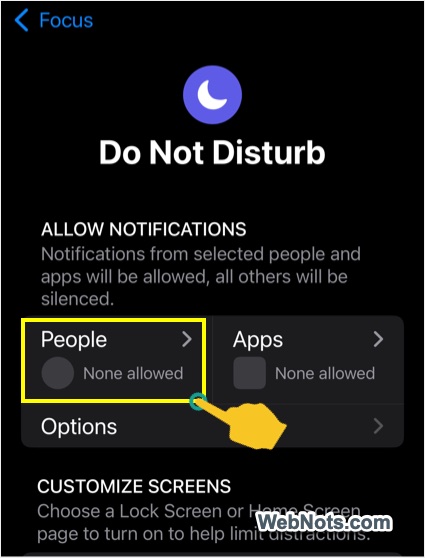
- Under “Phone Calls” heading, tap on “Allow Calls From” and select “Contact Only” option.
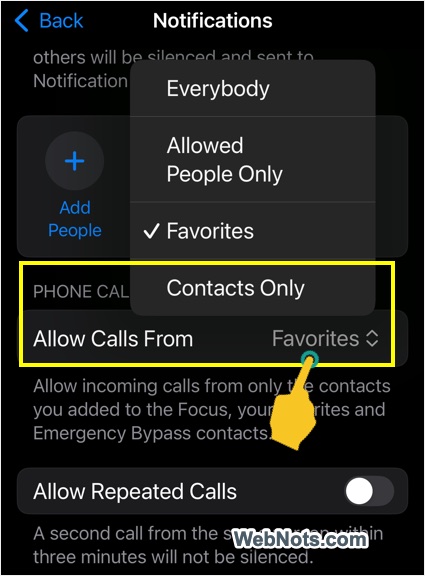
Now, all unknown calls will be silenced whenever your turn on Focus mode. You can turn on Do Not Disturb Focus mode either from Control Center or Schedule it from the same “Settings > Focus > Do Not Disturb” page.
3. Block a Specific Number
If you’re receiving calls from a particular unknown number, you can block that number directly:
- Go to the Phone app and tap “Recents” at the bottom.
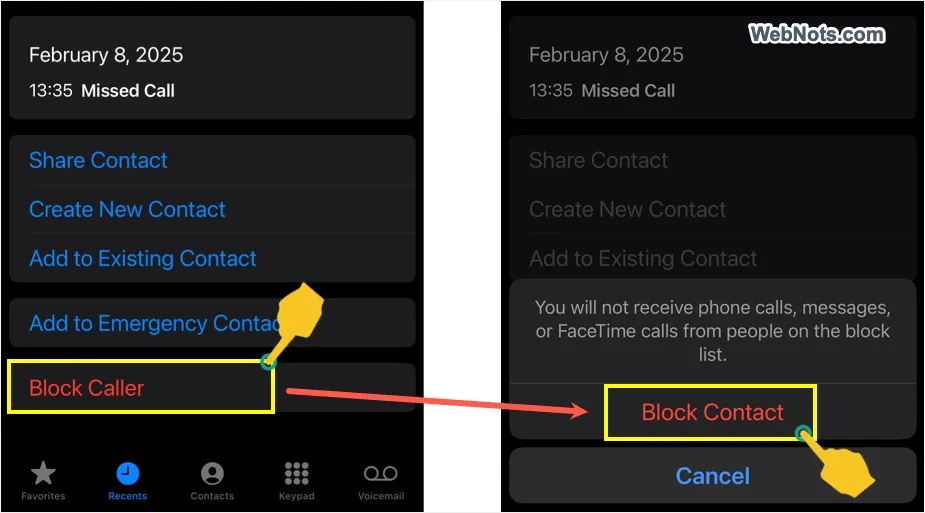
- Locate the number you want to block and tap the ⓘ icon at the right end of the number.

- Select “Block Caller” and then confirm it by pressing “Block Contact” option.
What Happens When You Silence Unknown Callers?
Silencing number is different from blocking and here is what will happen when silencing:
- Calls from numbers not in your contacts will be sent directly to voicemail. The call will still show up in your “Recents” list.
- If the caller leaves a voicemail, you’ll receive a notification.
- Known contacts, recent outgoing calls, and Siri-suggested numbers will still ring through.
If you have blocked contacts in Phone app, you will not receive phone calls, messages and FaceTime calls from them.
Final Thoughts
Blocking unknown callers on your iPhone is a simple yet effective way to take control of your incoming calls. Whether you’re avoiding telemarketers or protecting your privacy, the built-in “Silence Unknown Callers” feature offers a hassle-free solution. If you’re looking for more advanced call blocking features, third-party apps like Truecaller can help you filter spam calls with additional customization.