
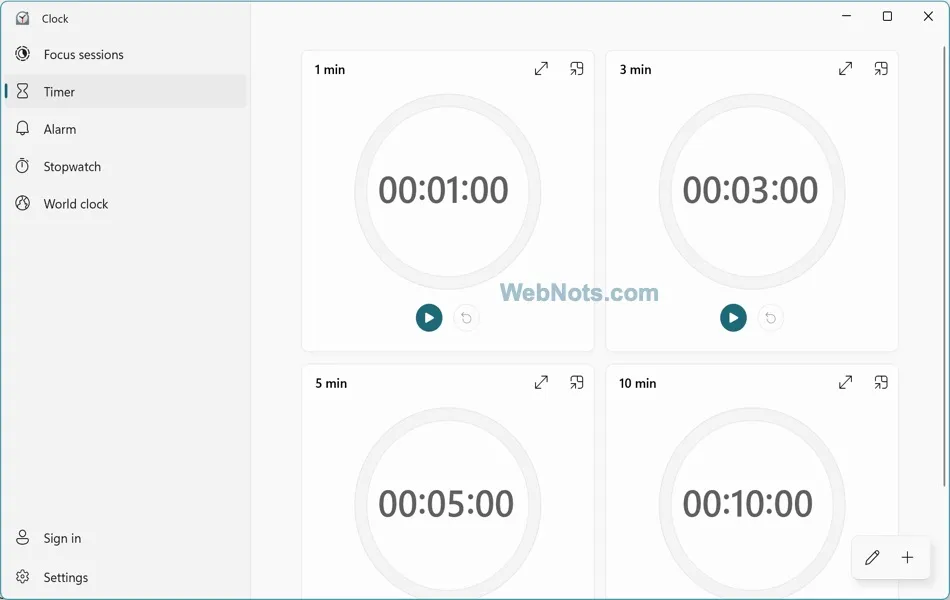
Windows 11 shows a clock on the lower bottom corner of the taskbar. You can customize the time zone, add multiple clocks and time format. However, there is also a Clock app that comes as default with Windows OS. You can use Clock app for adding multiple world clocks, setup focus sessions, timer, stopwatch and alarms. If you have lot of alarms and clocks setup in the app, here is how to backup clock app settings in Windows 11 computers.
Backup Clock App Settings
There are two good reasons to backup Clock app settings.
- You want to reinstall Windows 11 from scratch on the same machine.
- You want to move all settings to another device.
Whatsoever is the reason, follow one of the below methods to backup so that you can easily restore it again.
1. Backup Clock Settings Folder from File Explorer
Windows stores the Clock app settings as a folder and you can backup this folder’s content from File Explorer.
- First step is to make sure you properly closed the Clock app. In most cases, the app process will be running in the background even you closed the app.
- Right-click on the Start menu icon and select “Task Manager” option.
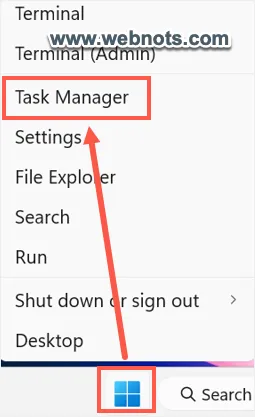
- Check Clock is showing under “Apps” and “Background processes” section. If you find, select that item and click “End task” button. This will completely terminate Clock app running in background.


- Now, press “Windows + E” keys and open File Explorer app.
- Copy and paste the following file path in the address bar. Press enter key to navigate to that location.
%LocalAppData%\Packages\Microsoft.WindowsAlarms_8wekyb3d8bbwe
- You will see a list of folders and select the “Settings” folder.

- Copy the folder and paste it in the desired location. For example, you can backup the folder in a USB or in your OneDrive account.
- When you want to restore the Clock app settings, open File Explorer and navigate to the same location.
- Open your backed up Clock “Settings” folder in another File Explorer window and copy its content. Now, paste the old copied content inside the new “Settings” folder.
- Then, select “Replace the files in the destination” option.

- This will restore old Clock app settings in the new setup.

2. Using Registry Editor
Registry Editor is the database storing all Windows configuration information and other system settings. Instead of using File Explorer, you can also backup the registry file containing clock and alarm settings and restore anytime in the future.
- First, close Clock app from Task Manager as explained above.
- Next, right-click on Start menu icon and select “Run” option from the power menu that appears.
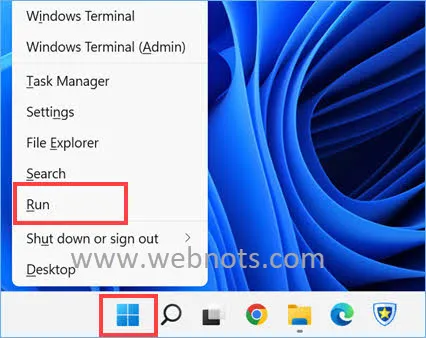
- Type regedit in the box and click “OK” button to open Registry Editor app.
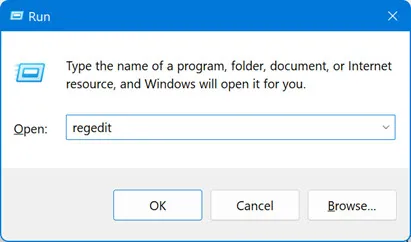
- Copy the following path and paste in the Registry Editor address bar.
- Press enter key to navigate to that location.
HKEY_CURRENT_USER\Control Panel\International
- Right-click on the “International” key and select “Export” option.

- Save your backup .reg file to your desired location like USB or OneDrive.
- When you want to restore the Clock app settings, simply go to the location where you have exported the registry backup file. Double-click on the file and click “Yes” button in the warning pop-up that appears.
- This will import your Clock app settings back into the Windows Registry Editor.

Final Words
These are the two simplest methods to create backup and restore Clock app settings in Windows 11. This will help you to restore timer, alarm and world clock setups you have created before and save your time.


