Nowadays, it’s very difficult for a website owner to only rely on organic traffic from search engines like Google. Social sharing is the alternate and free option to increase content visibility and drive referral traffic. WordPress offers an in-built Social Icons Gutenberg block for adding your social profiles. However, this can only help users to follow you on social platforms but not share your content. In this article, we will explain how you can add social sharing icon in your WordPress site running on Astra theme.
Astra Free Vs Pro
There are no theme options available, if you are using the free Astra theme. In this case, you need to go for an additional plugin. Make sure to choose a lightweight plugins like Novashare to avoid the impact on page loading speed due to large amount of code added by social sharing plugins. Check our detailed guide on how to setup Novashare with necessary configurations.
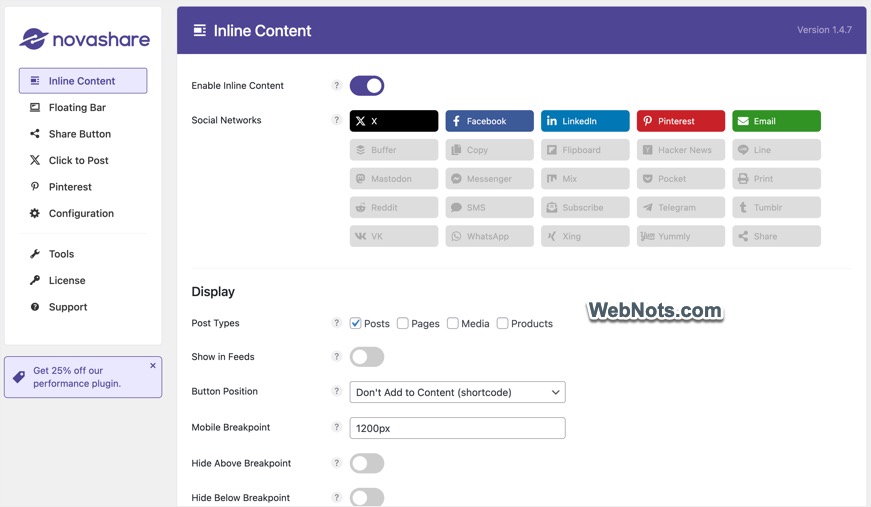
Astra Pro version offers an easy option, which we will explain in this article in detail.
Enabling Social Sharing in Astra Pro
- First, make sure to install and activate the Astra Pro add-on plugin.
- Navigate to “Appearance > Customize” section.
- Go to “Post Types > Single Post” section.
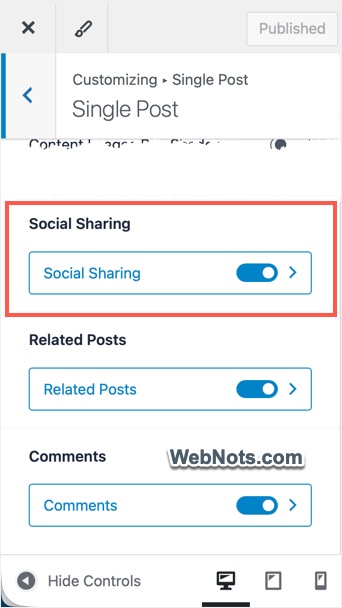
- Scroll down and turn on “Social Sharing” option.
Customizing the Appearance
After turning it on, click on the arrow to open social settings.
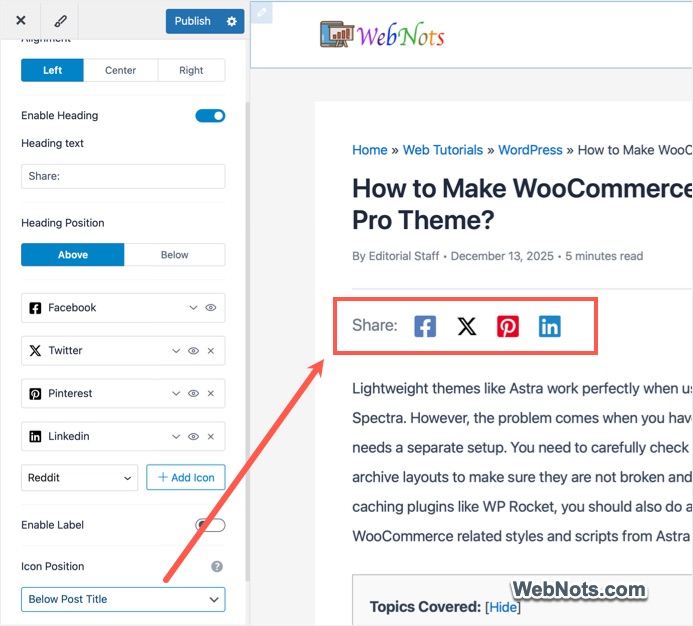
- Alignment – Select left, right or center alignment applicable when the icons are showing below title or below post content.
- Enable Heading – You can add any custom text before the icons (like “Share this Post”).
- Heading Position – Select Above or Below as you desire.
- Icons – Click the “+ Add Icon” button and all the platforms you want to show. Label and icon for each item can be customized.
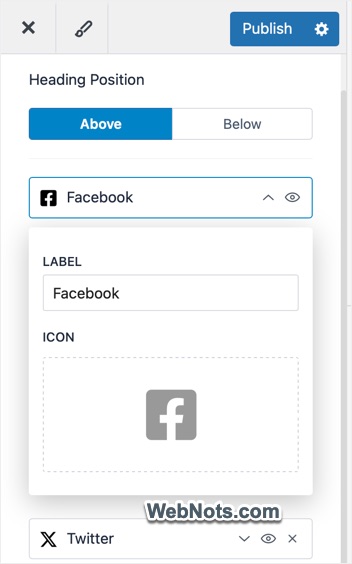
- Enable Label – Show the name of social platform above or below the icons.
- Icon Position – Below Post Title and Below Post options will show the icons inside post’s content area while Left Content or Right Content will add a floating social icons on side of your content.
Adjusting Size and Colors
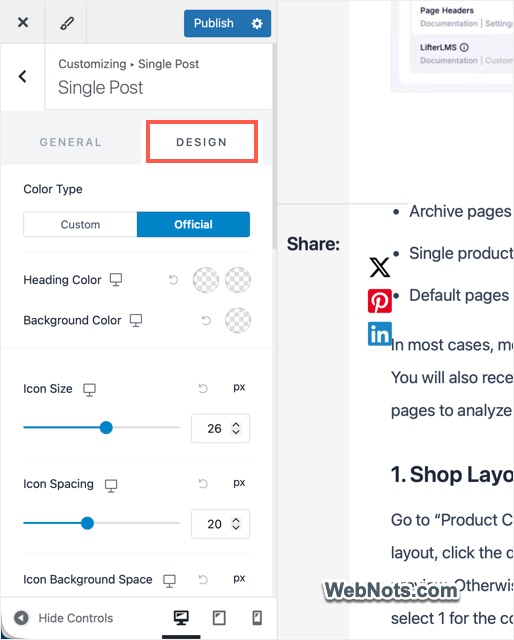
- Now, go back to previous screen (Post Tips > Single Post) and go to “Design” tab.
- Choose official or custom colors for your icons and setup heading and background colors.
- Adjust heading font, icon size, spacing, etc. to align the icons properly.
Adding Custom CSS
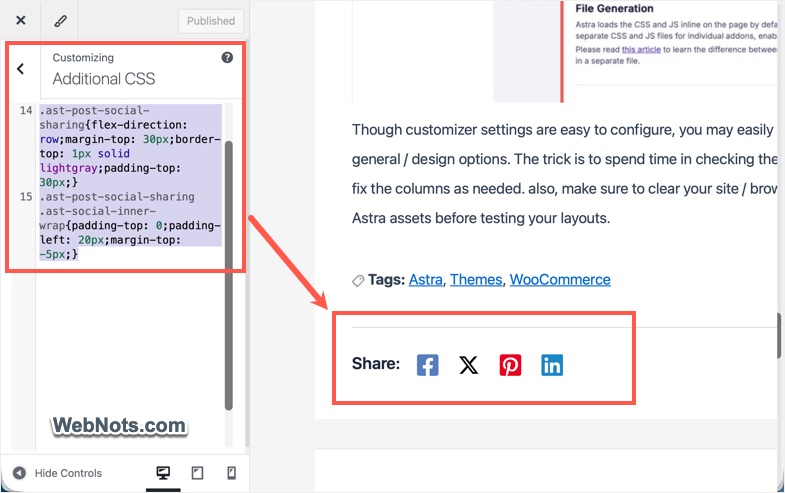
If you are using the floating style, make sure to disable the heading option. Otherwise, it will overlap with your content (as shown in the above picture). If you are using below post title or below post option, then the heading and icons are shown in two separate lines occupying large space. To align the heading and icons in a single line, add the below CSS under “Additional CSS” section in customizer section.
.ast-post-social-sharing {
flex-direction: row;
margin-top: 30px;
border-top: 1px solid lightgray;
padding-top: 30px;}

.ast-post-social-sharing .ast-social-inner-wrap {
padding-top: 0;
padding-left: 20px;
margin-top: -5px;
}
This will nicely align the icons with the content with a border as shown below:
After checking the live preview, click the “Publish” button to apply your changes.
Final Words
If you are using Astra Pro, we strongly recommend using the default social sharing option. This is a lightweight options and also helps to avoid additional plugin. However, for a free version, you need to go for a plugin like Novashare, which offers similar configurations to show the icons anywhere on your site.