Nowadays, retaining users on a website is one of the most challenging tasks for website owners. Internal linking is an effective way to encourage users to visit other pages on the site, and adding visually appealing related posts below your content can further improve engagement in many cases. WordPress offers numerous free and premium plugins for displaying related posts beneath the content area. However, many of these plugins are resource intensive and are even restricted by some hosting providers, such as WP Engine. The Astra theme includes this feature as part of its default settings, eliminating the need for an additional plugin.
Enable Related Posts in Free Astra Theme
Related Posts feature is available in the free Astra theme. While a Pro add-on is not required to use this feature, we strongly recommend opting for the premium version to take advantage of Site Builder and other advanced features.
- Login to your WordPress admin panel and navigate to “Appearance > Customize” section.
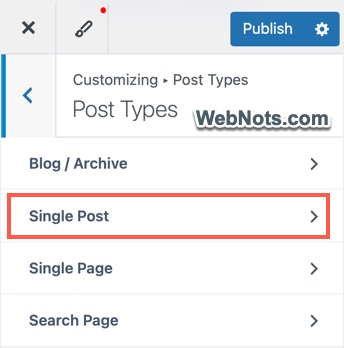
- Select “Post Type” and go to “Single Post” option.
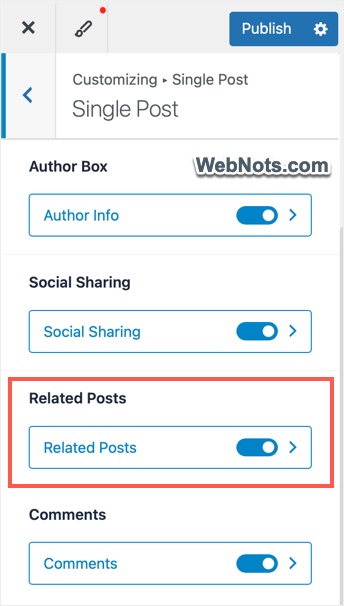
- Scroll down and turn on “Related Posts” option.
Customizing the Appearance and Query
Once enabled, click on the “Related Posts” option for customizing the visual appearance on your site. Setup the following under “General” tab:
- Title: Enter the heading text you want to show above the list of posts.
- Title Alignment: Choose left alignment, which works properly in most cases.
- Total Number of Related Posts: Select a number here that split properly with the number of columns. For example, select 6 posts and 3 columns to arrange the list in 2 x 3 grid layout.
- Grid Column Layout: As mentioned, choose the columns based on the number of posts you want to show.
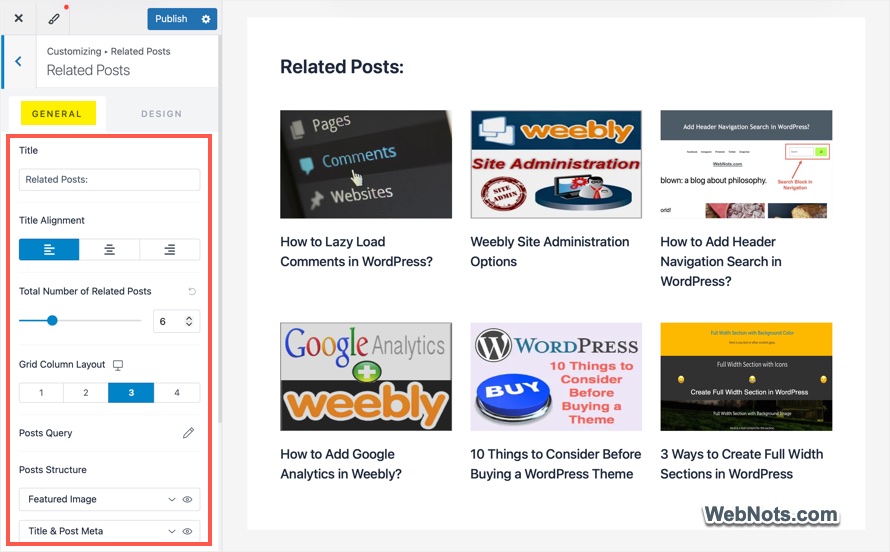
- Post Query: This is an important option. Click the pencil icon and select “Category” or “Tags” for the base for your related posts. You can show the posts in ascending or descending order based on the Date, Title, Post Order, Random, or Comments Count.
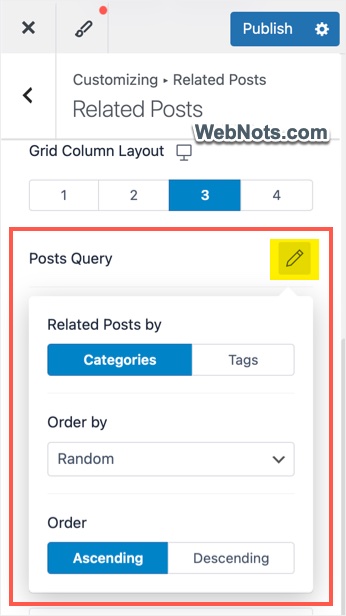
- Post Structure: This has two options. First, turn on the “Featured Image” by clicking the eye icon, click on that option and choose the ratio and size. After that, turn on “Title & Post Meta” and then select the separator by expanding it.
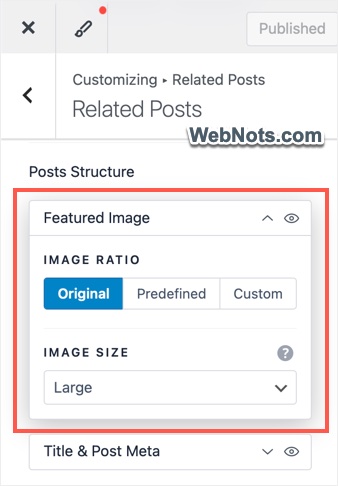
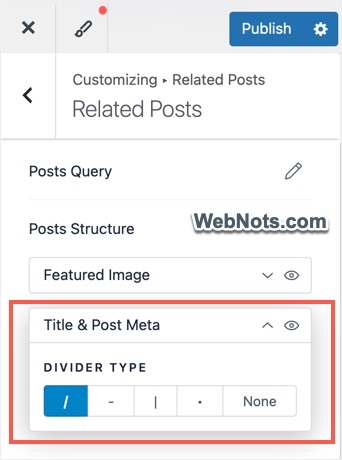
- Meta: Though you can enable Comments, Category, Author, Date, and Tag details to show with each item, we recommend disabling all to keep the layout simple or choose only Category and Date options.
- Enable Post Excerpt: Disable this to hide the excerpt text.
- Section Placement: Choose Default, Contained, or Separated as per your site’s layout setup.
Preview your setup on the desktop view to confirm everything looks fine.
Customizing Mobile and Tablet View
Remember that the grid column layout should be changed for mobile and tablet. Otherwise, the same desktop layout will be shown on mobile devices also creating mobile responsiveness issue in Google Search Console.
- Click the icon showing next to “Grid Column Layout” option. Alternatively, click the device icon showing at the bottom portion.
- Select the correct columns – 1 for mobile and 2 for tablet will work fine.
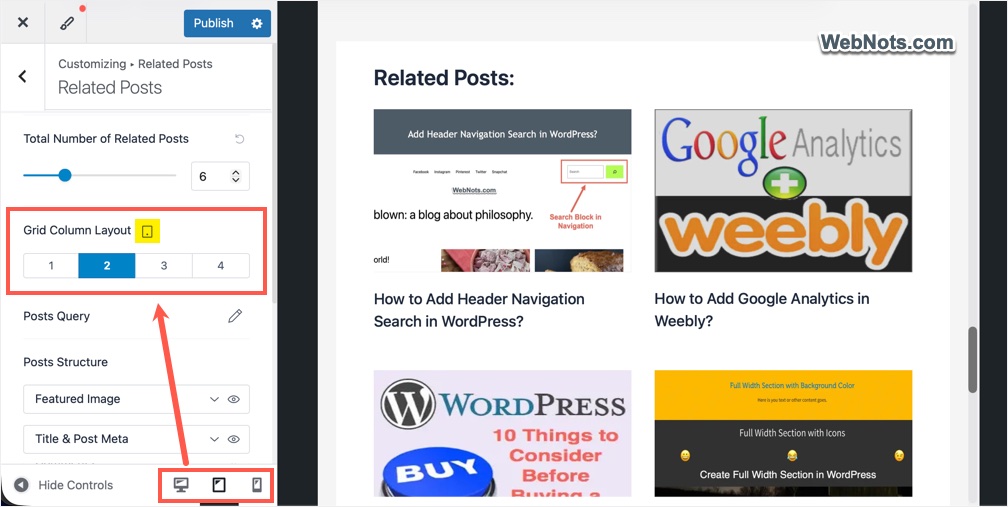
Check the preview and confirm mobile / tablet display is showing properly.
Adjusting Colors, Spacing and Typography
Go to “Design” tab and adjust the followings if needed:
- Related posts section title color and background.
- Individual post title color for normal and hover state.
- Adjust the font family, font weight, font size, and line height for section title, post title, and meta text.
- Add border and change the margin / padding spacing.
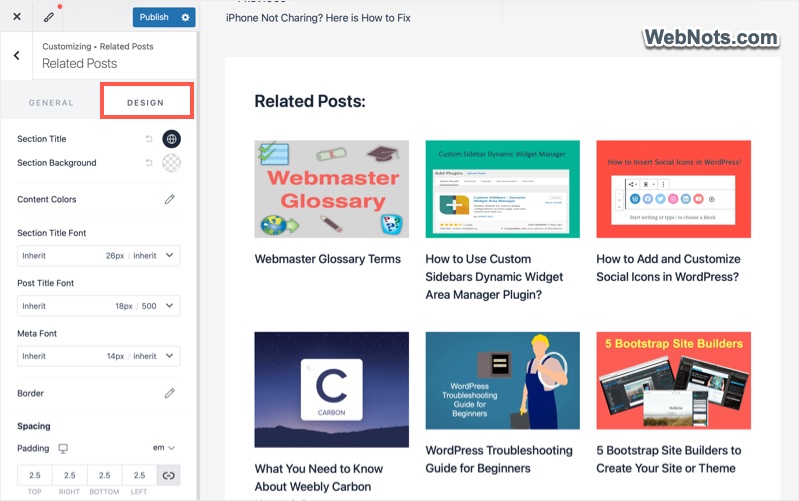
Preview the related posts section on all devices and click the “Publish” button on the top.
Moving Related Posts Position Below Comments
Though related posts increase the user engagement, there is a problem with the section placement. By default, it is placed above the comment section, which can impact users wanted to read or post comment in current article. Also, the layout may look unprofessional if you want to use a fullwidth related posts section. Follow the below steps to move the related posts section below the comment section on your post layout.
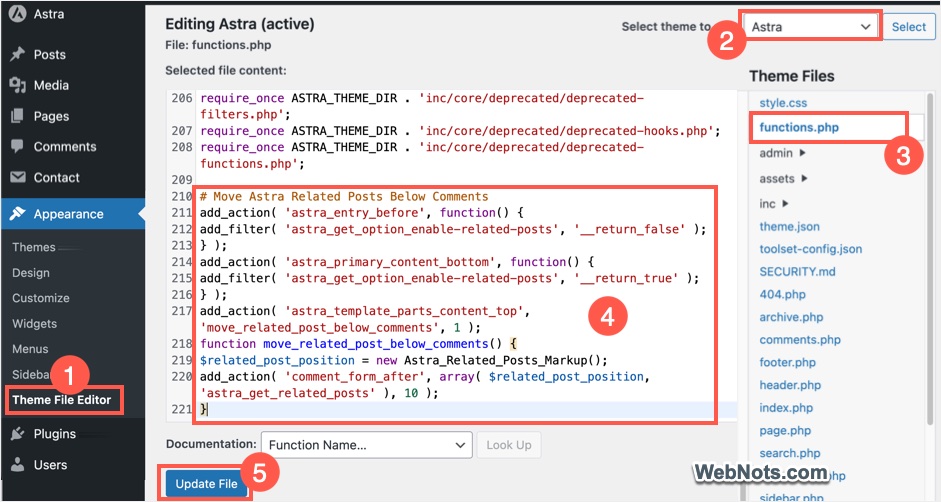
- Go to “Appearance > Theme File Editor” section.
- Make sure to select “Astra” theme and select functions.php file.
- Paste the following code at the bottom of the file’s content and click “Update File” button.
# Move Astra Related Posts Below Comments
add_action( 'astra_entry_before', function() {
add_filter( 'astra_get_option_enable-related-posts', '__return_false' );
} );
add_action( 'astra_primary_content_bottom', function() {
add_filter( 'astra_get_option_enable-related-posts', '__return_true' );
} );
add_action( 'astra_template_parts_content_top', 'move_related_post_below_comments', 1 );
function move_related_post_below_comments() {
$related_post_position = new Astra_Related_Posts_Markup();
add_action( 'comment_form_after', array( $related_post_position, 'astra_get_related_posts' ), 10 );
}
- Open any of your post and you will find the related posts section is moved below the comments section.
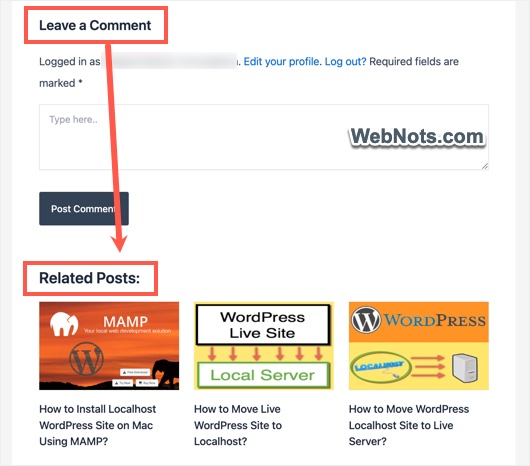
Make sure to use a child theme or use plugins like Perfmatters to add code snippet anywhere on your site.
Final Words
Frankly, this is one of the best options we have seen for showing related posts without any plugin. You can select “Category” and “Random” order options in “Post Query” to shuffle all old posts to give life to your old content. this will also load super-fast without bogging your server resource.