Click to copy or copy to clipboard is a function that allows users to copy text from websites to the system’s clipboard. Users can paste the copied content anywhere else using “Control + V” on Windows or “Command + V” on Mac. Adding copy to clipboard functionality to your WordPress website can enhance the user experience, especially if you share code snippets, promo codes, or any other text content that users may want to copy easily. In this article, we will explain the process of implementing this feature in WordPress sites.
Why to Use Copy to Clipboard Function?
If you are publishing articles with text and images, probably you don’t need to use any additional functions. However, when you provide code snippets (using code or preformatted blocks), it’s important to showcase the code block with proper quotes to avoid mistakes. Users also should be able to copy the content and use without affecting the format. In this case, you can add copy to clipboard function to code or pre CSS selector to make sure the provided code or preformatted text is copied exactly to the clipboard with a single click.
1. Use a Plugin (The Simplest Option)
For non-technical users, WordPress plugins make adding features like copy to clipboard a breeze. “Copy Anything to Clipboard” is one of popular plugins available for this purpose. This plugin offers different ways of adding the copy to clipboard function with CSS selector, shortcode and Elementor widgets.
1.1. Creating the Function for a CSS Selector
- Go to your WordPress dashboard, navigate to “Plugins > Add New Plugin” section.
- Search for “copy” to find, install, and activate Copy Anything to Clipboard plugin on your site.

- After activation, navigate to “Settings > Copy To Clipboard” menu and then click on the “Add New” button.

- Under “Editor” tab, type the CSS selector and choose other customization options. You have three styles to choose – button, icon or cover.
- Check the preview and select the “Display Conditions” if you want to setup. For example, you can enable the function only on posts by selecting “Post Type is equal to Posts”.
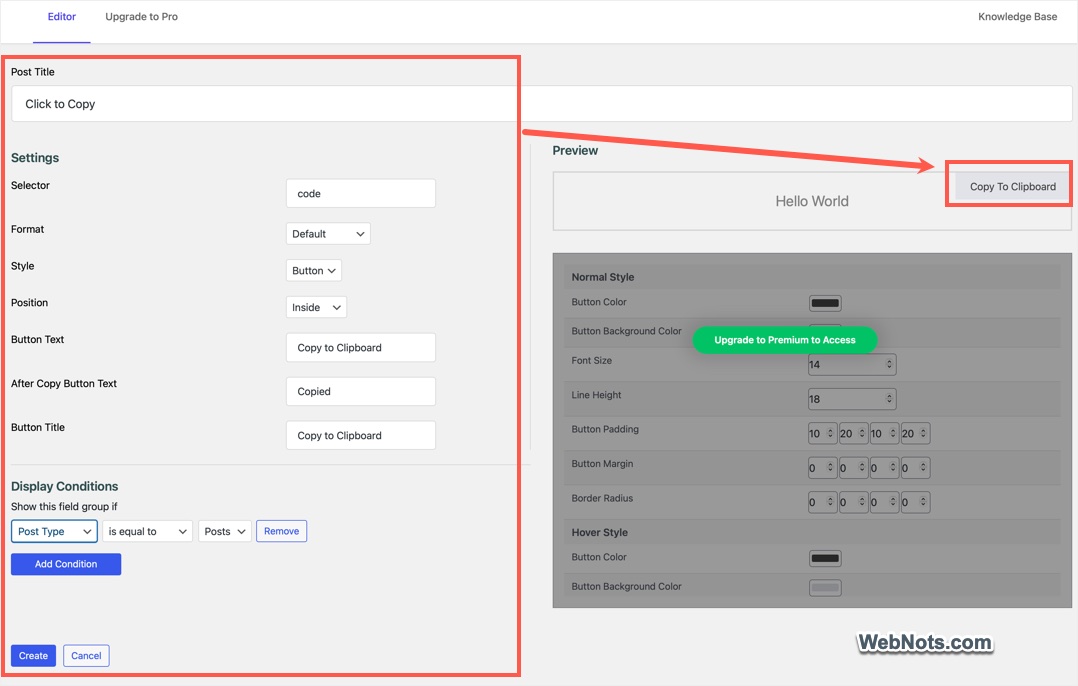
- Click “Create” button to save your changes and you will see a new item created.

1.2. Add the Button to Your Posts/Pages
As mentioned, there are multiple ways to use the feature. Since, we used code CSS selector, we will insert a Code block and check how it shows in the frontend.
- Create or edit a new post / page and insert a Code block. Paste your code and publish the content.
- Open the post or page in a new browser tab and check the code block.
- You will see a “Copy To Clipboard” button on the top-right of the block.

- Click the button to copy the block’s content and you will see a “Copied” message.

The plugin also offers Gutenberg blocks and shortcodes to insert the copy to clipboard button or icon with custom content. Checkout the plugin’s page on WordPress to view various methods of using the plugin.

2. Add Copy to Clipboard Using Custom Code
For those comfortable with coding or wanting more control over the functionality, you can add the feature manually using JavaScript. Follow these steps:
2.1. Add HTML for the Button
Add the following HTML code where you want the button to appear:
<div class="copy-container">
    <input type="text" id="copyText" value="This is the text to copy" readonly>
    <button id="copyButton">Copy to Clipboard</button>
</div>
This creates a text field with a button labeled “Copy to Clipboard.”
2.2. Add JavaScript for Clipboard Functionality
Use JavaScript to enable the copying feature, for that add this code to your theme’s functions.php file.
document.addEventListener("DOMContentLoaded", function() {
    const copyButton = document.getElementById("copyButton");
    const copyText = document.getElementById("copyText");

    copyButton.addEventListener("click", function() {
        copyText.select();
        copyText.setSelectionRange(0, 99999); // For mobile compatibility
        document.execCommand("copy");

        // Optional: Provide feedback to the user
        copyButton.textContent = "Copied!";
        setTimeout(() => {
            copyButton.textContent = "Copy to Clipboard";
        }, 2000);
    });
});
This script listens for a button click, selects the text, and copies it to the clipboard. You can also save the content as a custom script and enqueue it in functions.php file using the following code:
function enqueue_copy_to_clipboard_script() {
    wp_enqueue_script('copy-to-clipboard', get_template_directory_uri() . '/js/copy-to-clipboard.js', array(), null, true);
}
add_action('wp_enqueue_scripts', 'enqueue_copy_to_clipboard_script');
Replace /js/copy-to-clipboard.js with the actual path to your JavaScript file.
2.3. Style the Button
Add CSS to make the button visually appealing. You can include the following in your theme’s style.css file or add under “Appearance > Customize > Additional CSS” section:
.copy-container {
    display: flex;
    align-items: center;
    gap: 10px;
}

#copyText {
    width: 300px;
    padding: 5px;
    border: 1px solid #ccc;
    border-radius: 4px;
    font-size: 14px;
}

#copyButton {
    background-color: #0073aa;
    color: white;
    border: none;
    border-radius: 4px;
    padding: 8px 12px;
    cursor: pointer;
    font-size: 14px;
}

#copyButton:hover {
    background-color: #005a87;
}
This styling ensures the button and text field look professional and user-friendly. After publishing the post, click the button and ensure the text is copied to your clipboard.
Conclusion
Adding a “Copy to Clipboard” feature to your WordPress site can significantly enhance user experience for copying code blocks. For a quick solution, plugins like Copy Anything To Clipboard are perfect. For those looking for a custom implementation, the manual coding approach provides flexibility and control without a plugin.