
Weebly offers a traditional image slideshow element to add sliders to your site. Unfortunately, this is nowhere nearer to modern slideshows offered by third party providers or plugins. You can create beautiful looking custom accordion style sliders made purely with CSS. In this article, we will explain how to create and CSS accordion image slider in Weebly site
Weebly Accordion Image Slider
Below is how the stylish slider will look like on your Weebly site.

How to Add Accordion Image Slider in Weebly?
Now that you have seen the slider and if that looks good, here is a step by step instruction on adding the slider on your site. The process consist of three simple steps:
- Uploading images for slider
- Adding CSS code on a page or site level
- Adding HTML code using embed code element
Step 1 – Uploading Images for Accordion Slider
Prepare all your images with the required size. In this example we used images with width = 640 px. Upload all the images on your site under “Theme > Edit HTML / CSS > Assets > Upload File(s)…”.

You have to keep the URLs of uploaded images which needs to be used in step 3. The URL of an uploaded image will be like:
https://your-site-name.com/files/theme/image-name.jpg
Alternatively, you can right click on the image and get the URL which should look like below:
https://www.weebly.com/editor/uploads/4/8/5/3/4853992/custom_themes/926370416842107469/files/image-name.png
After uploading all your images, click on “Save” button and provide a custom name for your theme.
Step 2 – Adding CSS Code
If you want to add the slider only on particular pages then add the below CSS code under “Pages > Choose the page > SEO Settings > Header Code” section of the required pages.

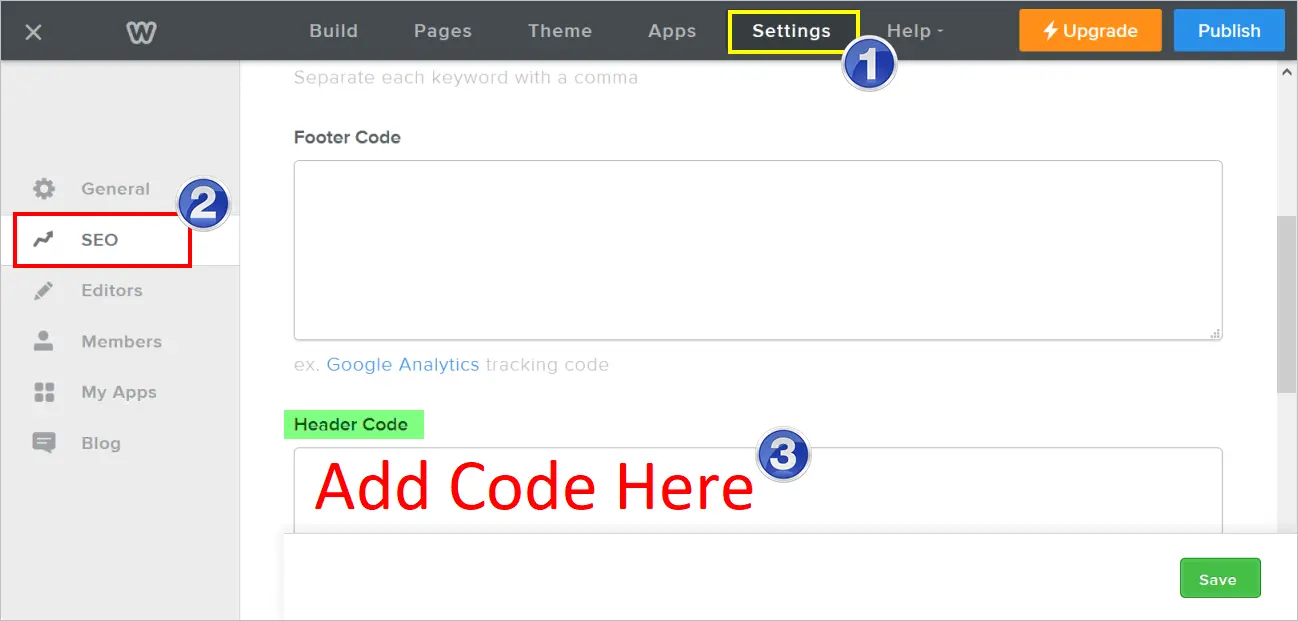
In case if you want to add the slider on multiple pages then we would recommend adding it in the main CSS under “Theme > Edit HTML / CSS > Style > main.less”. You can also add the code under “Settings > SEO > Header Code” section.
<style type="text/css">
.accordion_slider {
width: 805px; height: 320px;
overflow: hidden;
box-shadow: 0 0 10px 1px rgba(0, 0, 0, 0.35);
-webkit-box-shadow: 0 0 10px 1px rgba(0, 0, 0, 0.35);
-moz-box-shadow: 0 0 10px 1px rgba(0, 0, 0, 0.35);
}
.accordion_slider ul {
width: 2000px;
}
.accordion_slider li {
position: relative;
display: block;
width: 160px;
float: left;
border-left: 1px solid #888;
box-shadow: 0 0 25px 10px rgba(0, 0, 0, 0.5);
-webkit-box-shadow: 0 0 25px 10px rgba(0, 0, 0, 0.5);
-moz-box-shadow: 0 0 25px 10px rgba(0, 0, 0, 0.5);
transition: all 0.5s;
-webkit-transition: all 0.5s;
-moz-transition: all 0.5s;
}
.accordion_slider ul:hover li {width: 40px;}
.accordion_slider ul li:hover {width: 640px;}
.accordion_slider li img {
display: block;
max-width: 640px !important;
}
.image_box {
background: rgba(0, 0, 0, 0.5);
position: absolute;
left: 0; bottom: 0;
width: 640px;
}
.image_box a {
display: block;
color: #fff !important;
text-decoration: none;
text-align: left;
padding: 20px;
font-size: 16px;
}
</style>
You can customize any of the styles as per your need.
Step 3 – Adding HTML Code
The last step is to add the below HTML code of the slider by dragging and dropping an embed code element on the content area of a required page. Don’t forget to replace the image links with your own links from step 1.
<div class="accordion_slider">
<ul>
<li>
<div class="image_box">
<a href="https://www.webnots.com/how-to-add-accordion-slider-in-free-weebly-site//">KungFu Panda</a>
</div>
<img src="https://img.webnots.com/2015/07/Image-1.jpg"/>
</li>
<li>
<div class="image_box">
<a href="https://www.webnots.com/how-to-add-accordion-slider-in-free-weebly-site/">Toy Story 2</a>
</div>
<img src="https://img.webnots.com/2015/07/Image-2.jpg"/>
</li>
<li>
<div class="image_box">
<a href="https://www.webnots.com/how-to-add-accordion-slider-in-free-weebly-site/">Wall-E</a>
</div>
<img src="https://img.webnots.com/2015/07/Image-3.jpg"/>
</li>
<li>
<div class="image_box">
<a href="https://www.webnots.com/how-to-add-accordion-slider-in-free-weebly-site/">Up</a>
</div>
<img src="https://img.webnots.com/2015/07/Image-4.jpg"/>
</li>
<li>
<div class="image_box">
<a href="https://www.webnots.com/how-to-add-accordion-slider-in-free-weebly-site/">Cars 2</a>
</div>
<img src="https://img.webnots.com/2015/07/Image-5.jpg"/>
</li>
</ul>
</div>
Note: After adding HTML code, you may see the images are listed down one below the other inside Weebly editor. This is fine because the CSS effects are not applied within the page, publish the page to see the actual slider.






what should i write here instead of your link
Up
For some reason this EXACT code doesn’t work for me, the images appear one below the other after i publish it
Hello,
Thanks for your tutorial. I do exactly the same but the banner slide cannot be centered? Could you please help me? Thank you in advance.
The content inside embed code element can be aligned with default Weebly option by clicking inside the element and choose center alignment. If that does not work then use spacer in right/left to place the slider center.
You can also use align=”center” or style=”text-align:center” within DIV tag to align the content center.
It looks wonderful on my site. Thanks for the article though i was required to adjust the code for my site a bit.