WordPress offers an easy way called Embed to inset third-party content on your site. Embedding tweets from X (formerly Twitter) is one of the interactive ways to showcase live content. However, sometimes the embedded tweets will not show properly. If you are frequently using tweets either from your own handle or from others, here is how to properly show them on your site.
Tweet Embed Issue
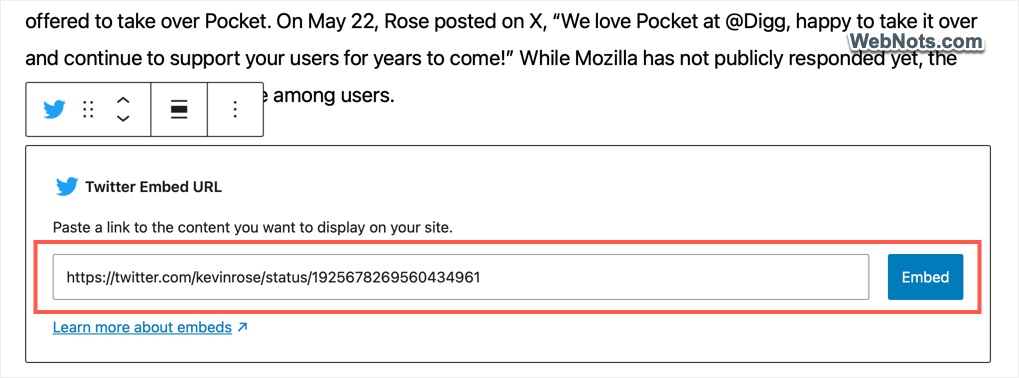
You can click on the share icon showing below any tweet to get the embed URL. All you need is to simply paste the URL where you want to insert the tweet in Gutenberg editor and press enter. This will automatically convert the URL using oEmbed protocol to a Twitter Embed block and show the content nicely in a card format. Alternatively, you can use the Embed or Twitter Embed block and paste the URL.
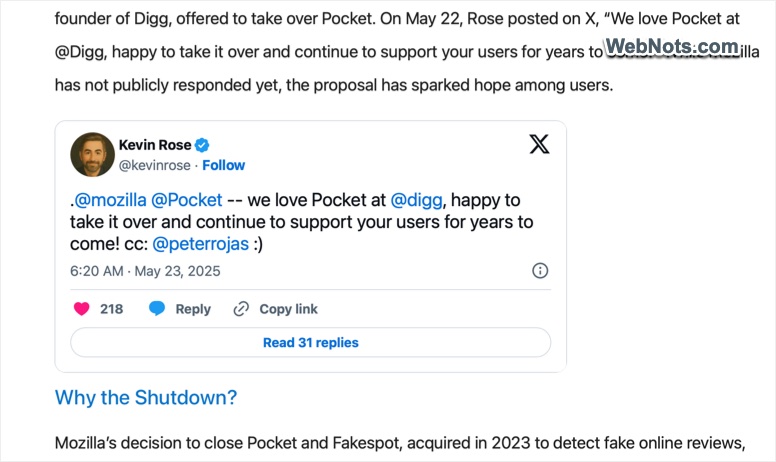
The expected display, both inside the Gutenberg editor as well as on the published post, should look like below as a formatted content.
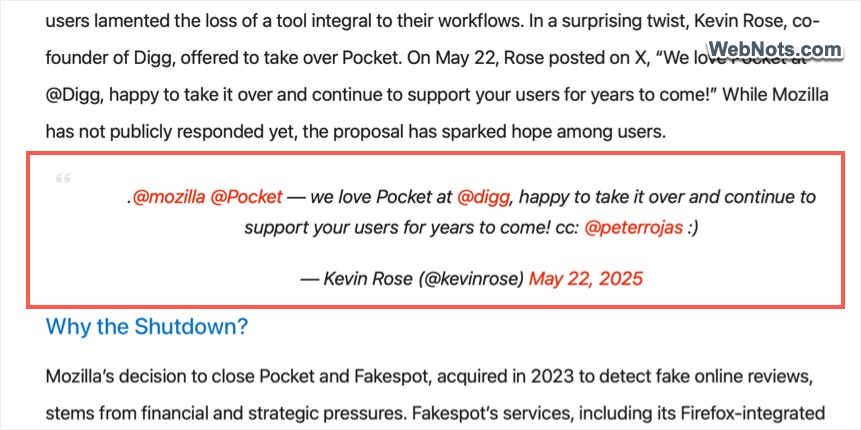
However, if you are seeing the tweets as a plain text with links (like below), then there is an issue in the embed and you need to fix that.
1. Remove Center or Other Block Alignment
All Gutenberg blocks come with an alignment tool for moving the block to right, left or center. Twitter Embed block comes with options for wide width and full width alignments. However, none of these alignments work for embedded content and the display of the block will break if you use alignments. By default, Twitter Embed block is right aligned and using other alignment options will force it to display as a plain text with links.
- Click on your Twitter Embed block in Gutenberg editor.
- Now, click the “Align” icon on the block’s toolbar.
- Select “None” and save or publish your content.
- Check your article and the tweet should display properly.
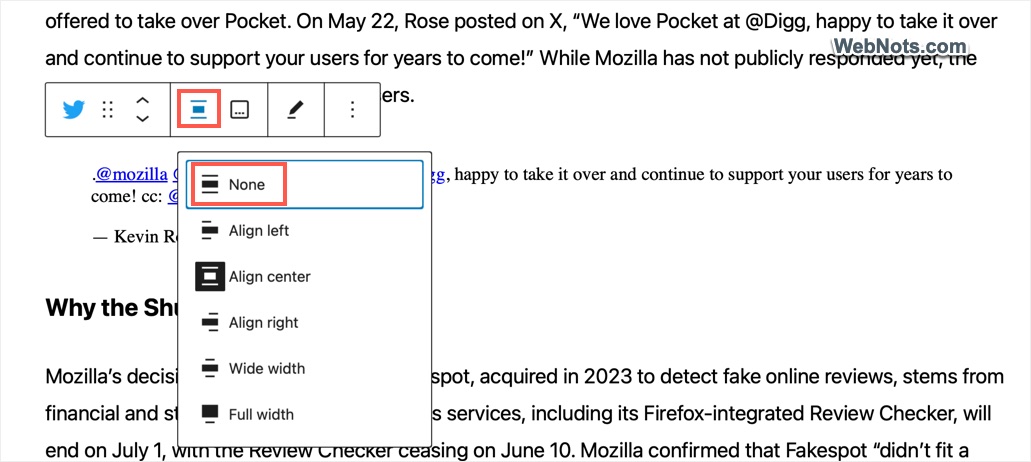
We don’t know why WordPress offers alignment option when it does not work. This is the similar problem like block attempt recovery where adding inline CSS breaks block and show “Attempt Recovery” button.
2. Test Your Embed URL
If the alignment is set to “None” but the tweet is still not showing properly, then it’s a good idea to check your tweet URL.
- Go to Twitter Publisher website, paste your tweet URL in the box and press enter.
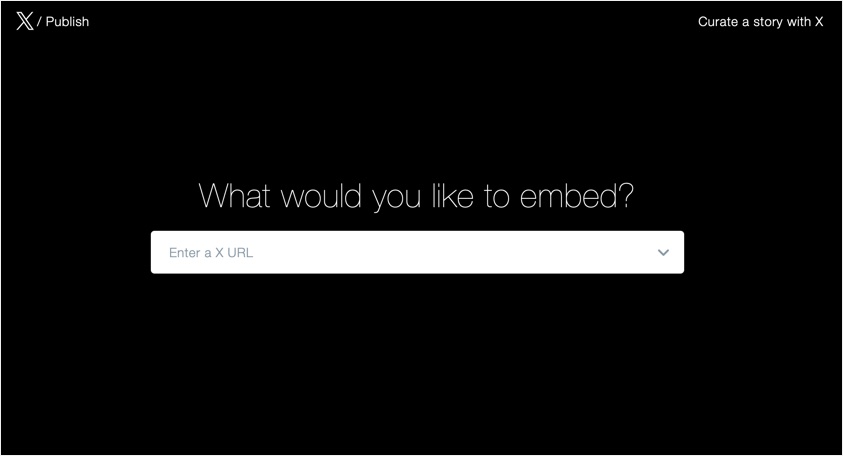
- If prompted, select the display option as “Embedded Post” and confirm Twitter generates the embed code with a nice card display.
- If the embed code or display is not generated properly, then the issue is likely with the embed URL.
- Find your tweet on Twitter (X) site, click the “Share” icon showing below the tweet and select “Copy link” to copy the URL.
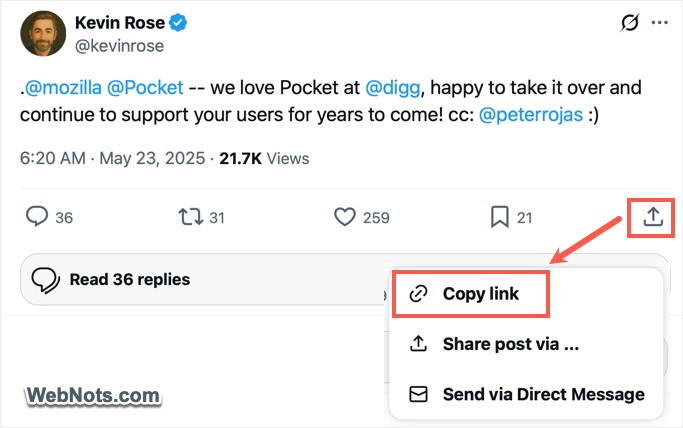
- Test that URL again to make sure the tweet content is showing properly as a card.
- Now, use the correct URL in Twitter Embed block in Gutenberg editor.
If Twitter generates embed code and show the card nicely, then the problem is likely on your site. Follow the below suggestions to find and fix the issue.
Note: Tweet URL may use Twitter.com or X.com and will be in the following format. Make sure to use HTTPS tweet URLs, embeds might fail if you’re pasting http:// links instead of https://.
https://twitter.com/username/status/1234567890
https://twitter.com/username/status/1234567890
3. Use Embed Code with Custom HTML
As explained above, you can generate an embed code for any tweet and use it on your WordPress site instead of using tweet’s URL. This method bypasses WordPress’s auto-embed function and gives you direct control.
- Go to Twitter Publisher site, generate your embed code and click “Copy Embed” button.
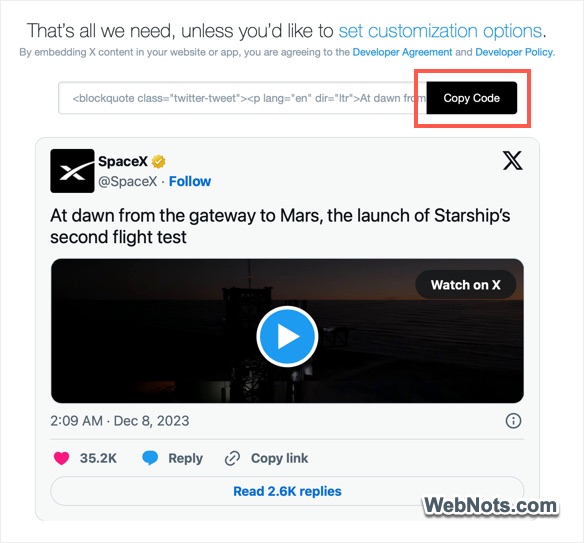
- Now, go to Gutenberg editor and insert a Custom HTML block.
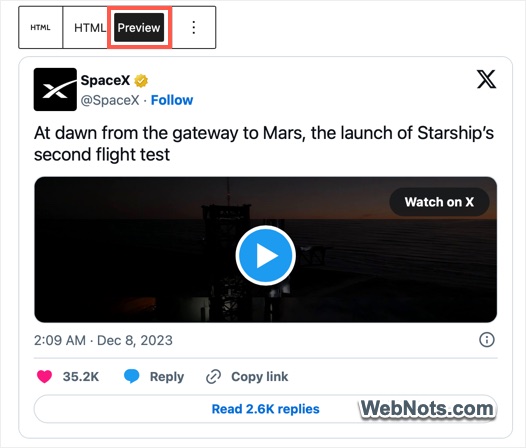
- Paste the embed code inside the block and click “Preview” on the toolbar.
- You should see the tweet in a card format.
- Save or publish your content and check the live article.
4. Check Optimization Plugins
Nowadays, there are hundreds of optimization plugins available for WordPress for disabling unnecessary code and blocks. These plugins help to remove the default WordPress stuffs like embed.js. emoji.js, RSS feed URLs, comment author URL, etc. Make sure you have not removed the embed.js file needed by Gutenberg Embed blocks to work properly.
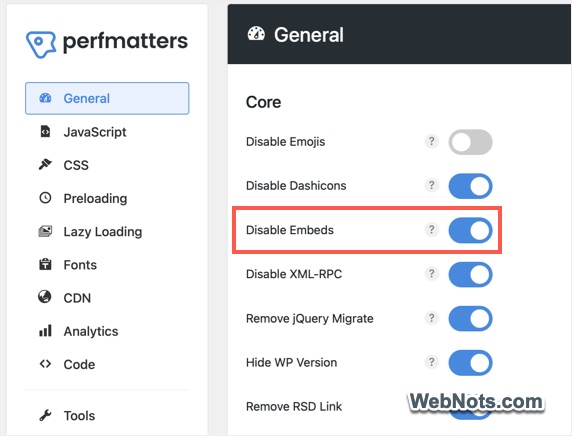
For example, Perfmatters plugin offers simple toggle which you might have turned on without understanding. Go to “Settings > Perfmatters > General” and turn off “Disable Embeds” option. Save your changes and clear the cache to confirm the tweets are showing properly.
5. Purge Cache and Check Caching Settings
If you are using a caching plugin (most likely you will use), make sure it is not breaking the embed functionality. Here’s what to try:
- Temporarily disable optimization plugins like Autoptimize, WP Rocket, or LiteSpeed Cache. If the plugin has an option, you can also exclude a particular post which has embedded tweets.
- Clear cache using your caching plugin, server-side caching and CDN cache.
- Check if the embed works after clearing the cache, disabling the plugin or excluding the URL.
- If it does, tweak the plugin settings or whitelist Twitter embed URLs.
6. Check Social Sharing Plugin or Theme Settings
Sometimes, the custom social sharing setup (using a plugin or offered by your theme) block or override the default embed function. To test this:
- Simply deactivate the plugin or disable Twitter related features like click to tweet.
- Temporarily switch to a default theme like Twenty Twenty-Five.
- Now, try embedding the tweet again.
If it works, your theme or plugin might be stripping out the embed HTML or blocking necessary scripts. Get in touch in with the plugin / theme developer to fix the issue.
7. Whitelist Twitter Domains
Make sure Twitter domains are allowed and not blocked on your site. Failure to allow *.twitter.com and *.x.com com can block scripts that render embeds. Check your security setup (plugin or third-party setup) and whitelist Twitter related domains.
Final Words
In most cases, block alignment and optimization setup break the proper display of Twitter Embed and show only text with links. Go through the above suggestions and we are sure one of that will help to fix your issue.