
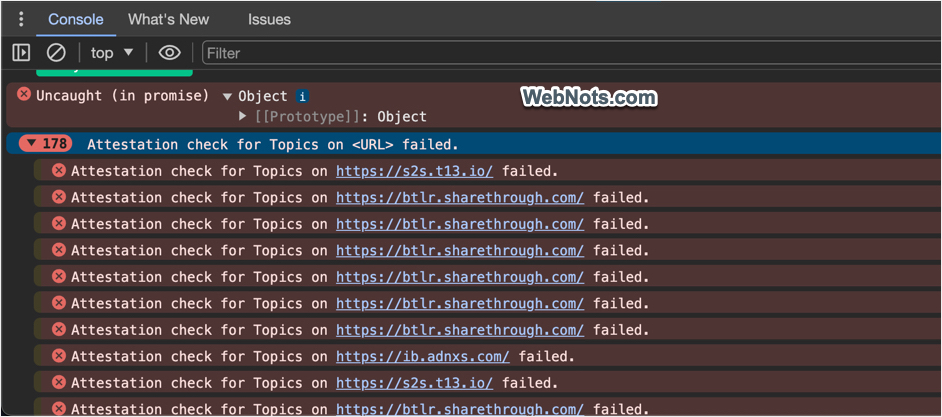
Nowadays, you will see the “Attestation check for Topics on <URL> failed” error in Chrome if the website uses Google AdSense or any third-party advertisement scripts. You can see this in Chrome Developer Tools console error section. Depending on the number of ads displayed on the page, the error will repeat huge number of times. If you wonder what is that error, here is an explanation along with how to fix it.
What is Attestation Failed Check Error in Chrome?
Third-party cookies (used in advertisements) are used to track your actions across sites and show personalized and interest-based ads. As you may aware, Chrome is deprecating third-party cookies as part of Tracking Prevention program in Chrome. Do not wonder how come Google, a notorious user tracking company, can phase out third-party tracking cookies under the name of privacy. In future, it will work in similar fashion using Topics API proposed by Google instead of third-party cookies. Here is an excerpt from Mozilla documentation on Topics API and you can refer the complete details in this page.
The idea is that when users visit the publisher sites, they are served a personalized selection of ads based on their interests. Their interests are inferred from sites they have previously visited. In the past, third-party cookies have been used to collect information on user interests, but all browsers are phasing out the use of third-party cookies. The Topics API provides part of the path towards this goal — a mechanism to implement interest-based advertising (IBA) that does not depend on third-party cookies.
MDN
The permission for using this Topics API is to be sent in the HTTP request header when you open the website showing advertisements. Chrome checks for the Permissions-Policy header in HTTP request and fails when there are no appropriate permissions set for Browsing-Topics. As a result, you will see “Attestation check for Topics on <URL> failed” error in browser console with bunch of failed URLs like “Attestation check for Topics on https://pagead2.googlesyndication.com/ failed”.
Note: The error will appear if you are using Chrome version 118 or later. Firefox and Apple (Safari) rejected the use of Topics API as it is against the user’s privacy.
How to Fix Attestation Failed on Topics Error in Chrome?
As a user, you do not need to worry about this error. However, if you are doing some testing or frequently using browser console, then seeing huge number of attestation failure errors can be annoying. So, here are the steps to fix it in Chrome:
- Open Chrome and go to chrome://settings page.
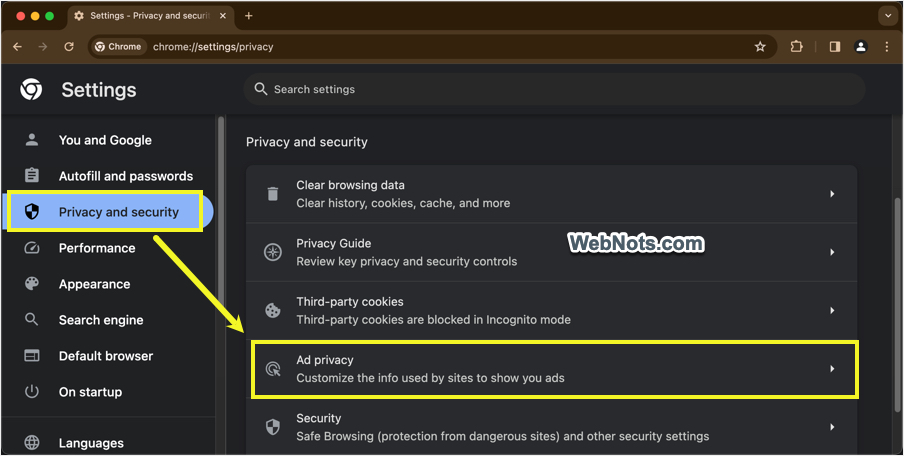
- Go to “Privacy and security” section and then open “Ad privacy” option.
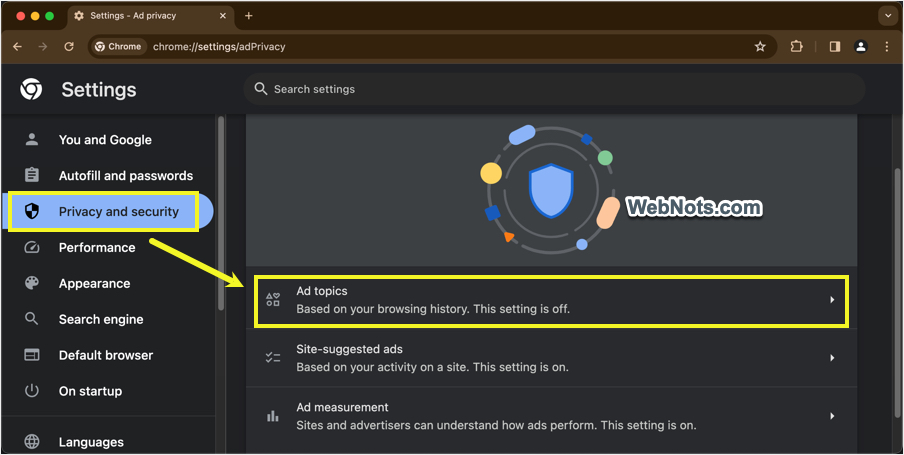
- Select “Ad topics” option on the next page.
- Turn off “Ad topics” option.
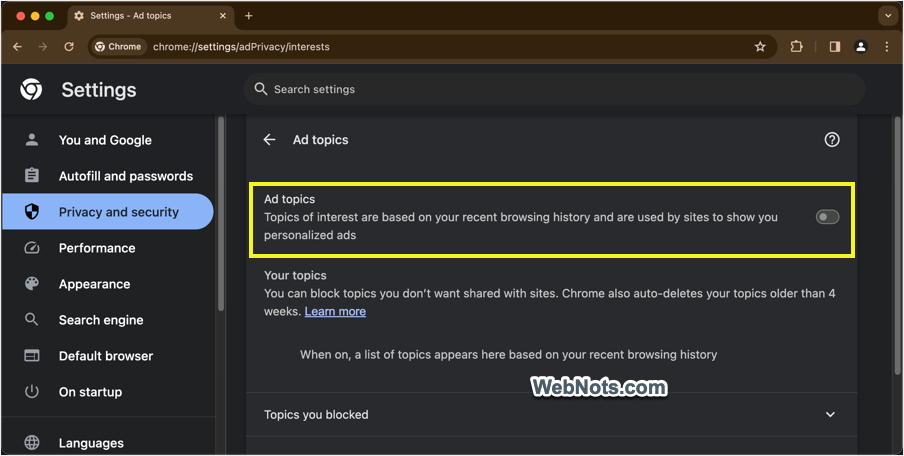
As you can see the description below “Ad topics” heading, enabling it will allow Chrome to permit websites to track your browsing history and show interest-based advertisements. If you are fed up with this kind of tracking, switch your browser to Firefox or Safari on Mac as these browsers will not use Topics API (as of now).
How to Permanently Fix Attestation Failed Check Error for a Website?
If you are a website owner and want to fix the issue permanently for all users, then follow the below steps.
- Login to your hosting account and navigate to the root of your site’s installation folder.
- If you are using Apache server, find the .htaccess file and open with any plain text editor for editing.
- Add the following lines at the end of your file and save the changes.
- Upload the file back to the server.
<IfModule mod_headers.c>
Header set Permissions-Policy "browsing-topics=()"
</IfModule>- If you are using Nginx server, go to /etc/nginx directory and edit nginx.conf file.
- Add the following entries between server { …} section in your file and upload back to server.
server {
...
add_header Permissions-Policy "browsing-topics=()" always;
...
}
Now, open your site in Chrome and check the error is disappeared in Developer Tools section.





Thanks! Finally someone posted a fix for this! <3