
Since WordPress replaced the Classic Editor with Gutenberg in version 5.0, the editing experience has become more frustrating with each update. One notable issue is the cluttered link insertion search introduced in version 6.2. Now, when you search for a keyword to insert a link, WordPress shows all content types – posts, pages, custom post types, categories, tags, and even attachment pages. The most annoying part? Attachment pages (for images, PDFs, etc.) flood the results, making it hard to find actual content you want to link to.
How it Works?
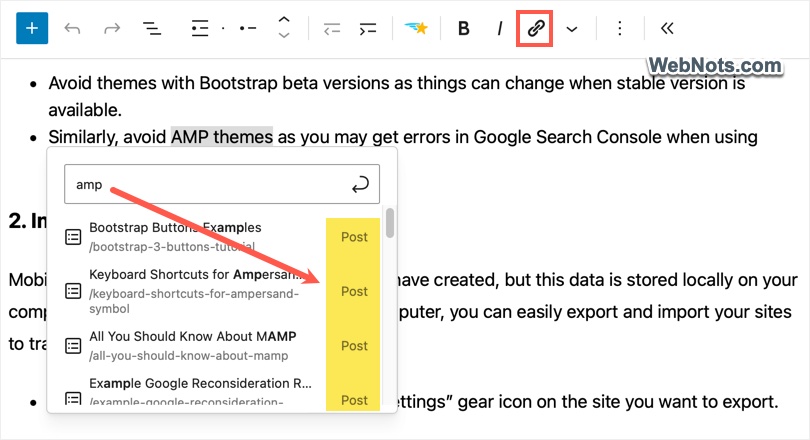
When you select text and press Ctrl + K in Windows or Cmd + K on Mac, the link insertion tool opens. As you type a keyword, the search results show mix of tags, attachments, posts, etc.
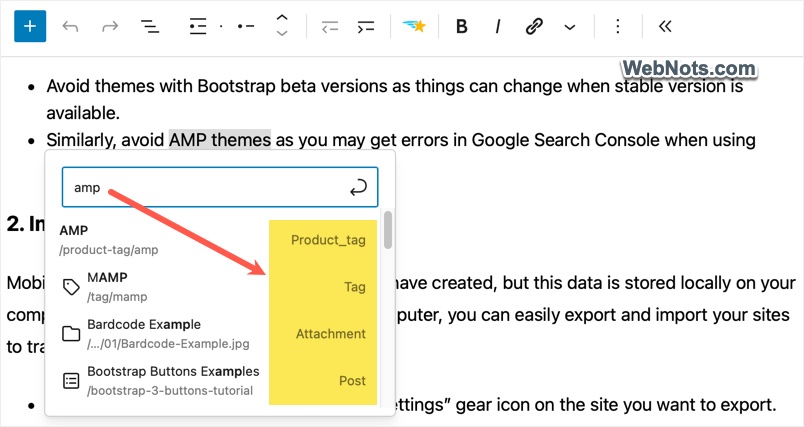
Sometimes it only shows a flood of irrelevant attachment pages – media files that rarely offer meaningful content.
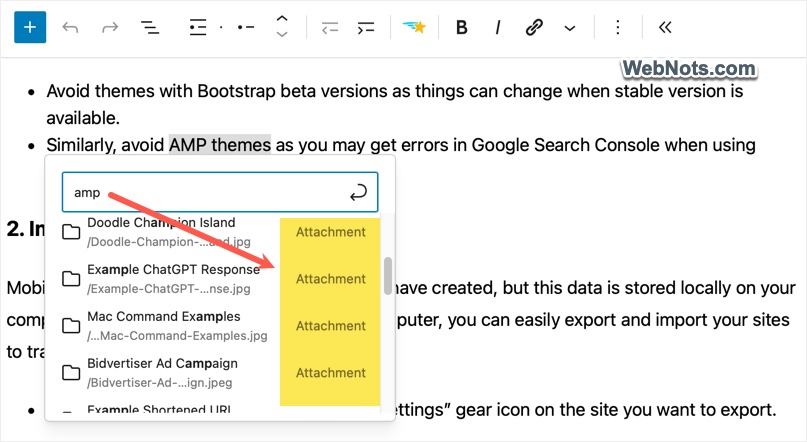
This is often unhelpful, since these attachment pages rarely have meaningful content for visitors. Even if you’ve used plugins like Yoast SEO or Rank Math to redirect attachment pages to their parent media files or posts, Gutenberg still shows them in search results.
The Core Problem
Keeping the search results clean and focused improves the editing experience and helps you find actual posts or pages faster. However, when you type the keyword(s), WordPress pulls top 20 search results using multiple REST API calls, which include attachments and taxonomy terms (like categories and tags). You can check this under the “Network” tab of your browser console to find the following calls are made for the search request:
/wp-json/wp/v2/search?search=reflective&per_page=20&type=post&_locale=user
/wp-json/wp/v2/search?search=reflective&per_page=20&type=term&_locale=user
/wp-json/wp/v2/media?search=reflective&per_page=20&_locale=user
While the first call will return posts, the second and the last calls will return terms and media (attachments).
The Solution
If you want to exclude the terms and attachments from appearing in the link insertion search, you need to modify how WordPress processes that search query. You may think of disabling the REST API to fix the problem. But it will completely stop showing the search results and also will affect many other functionalities (used by your theme & plugins).
So, the solution is to return no values for the media and terms search while allowing other content. Here’s a simple code snippet from WordPress support forum, which you can add to your theme’s functions.php file to achieve that:
// Remove Attachments from Link Insertion
add_filter('rest_request_after_callbacks', function($response, $handler, $request ) {
  $route = $request->get_route();
  if (strpos($route, '/wp/v2/search') !== false) {
    $search_query = $request->get_param('search');
    $per_page = $request->get_param('per_page');
    $search_type = $request->get_param('type');

    if ($search_type === 'term' && !empty($search_query) && !empty($per_page)) {
      return new \WP_REST_Response([], 200);
    }
  } elseif (strpos($route, '/wp/v2/media') !== false) {
    $per_page = $request->get_param('per_page');
    $search_query = $request->get_param('search');

    if (!empty($search_query) && !empty($per_page)) {
      return new \WP_REST_Response([], 200);
    }
  }
  return $response;
}, 10, 3 );
Adding the Code in functions.php File
It’s easy to navigate to “Appearance > Theme File Editor” section and paste the code at the bottom of functions.php file of your active theme.
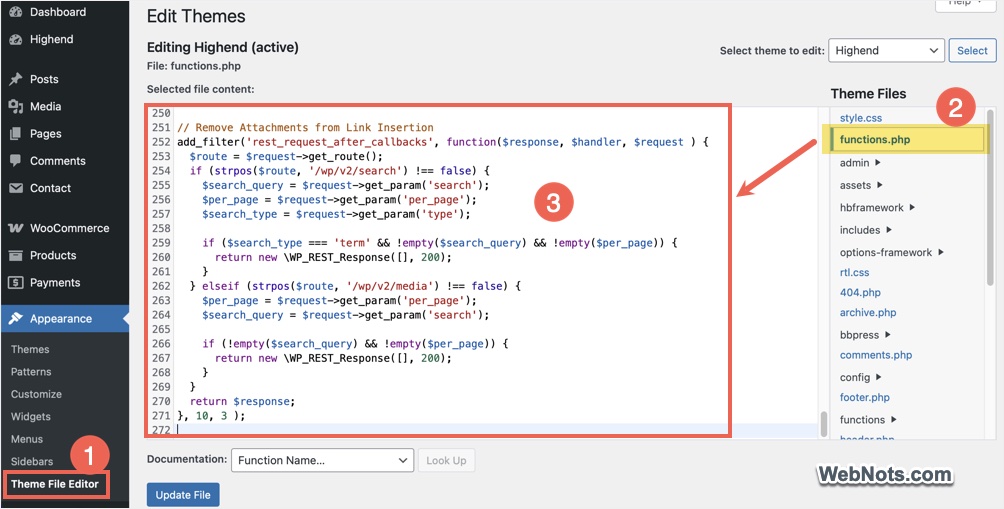
However, the added code will be deleted whenever you update or change the theme. To avoid this, there are plugins like Code Snippets to insert code in functions.php file. Otherwise, the best option is to create a small functional plugin on your own which will hardly take few minutes.
- First, copy and paste the below modified code snippet in a plain text editor (like Visual Studio Code) and save the file as Remove Junk Links.php.
<?php
/**
 * Plugin Name: Remove Junk Links
 * Plugin URI: https://www.webnots.com
 * Description: Plugin to remove terms and attachments pages from link insertion search results.
 * Author: WebNots
 * Author URI: https://www.webnots.com
 * Version: 1.0
 * Requires at least: 6.2
 * Requires PHP: 8.0
 * License: GPLv2+
 * License URI: https://www.gnu.org/licenses/gpl-2.0.txt
 * Text Domain: WebNots
 */

add_filter('rest_request_after_callbacks', function($response, $handler, $request ) {
    $route = $request->get_route();
    if (strpos($route, '/wp/v2/search') !== false) {
      $search_query = $request->get_param('search');
      $per_page = $request->get_param('per_page');
      $search_type = $request->get_param('type');

      if ($search_type === 'term' && !empty($search_query) && !empty($per_page)) {
        return new \WP_REST_Response([], 200);
      }
    } elseif (strpos($route, '/wp/v2/media') !== false) {
      $per_page = $request->get_param('per_page');
      $search_query = $request->get_param('search');

      if (!empty($search_query) && !empty($per_page)) {
        return new \WP_REST_Response([], 200);
      }
    }
    return $response;
}, 10, 3 );- Create a ZIP archive with that file and name it as Remove Junk Links.php.zip.
- Go to “Plugins > Add Plugin” section in your dashboard and click on the “Upload Plugin” button.
- Click “Choose File” button and select the ZIP file to upload.
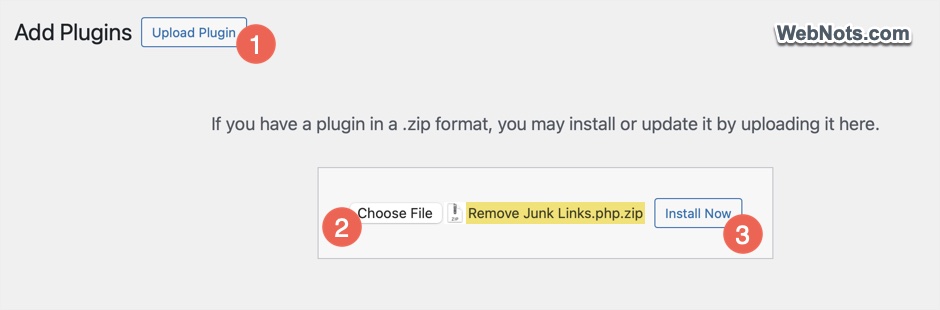
- Click “Install Now” button to install a plugin and then click “Activate Plugin” button.
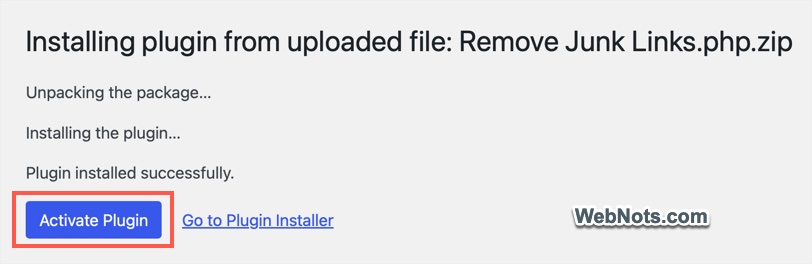
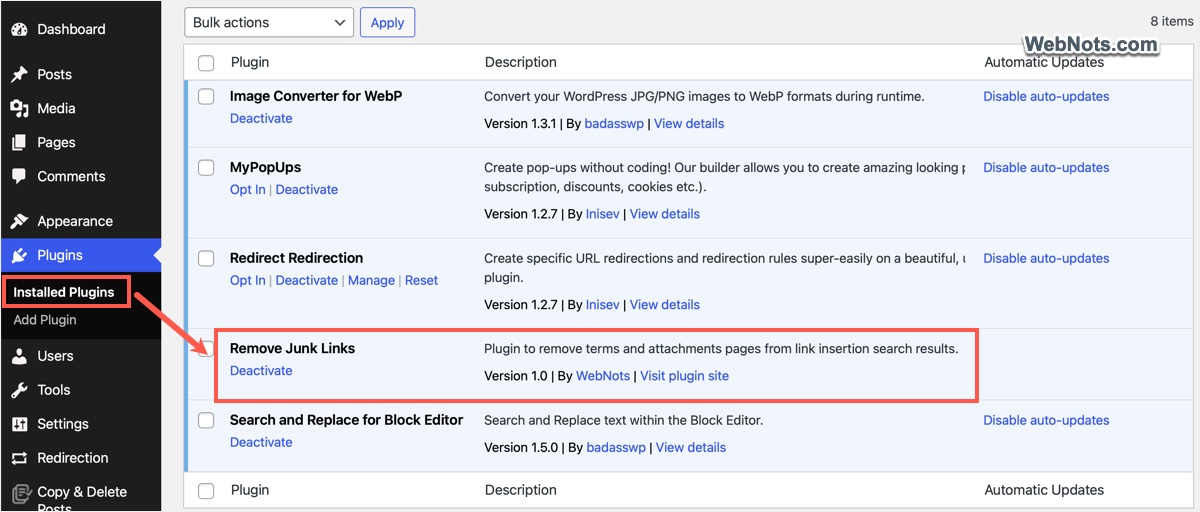
- Go to “Plugins > Installed Plugins” section and confirm there is plugin named Remove Junk Links is in active status.
- That’s it!!! You are done.
Now, search a keyword while inserting a link and the search box will not return any terms or attachment pages in the result.
Note: If you want to include terms, just remove the following part from the snippet.
if ($search_type === 'term' && !empty($search_query) && !empty($per_page)) {
return new \WP_REST_Response([], 200);
}
Wrapping Up
Removing terms and attachment pages from the WordPress link search keeps your content editor streamlined and focused. A simple filter in your functions.php file does the job cleanly without requiring heavy customization. However, is recommended to insert the code using a custom plugin so that the changes will stay intact.


Thanks, this worked perfectly