The Magnifier app in Windows PC is a helpful tool that allows users to zoom in on parts of their screen for easier viewing. It is also possible to zoom in the entire screen to view it larger. This is especially useful for individuals with visual impairments or those who need to closely examine text or images on their computer. Below is a comprehensive list of keyboard shortcuts that can be used to control the Magnifier app in Windows 11.
Complete List of Keyboard Shortcuts to Use Magnifier
Since mouse movement will be difficult while using the Magnifier app, it is highly recommended to get yourself familiarized with the below keyboard shortcuts to make the most out of the app.
General Magnifier Shortcuts
| Shortcut Keys | Purpose |
|---|---|
| Windows key + Plus | Open the Magnifier. |
| Windows key + Esc | Close the Magnifier app. |
| Windows key + Ctrl + M | Open Magnifier settings. |
| Ctrl + Alt + I | Inverts the colors on the screen to make it easier to read for some users. |
Zoom & Magnification Shortcuts
| Shortcut Keys | Purpose |
|---|---|
| Windows key + Plus | Increase the zoom level by one step (zoom in). |
| Windows key + Minus | Decrease the zoom level by one step (zoom out). |
| Ctrl + Alt + Mouse Scroll | Zoom in or out using the mouse wheel. |
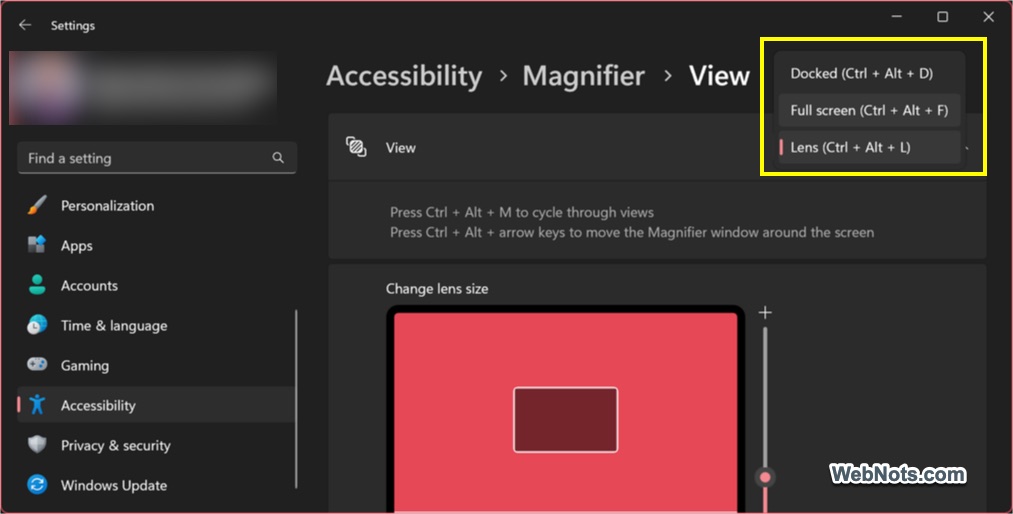
| Ctrl + Alt + M | Cycle through the three Magnifier modes: Full screen, Lens, and Docked. |
| Ctrl + Alt + L | Open Lens mode. |
| Ctrl + Alt + F | Open Full screen mode. |
| Ctrl + Alt + D | Open Docked mode. |
| Ctrl + Alt + Arrow Key (Up/Down/Left/Right) | Move the zoom area position on the screen when using Docked or Lens modes. |
| Ctrl + Alt + Minus | Toggle to previously/frequently used magnification state or return to 100%. |
Reading Shortcuts
| Shortcut Keys | Purpose |
|---|---|
| Reading shortcut + Enter | Start, pause, and resume reading. |
| Reading shortcut + Left mouse | Read from mouse pointer. |
| Reading shortcut + H | Read previous sentence. |
| Reading shortcut + K | Read next sentence. |
| Press Any Key | Stop reading. |
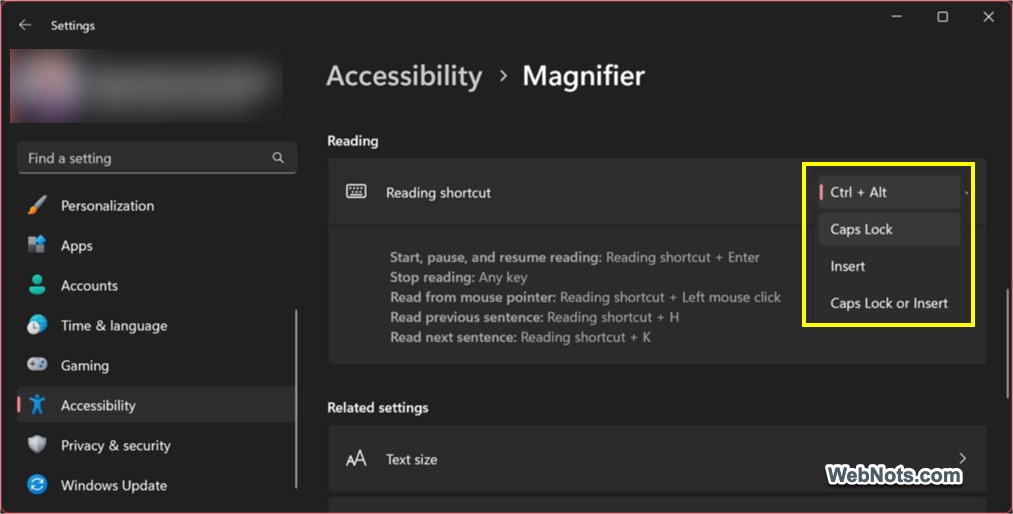
Reading shortcut key can be assigned under “Reading” section in “Settings > Accessibility > Magnifier”. The available shortcuts are Ctrl + Alt, Caps Lock, Insert, Caps Lock or Insert. By default, Ctrl + Alt is the reading shortcut and in that case, you can use “Ctrl + Alt + Enter” to start/pause/resume reading in Magnifier.
Adjust Magnifier Settings with Mouse
If you have difficulties in using the above keyboard shortcuts, then you can use mouse to open Magnifier app and customize the settings.
- Press “Windows key + I” to open the Windows Settings app.
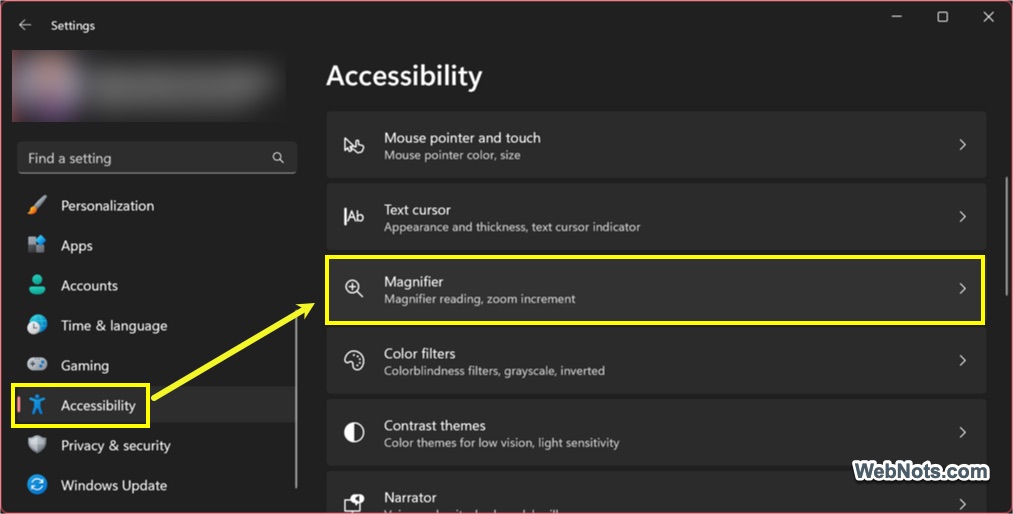
- Navigate to “Accessibility > Magnifier” section and turn on “Magnifier” option.
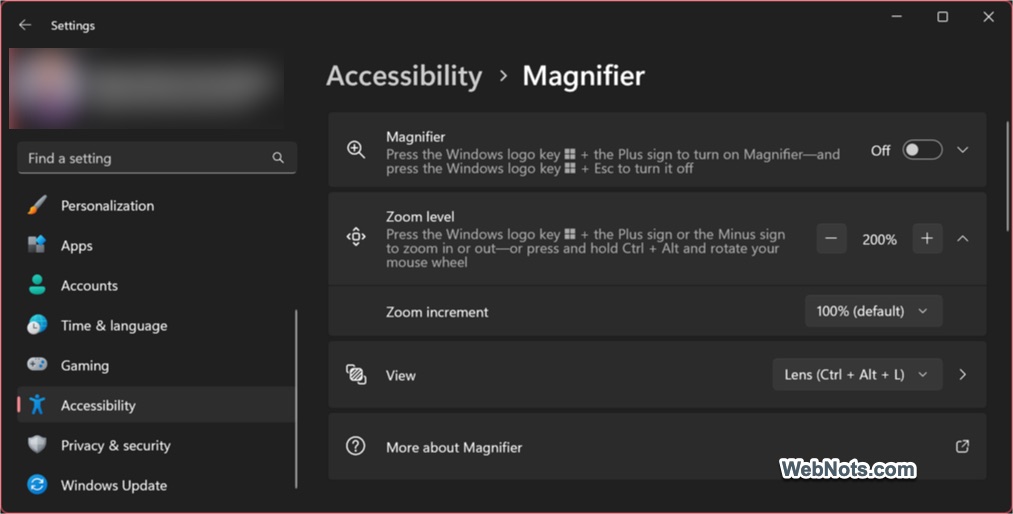
- From that settings page, you can adjust additional settings like default zoom level and zoom increment size when launching magnifier app.
Click on the “View” option to set your default launching mode and adjust the lens size for Lens mode.
Note: Since Magnifier is one of the default system apps, you can also open it by searching or from the Start menu list.
Conclusion
These keyboard shortcuts for the Magnifier app in Windows 11 can significantly improve navigation and user experience, particularly for individuals with visual impairments. Whether you need to zoom in quickly or adjust the settings to suit your preferences, these shortcuts provide a fast and efficient way to control the Magnifier without having to rely solely on a mouse.