
There may be lot of reasons you want to change the admin username of your WordPress installation. Especially when you install WordPress through hosting company’s one click installation method (for example, Softaculous installation), username will be taken from your hosting account login unless you notice and change it before installation.

Some users may also provide usernames like “admin”, “administrator”, “moderator” etc. Later they will understand these usernames are very easy to hack and want to change it from the dashboard to improve security. However, WordPress does not allow changing the username through dashboard frontend once installed.

Here are some ways to change WordPress username in case you want to change your admin username for any reason.
Changing Admin Username Using Plugin
The easy way to change admin username in WordPress is to use a plugin. Follow the below instructions:
- Go to “Plugins > Add New Plugin” section in your WordPress admin panel.
- Search for “username changer” and install a “Username Changer” plugin from WordPress plugins repository.
- This plugin will create a menu under “Users > Username Changer” and navigate to that section.
- Choose your current username from the drop-down and enter the correct new username.
- Hit “Save Changes” button.

After successfully changing the username, you can logout and login to admin panel using the new username. Remember, the admin password and email will remain same.
When changing the username, if you provide an existing username by mistake, the plugin will show you an error message like below. This will take care there are no duplication of admin ids.

Changing the Username in Database
If you are not interested in using a plugin, then other option is to edit the username directly in your WordPress database. In order to do so, you need to have an access to:
- Database through phpMyAdmin or any other DB management tool.
- FTP or File Manager access in your hosting cPanel.
Generally, you should be able to access File Manager as well as phpMyAdmin apps within your hosting panel (without additional login). However, this may differ based on the hosting setup and the below screenshots are from standard cPanel setup.
- Login to your hosting account and find the “File Manager” app.

- Open “File Manager” and locate “wp-config.php” file available in your root WordPress installation.
- Open “wp-config.php” file and note down the name of your database. Checkout the article on how to view and edit “wp-config.php” file for more information.

- After that find, “phpMyAdmin” app and open it.

- Enter your username and password to login to phpMyAdmin (as mentioned this may not be needed in most cases and you will be logged in automatically).

- Under “Databases” tab click on the database name which you have noted down from your “wp-config.php” file.

- Select the “*_users” table and click on “Edit” as shown in the picture below.

Prefix of the “_users” table may vary based on the data you provided during WordPress installation process. One click installation through hosting companies may add additional prefixes like “wp_abcd_users”.
- The column ID “user_login” is the WordPress admin username and change it to the new value as required. Also, make sure to change the same username in “user_nicename” filed.

- Hit the “Go” button on the bottom to save your changes.
Note: Some hosting companies like SiteGround restricts the hosting panel access per website. This means you will have the database corresponding to that site in phpMyAdmin. So, you do not need to find the DB name beforehand. However, if phpMyAdmin shows all the databases in your account, then you should find the correct DB and edit the details as explained above.
What is the Impact of Username Change?
It is not sure why username change is not enabled in wordpress.org admin panel while the same option is enabled for wordpress.com users.

Besides that checkout the following impacts on username change:
- Login id will be your new username.
- Related author name in all posts and author archives will be changed with the new username.
- Ensure to use unique username to avoid another admin user id is used. Modifying database will not check the duplication and result in affecting other admin id in multi admin user environment.

You can just change the display name without changing the actual login name under “User > Your Profile > Display name publicly as”.
Change WordPress Admin Email
Fortunately, changing WordPress admin email is an easy process you can do from the admin panel.
- Go to your user profile section from “Users > Profile” or click your display name showing on top right corner of the admin panel.
- Scroll on your profile settings page and find “Contact Info” section.
- The first item is the “Email (required)” and remove the current email from the box.
- Type your new email address, scroll down to bottom and click “Update Profile” button.
- WordPress will send a verification email to the current email. You have to verify the email change so that the new email will take effect after the verification.

Remember, till the time you verify your email address you have to login with your old email address. You will also see a message in your user profile page that there is a pending change of your email to new address. If you do not have access to the current (old) admin email, you can go to “wp_options” and “wp_users” tables to change the email address directly in database.
Alternate Option
There is another quick solution to admin username and email change problem in WordPress. You can create another admin account and delete the current one by logging through the new account.
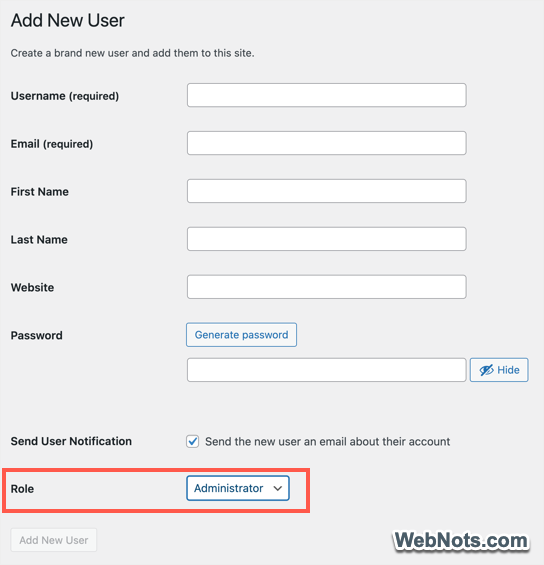
- Go to “Users > Add New User” menu.
- Fill up the correct username, email and other details.
- Select the “Role” as “Administrator” and click “Add New User” button.
- Logout of the dashboard and again login with the newly created username / password.
Now, you can delete the old admin account from “Users > All Users” section and take over the posts from old username to new one.



very good artical. thanx!
kfir