What is Weebly?
Weebly is one of the famous free website builder tools that helps to build personal, business, online store and content websites. It offers a wide range of features including option to integrate a blog, complete ecommerce store and AdSense account for generating revenue from the content. We recommend using Weebly for building your sites for the following simple reasons:
- Full access to CSS and HTML.
- Unlimited pages, free Sitemap and automatic mobile site.
- Easy to integrate your social profiles.
- Integration with Google AdSense, Analytics and Search Console.
Creating a free site with Weebly will hardly take few minutes and your site will be instantly available online once published.
What Do You Need?
You don’t need to buy any stuffs for creating a free website with Weebly. You will get a free subdomain from Weebly when creating a free site, later you can decide to connect the site to top level custom domain. If you want to start a site with proper domain then we recommend buying it before creating a website. Weebly also offers domain and emails but with high cost. So, you can always buy a domain at GoDaddy or Namecheap and use Google Apps or any other email services. The best option is to buy a hosting plans at SiteGround with domain, emails, WordPress and Weebly. In this way, you can easily get the advantages for hosting Weebly, WordPress or any other websites in a single platform.
1. Registering a Domain Name [Optional]
If you want to purchase a domain name with Weebly, go to Weebly domains section and search for the name you are looking for. Purchase for a suitable duration as per your need (check step #4 on more details about connecting your site to a domain).

2. Create a Free Weebly Account (Square Account)
Go to weebly.com and sign up for a free account. You will be redirected to Square website for registering an account. After verifying your account, use your email and password to login to Weebly dashboard. Select the primary language of your site available in lower right corner of Weebly home page if you want to change the language. Weebly currently offers support in English, French, Spanish, Italy, German, Portuguese, Dutch and Chinese, Japanese Turkish and Russian languages. Once you logged in to your Weebly account, select “Add Site” button under “My Sites” section.

Square the owner of Weebly is a payment processing company, hence you will see all options are pushing you towards creating an online store. However, you can ignore the ecommerce steps and continue to create your free site. Provide the required details and create your site, you can change these details at later from your site’s settings.

After filling the necessary steps, you will find your site in the dashboard. Click on edit to go to the Weebly site builder.
3. Selecting Your Site Theme
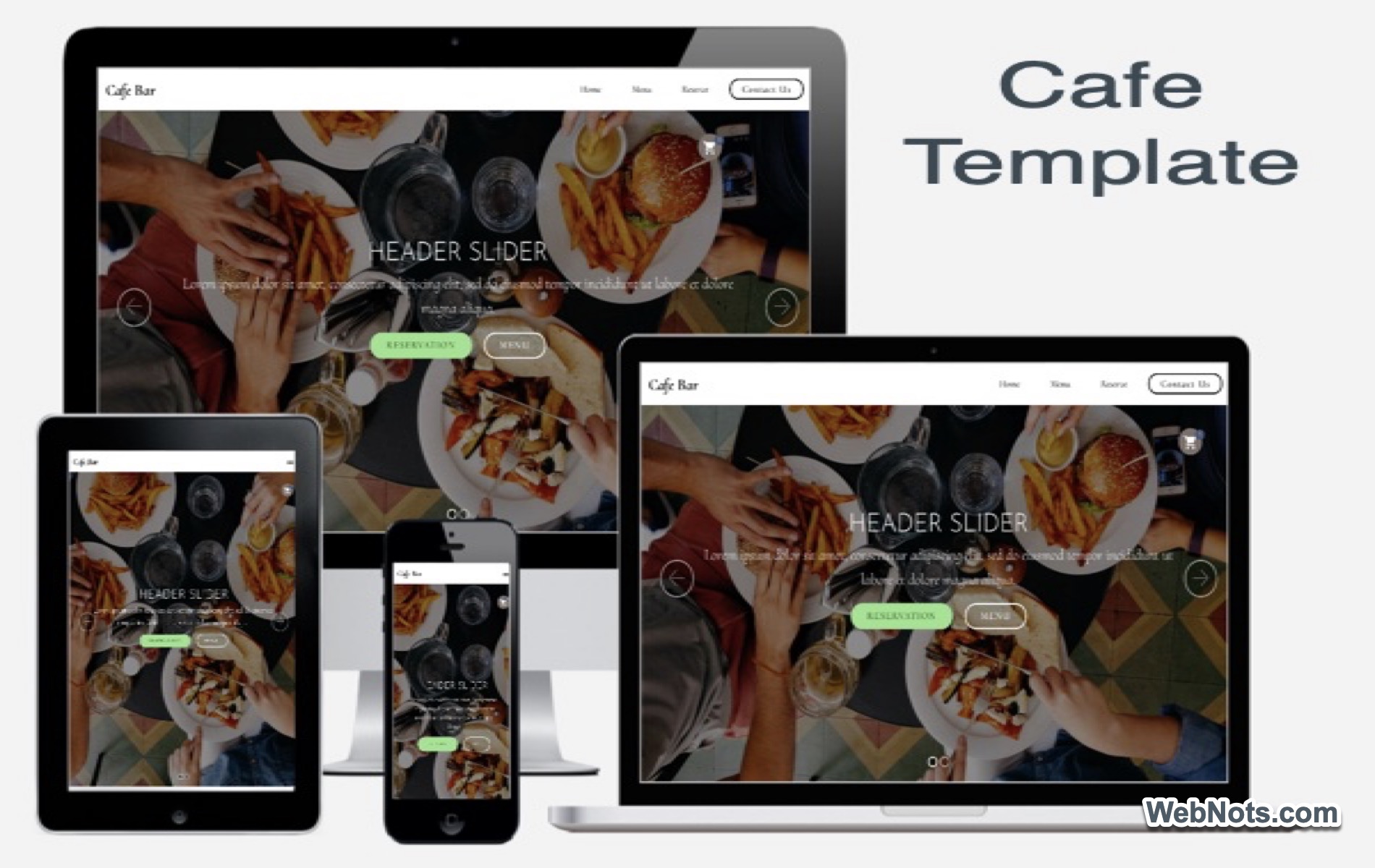
When you edit the site for first time, Weebly will prompt you select a theme. Choose one of the good-looking themes for your site. Unfortunately, Weebly offers very few themes, so you will not have many options.

4. Choosing Your Site Domain
After choosing a theme, Weebly will ask you to choose a domain for your site. Domain name is nothing but an URL address for your site which users can access from the web browser. Type a name for your domain and Weebly will provide three ways to choose your domain:

- Professional domain – You can register a new domain with Weebly and use it for your site (you need to pay for it separately as explained in step #1)
- Subdomain – Use subdomain of Weebly for free. In this case your URL will be like https:yoursitename.weebly.com.
- Connect a Domain You Already Own – In case if you have your own domain and chosen Weebly for free hosting then choose this option. You need to upgrade to Connect plan for connecting your custom domain. After connecting you need to setup DNS settings at the registrar to access the site hosted on Weebly.
Weebly shows your site name is available or it was already taken. For testing and trying out, choose the subdomain option and assign a Weebly subdomain to your site. If you are happy with Weebly, later you can update the domain name to custom address.
Your free Weebly site is ready now, the next step is to add content to your site and publish it in the web. Weebly site editor has lots of options for creating and customizing your website.

5. Adding Pages to Your Site
Add more pages to your site under Pages tab. You can add a standard page, blog, store, product page or an external link. Learn more about page layout selection. You can choose different layout for each page on your site. Weebly offers three types of Page Layouts when you create a new page.
- Header
- No header
- Splash
Choose the page layout by clicking on the page name under Pages tab.

6. Using Site Elements
Weebly Site elements are classified under categories Basic, Structure, Media, Ecommerce and More. All these are drag and drop elements, you can simply drag and drop into your website content area. Learn more about Weebly site elements.
7. Weebly Site Settings
Settings tab offers you various options to optimize your site. You can integrate Google Analytics and Google Webmaster Tools tracking codes in Search Engine Optimization tab under Settings. You can also archive and download your site as .zip file under Archive/Un-publish option. Learn more about Weebly site settings.

Copy and Delete Weebly Site
Weebly also offers you to copy your existing site into new Weebly site. You can select Copy Site from dashboard and provide the necessary details to copy your existing site. Note you can’t copy a Weebly blog and store pages, you can only copy Weebly content site. You can also delete the published Weebly site by selecting the Delete Site option. Learn more on site administration options.

Checkout the video presentation on creating a free Weebly site:

Weebly Free Site Restrictions
- Free Weebly Footer message (Learn how to remove footer from free Weebly Site).
- Favicon not available (Learn how to use Favicon to Weebly free site).
- Video and Audio options are not available.
- Site search box and header slideshow are not available.
Weebly Premium Plans & Features
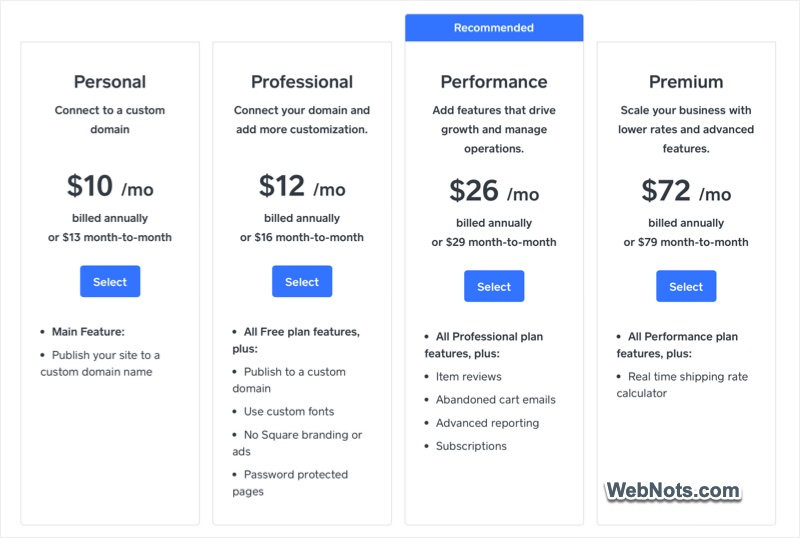
Weebly also offers upgrade plans as Personal, Professional, Performance and Premium plans. The Performance / Premium plans are to upgrade your site to an online store whereas other plans offer limited ecommerce features. Learn more about the premium features by clicking on the links below:
Using Weebly Cloud Hosting
Some popular hosting companies like SiteGround offer Weebly site builder as part of their hosting service. You can purchase one of these paid hosting plans to run Weebly on cloud platform. This will be much cheaper than upgrading your account in weebly.com. Also, you will get an added advantage of hosting WordPress and other sites along with your Weebly site. However, you may not be able to install apps from Weebly App Center in this case and login through your hosting account instead of weebly.com.
Important Note: At this point, Square Online and Weebly uses the same backend editor for content creation though pricing and other aspects are different. Learn more about the difference between Weebly and Square Online.