Counting rod numerals were used in ancient China for mathematics and accounting, arranged vertically and horizontally to represent digits by place value. Today, Unicode includes these numerals, and you can insert them using Alt code shortcuts in Windows PC or Unicode Hex Input on Mac. in this article, we’ll explain how to type counting rod numerals, including their values, symbols, Unicode code points, and Alt code equivalents.
Counting Rod Numerals Table
Here is a summary of alt codes for vertical and horizontal counting rod symbols:
| Value | Symbol | Name | Alt Code (Vertical) | Unicode |
|---|---|---|---|---|
| 1 | 𝍠 | Unit Digit One | Alt + 119648 | U+1D360 |
| 2 | 𝍡 | Unit Digit Two | Alt + 119649 | U+1D361 |
| 3 | 𝍢 | Unit Digit Three | Alt + 119650 | U+1D362 |
| 4 | 𝍣 | Unit Digit Four | Alt + 119651 | U+1D363 |
| 5 | 𝍤 | Unit Digit Five | Alt + 119652 | U+1D364 |
| 6 | 𝍥 | Unit Digit Six | Alt + 119653 | U+1D365 |
| 7 | 𝍦 | Unit Digit Seven | Alt + 119654 | U+1D366 |
| 8 | 𝍧 | Unit Digit Eight | Alt + 119655 | U+1D367 |
| 9 | 𝍨 | Unit Digit Nine | Alt + 119656 | U+1D368 |
| 1 | 𝍩 | Tens Digit One | Alt + 119657 | U+1D369 |
| 2 | 𝍪 | Tens Digit Two | Alt + 119658 | U+1D36A |
| 3 | 𝍫 | Tens Digit Three | Alt + 119659 | U+1D36B |
| 4 | 𝍬 | Tens Digit Four | Alt + 119660 | U+1D36C |
| 5 | 𝍭 | Tens Digit Five | Alt + 119661 | U+1D36D |
| 6 | 𝍮 | Tens Digit Six | Alt + 119662 | U+1D36E |
| 7 | 𝍯 | Tens Digit Seven | Alt + 119663 | U+1D36F |
| 8 | 𝍰 | Tens Digit Eight | Alt + 119664 | U+1D370 |
| 9 | 𝍱 | Tens Digit Nine | Alt + 119665 | U+1D371 |
There’s no vertical rod symbol for zero because zero was typically just left blank.
Type Counting Rod Numerals On Windows
- Using Alt Codes: Hold one of the Alt keys and type the shortcut numbers. For example, type Alt + 119661 will make horizontal five like 𝍭.
- Using on Microsoft Word: Type the Unicode value and then press Alt + X keys. For example, 1D365 Alt X will make vertical six value like 𝍥.
Typing On Mac
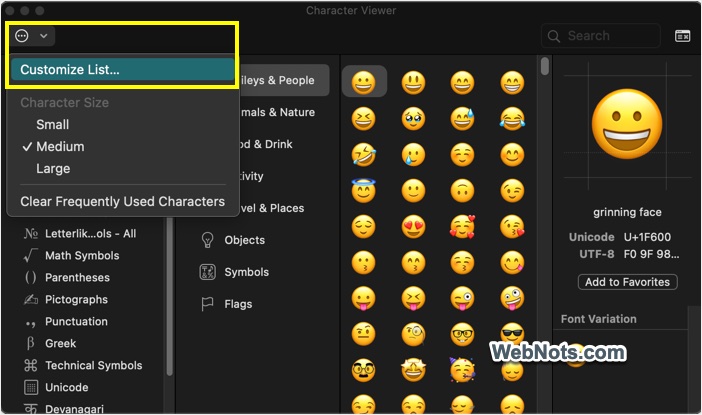
Unfortunately, you can’t use the shortcuts on Mac. However, you can use the Character Viewer app for this purpose.
- Press “Control + Command + Space” to open Character Viewer app.
- Click the small arrow on the top left corner and select “Customize List…” option.
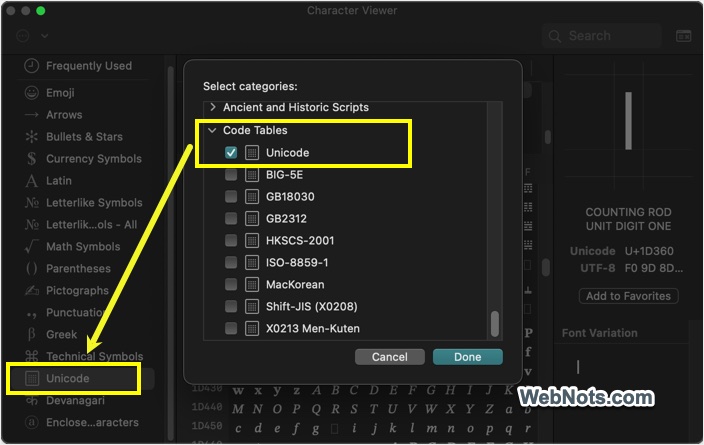
- Scroll down to bottom on the pop-up and check “Unicode” option under “Code Tables” option.
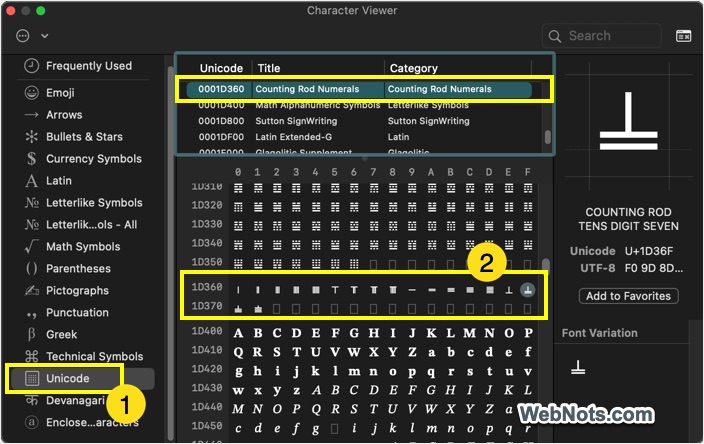
- Now, select the “Unicode” option on the sidebar and scroll down to 1D360 value.
- You can find the Counting Rod Numerals category and double click on a symbol to insert it.
How They are Used?
Counting rods are based on decimal positional notation. The pattern alternates:
- Odd digit places (units, thousands): use vertical rods.
- Even digit places (tens, hundreds): use horizontal rods.
Below is an example representation of number 376.
- Hundreds (3): 𝍫
- Tens (7): 𝍦
- Units (6): 𝍮
So, 376 is written as 𝍫𝍦𝍮 using counting rods.
Let’s check an another example: 2,041. Breaking it down:
- Thousands (2): horizontal 𝍪
- Hundreds (0): no symbol
- Tens (4): vertical 𝍣
- Units (1): horizontal 𝍩
So it becomes: 𝍪 𝍣 𝍩
Just leave a blank for 0 – spacing still indicates its place.
Summary
Counting rod numerals offer a fascinating look into historical computation. Unicode makes it possible to study and recreate these symbols today, though typing them requires Unicode-savvy methods like Alt code shortcut in Windows or Character Viewer on Mac. If you work with historical math, linguistics, or digital archives, this guide has you covered.