Command Prompt is one of the most useful apps in Windows operating system for those love to use command line interface. Though Microsoft introduced powerful Windows PowerShell, many people still prefer to use Command Prompt as a habit. In this article, we will explain how to open Command Prompt in Windows 11 using different methods.

Command Prompt Vs Command Prompt Admin Mode
Like any other application in Windows, you need to open the app in admin mode for modifying system files. Since some of the Command Prompt commands need administrator access, Microsoft offers Command Prompt app both in normal and admin mode in certain places. Therefore, make sure to open the app in normal or admin mode depending upon your intended action.
Also note that, earlier Microsoft allows to open Command Prompt from the power user menu by pressing “Win + X” keys or right click on the Start menu. Later, PowerShell replaced Command Prompt in the power user menu with an option to toggle in the taskbar settings. In Windows 11, Windows Terminal replaced the PowerShell items in power user menu and there is no option to enable Command Prompt.
1. Open From Windows Terminal App
As Microsoft recommends using Windows Terminal app for command shell, you can use Command Prompt from Terminal app.
- Press “Win + X” or right click on the Start menu to open power user menu.
- Select Windows Terminal or Windows Termina (Admin) to open the Terminal app.

- By default, Terminal app will open with PowerShell in Windows 11.
- Click on the small arrow in title bar and open Command Prompt app.
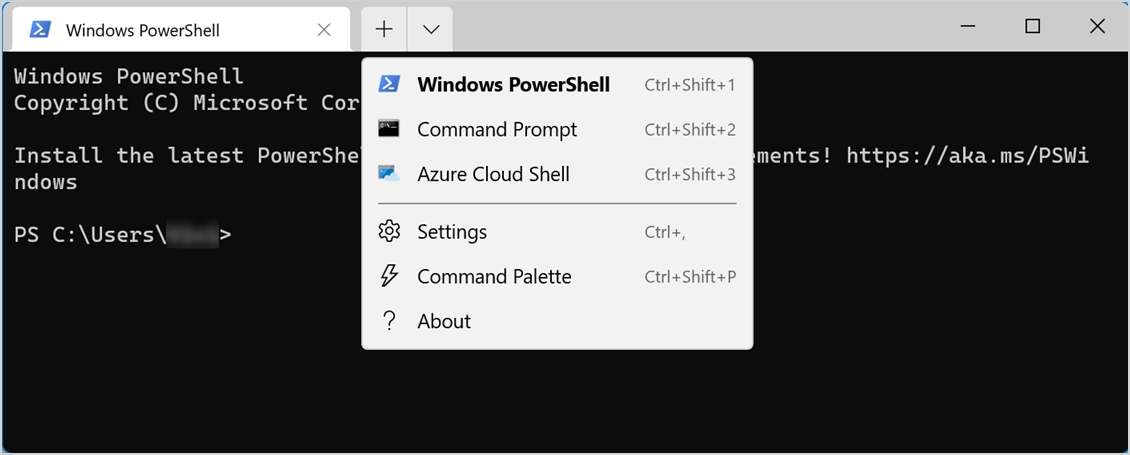
If you want to set Command Prompt as the default opening app in Terminal, then click on the small arrow in title bar and select “Settings”. When you are in Terminal settings page, select the “Default Profile” from Windows PowerShell to Command Prompt from the drop down under “Startup” section. In this way, you can directly launch Command Prompt when opening Windows Terminal app.

2. Open Command Prompt from Start Menu
Earlier Windows 10 Start menu used to contain Command Prompt app in the list. This has been removed in Windows 11 and you will not find the direct app link in the Start menu. However, you can still access Command Prompt from Start menu with a lengthier route.
- Press “Win” key on your keyboard to open Start menu.
- Click on “All Apps” button and scroll down to the bottom of the app list.
- Click on Windows Tools option under “W” section.

- It will open a new File Explorer window showing all in-built Windows tools including Command Prompt.

- Double click on the Command Prompt app to launch it.
3. Search and Open
Click on the Windows Search icon in your taskbar or open Cortana Search. Type cmd to filter the results and Command Prompt app. Click the app to open in normal mode or click on “Run as administrator” in right pane to open the app in admin mode.

4. Open From File Explorer
Command Prompt is available in C:\Windows\System32 location. You can open File Explorer by pressing “Win + E” keys and paste this location in the address bar to find cmd.exe application file. You can double click the file and open Command Prompt app.

Alternatively, you can type cmd in the address bar and press enter key to open Command Prompt app directly.
5. Shortcut for Command Prompt
There are two ways to create a shortcut for Command Prompt app. When you search and open, select “Pin to Start” or “Pin to taskbar” options to create shortcut in Start menu or taskbar. You can use these shortcuts to access the app quickly. Alternatively, you can create a desktop shortcut using the following instructions.
- Go to C:\Windows\System32 and locate cmd.exe file.
- Right click on the file and select “Show more options” menu.
- Select “Send to > Desktop (create shortcut)” option.

- This will create shortcut icon in the desktop. You can rename the shortcut as Command Prompt or anything you like.

6. Open From Folder Right Click Context Menu
If you want to open Command Prompt with any folder, simply right click on it and select “Open in Windows Terminal” menu. if you have set Command Prompt as a default profile app in Terminal as explained above, then you will see the Command Prompt opens within the selected folder.

7. Use Run Prompt
Command Prompt is an application in Windows with the file name as cmd.exe. Therefore, you can type cmd in Run prompt to open Command Prompt app.
- When you open power user menu by pressing “Win + X” keys, select “Run” option.
- Type cmd in the text box and press “OK” button.

8. Open Command Prompt from Task Manager
It is also possible to open the app from Task Manager.
- Press “Win + X” to open power user menu and select Task Manager option.
- If you are in fewer details view, click on the “More details” option in the status bar to open the app in larger view that shows more details.
- Click on “File” menu and select “Run new task” option.

- Enter cmd in the text box and press enter key.

- This will launch Command Prompt app for you. If you want to launch the app in admin mode, select “Create this task with administrative privileges” option.