
WordPress is an incredibly popular content management system (CMS) that powers millions of websites worldwide. While WordPress is easy to use out of the box, some advanced users prefer working with its underlying database directly. SQL (Structured Query Language) is the language used to communicate with the database, and understanding a few key SQL tricks can help WordPress users manage their websites more efficiently. In this article, we will explore 8 essential SQL tricks and commands that can make your WordPress experience smoother, more flexible, and more powerful.
Accessing MySQL Database through phpMyAdmin
WordPress can also use MariaDB but MySQL is the most commonly used setup. Before diving into specific SQL queries, it’s important to know how to access your WordPress MySQL database. The most common way to manage WordPress databases is via phpMyAdmin, a web-based tool offered by most hosting providers.
- Log in to your hosting control panel.
- Search and open phpMyAdmin tool (generally under the “Databases” section).
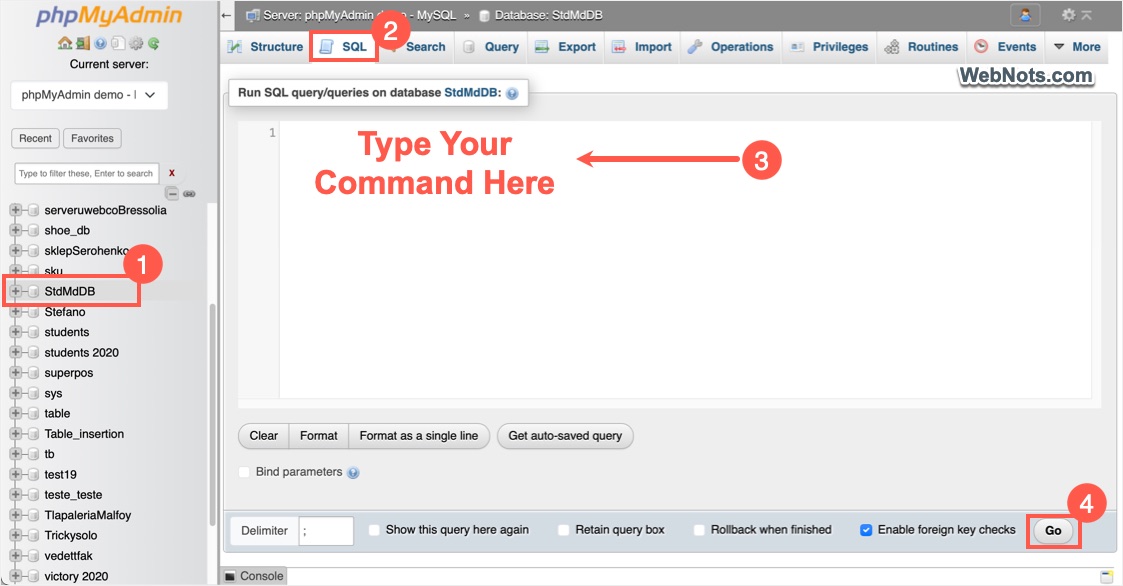
- Make sure to select correct WordPress database from the list on the left side.
- Once inside phpMyAdmin, you can run SQL commands to interact with your WordPress data under “SQL” tab.
Before making changes to database, make sure to go to “Export” tab and download the entire database in SQL (uncompressed) or ZIP / GZ (compressed) format. You can also export individual tables (like wp_posts) from your database.
Note: wp_ is the default table prefix used in WordPress database setup. However, most hosting companies will change this to different prefix for security reasons. So, make sure to use the correct table prefix as per your database with the following commands.
1. Updating Post URLs in Bulk
Sometimes, you may need to update URLs in WordPress posts – perhaps due to a domain name change or restructuring. Here’s an SQL command that can help.
UPDATE wp_posts SET guid = REPLACE(guid, 'old-domain.com', 'new-domain.com');
UPDATE wp_posts SET post_content = REPLACE(post_content, 'old-domain.com', 'new-domain.com');
This command will replace all instances of old-domain.com with new-domain.com in the wp_posts table. It targets both the post URL (guid) and content (post_content).
2. Finding and Deleting Post Revisions
WordPress automatically saves post revisions, which can clutter your database over time. If you want to delete all revisions of a specific post, use this command:
DELETE FROM wp_posts WHERE post_type = 'revision';To delete revisions of a specific post, modify the query to include the post_id:
DELETE FROM wp_posts WHERE post_type = 'revision' AND ID = '123';Replace 123 with the actual post ID.
3. Changing WordPress Admin Email
Changing the admin email in WordPress is simple via the dashboard, but if you need to do it through SQL, here’s how:
UPDATE wp_options SET option_value = '[email protected]' WHERE option_name = 'admin_email';This command updates the admin email directly in the wp_options table.
4. Disable WordPress Comments with SQL
If you want to quickly disable comments across your entire WordPress site, run the following SQL command:
UPDATE wp_options SET option_value = 'closed' WHERE option_name = 'default_comment_status';This sets the default comment status to “closed,” preventing any new comments from being posted.
5. Resetting WordPress Admin Password
If you’ve forgotten your WordPress admin password and can’t reset it via email, you can change it directly in the database with this SQL query:
UPDATE wp_users SET user_pass = MD5('new-password') WHERE user_login = 'admin';This command sets the password for the user admin to new-password. Be sure to replace ‘admin’ with the correct username if different.
6. Deleting Unused Tags
Unused tags can accumulate in WordPress, especially if you’ve had your site for a while. To clean them up, run:
DELETE FROM wp_terms WHERE term_id NOT IN (SELECT term_id FROM wp_term_taxonomy);This command deletes tags that are not linked to any posts or pages.
7. Viewing and Removing Spam Comments
Over time, spam comments can fill your WordPress site’s database. To identify spam comments, run:
SELECT * FROM wp_comments WHERE comment_approved = 'spam';To delete all spam comments, execute:
DELETE FROM wp_comments WHERE comment_approved = 'spam';This command will clear all comments marked as spam.
8. Optimizing or Deleting Tables
Over time, your WordPress database will become bloated and run slow with unnecessary tables added by deleted plugins. You can optimize your database and delete unnecessary table to improve performance.
Run this SQL command to optimize the tables:
OPTIMIZE TABLE wp_posts, wp_comments, wp_options;To delete a table, run the following command by changing the table name:
DROP TABLE wp_novashare_meta;Conclusion
Mastering these SQL tricks and commands can save you time, reduce reliance on plugins, and give you more control over your WordPress website. While it’s important to always back up your database before making changes, these SQL commands can help you manage your site easily. Whether you’re updating URLs, cleaning up unused data, or troubleshooting issues, knowing how to interact directly with your WordPress database is useful for any WordPress user.


