Locking your Mac is a quick and essential step to ensure your data remains secure when stepping away from your computer. Here are several methods to lock your Mac, each suited to different situations and preferences.
1. Using Keyboard Shortcut
This is the fastest method to lock your Mac. Simply press “Command + Control + Q” keys together, and your screen will lock immediately. You will need to enter password to access your Mac again.

2. From Apple Menu
- Click the Apple logo in the top-left corner of the screen.
- Select “Lock Screen” from the dropdown menu.

You can use this option if you don’t remember or difficulty in using keyboard shortcuts.
3. Lock Using Hot Corners
Hot Corners allow you to lock your screen by moving your cursor to a designated corner of the screen. Here is how to set it up:
- Go to “Apple menu > System Settings…” to open Settings app.
- Navigate to “Desktop & Dock” section and scroll down to bottom of the settings page.
- Click on “Hot Corners” button at the bottom-right of the window.
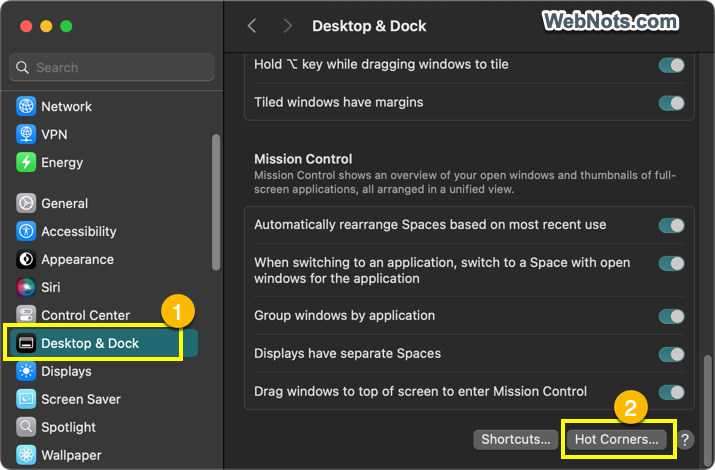
- Click the dropdown for any of the corner and select “Lock Screen” option. You can also select “Put Display to Sleep” option instead of “Lock Screen”.
- Click “Done” to save your changes.

Now, you can lock Mac’s screen just by moving the cursor to selected corner.
4. Automatically Lock When Inactive
If you are always running in hurry without having time to check the system is locked, then you can set the timer for automatically locking the screen. If the system is idle for the set timer, Mac will automatically lock and protect unauthorized access.
- Go to “Apple menu > System Settings…” to open Settings app.
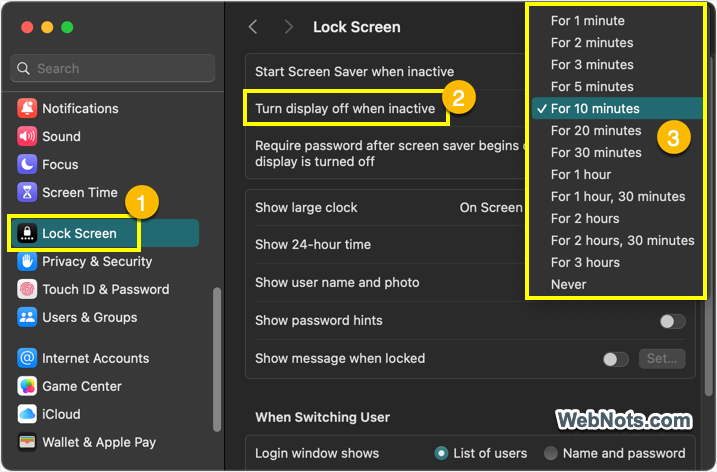
- Navigate to “Lock Screen” section from left sidebar.
- Click the dropdown against “Turn display off when inactive” option and select the duration from the list. You can set the timer from 1 minute to 3 hours based on your need.
- Also, make sure select “Immediately” for “Require password after screen saver begins or display is turned off” option
5. Lock Mac with Screen Saver
It is also possible to set your screen saver as lock screen when the system is inactive and prompt password when waking up.
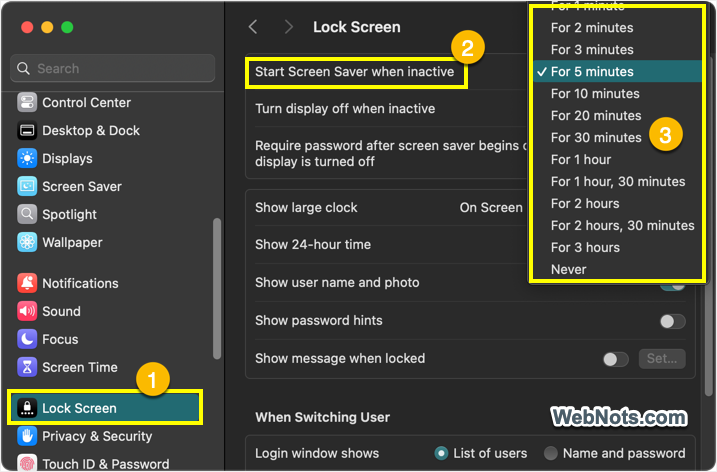
- Go to “Apple menu > System Settings… > Lock Screen” section.
- Click the dropdown against “Start Screen Saver when inactive” option and select the duration from the list.
- Make sure to set the timer for “Require password after screen saver or display is turned off” option.
- Go to “Screen Saver” section to select and customize the screen saver. You can also trigger screen saver using Hot Corners option.
This option locks your Mac after a brief period of inactivity by showing the screen saver.
6. Lock Your Mac Using Touch ID
Some MacBook models come with Touch ID keyboard or you may be using Apple Magic Keyboard which comes with iMac (can also be purchased separately). In this case, simply press the Touch ID key (without holding it down) to lock your Mac.

You can unlock it with your fingerprint when you return. Make sure you have enabled “Use Touch ID to unlock your Mac” option under “Touch ID & Password” section in Settings app.

Final Words
Above explained methods cover a variety of ways to lock your Mac, giving you options that are quick, convenient, and adjustable based on your needs.