Subdomains are the easy way to have supplementary content on your main site. Though subdirectory can also help, subdomains are considered as a separate site which allow you to host different category of content. Creating a subdomain is simple process from your cPanel or hosting panel. However, you need to make sure some precautionary steps before start using the subdomains.
Managing Subdomains
Depending upon the application you install on subdomains, there are some steps you can manage or customize from the application’s admin panel. For example, you can change the site address from admin panel if you are using WordPress. But all the below listed points are generally to be taken care from your hosting panel.
1. With or Without WWW
First thing is to understand WWW is a subdomain of your primary domain name (site address). Though we commonly use WWW along with the site address, it is not part of it which means the same site can have two different setups with www and without www address.
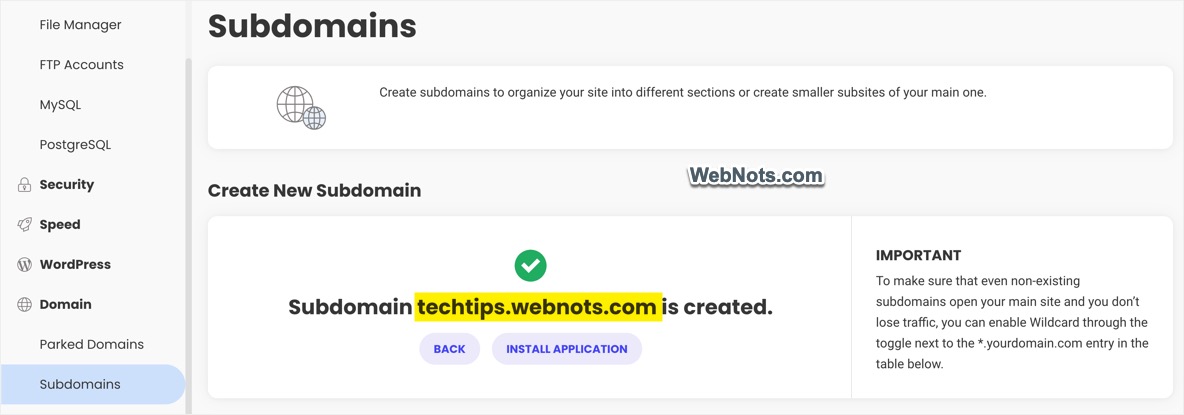
So, make sure to select whether you want to have WWW in your subdomain when creating it. For example, https://www.subdomain.example.com and https://subdomain.example.com can host two different applications and content. Some hosting setups like SiteGround Site Tools will automatically remove www when creating subdomains. However, you may need to manually select the path in most of the cPanel hosting setups.
2. Install SSL for Subdomain
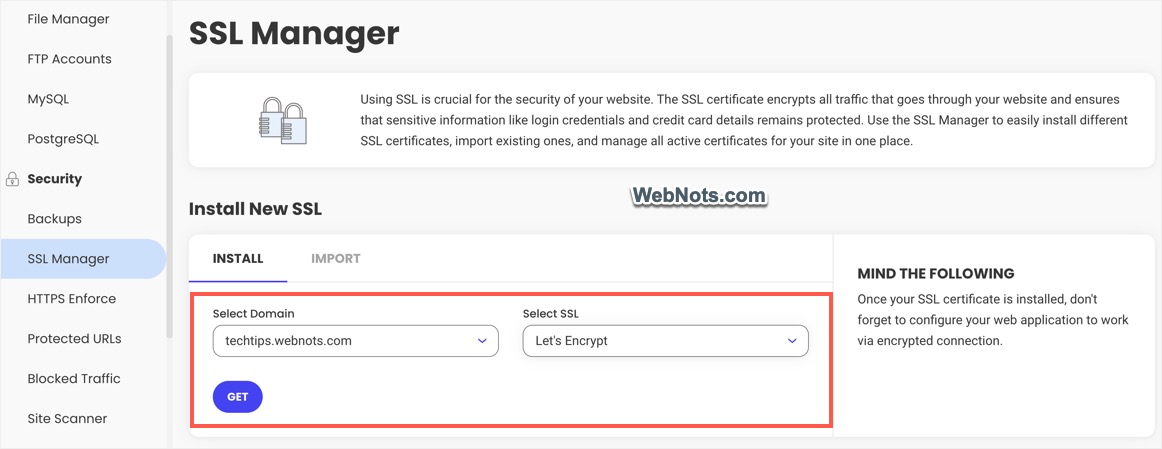
Many users think that the SSL certificate installed on the primary domain will be automatically used for subdomains also. That works only when you have wildcard SSL which is not the common feature in shared hosting setup. So, you need to manually install SSL certification on your subdomain so that it will use HTTPS protocol.
3. Enforce HTTPS for Subdomains
This is another mistake most of us make that installing SSL will force the site address to use HTTPS. However, it is not the case and you can access the subdomain using https:// as well as http:// protocol. To redirect all URLs of subdomain only through HTTPS, you need to force HTTPS. Check whether your hosting company allows to enable this option from your account. Otherwise, check our article explaining how to force HTTPS using htaccess redirective.
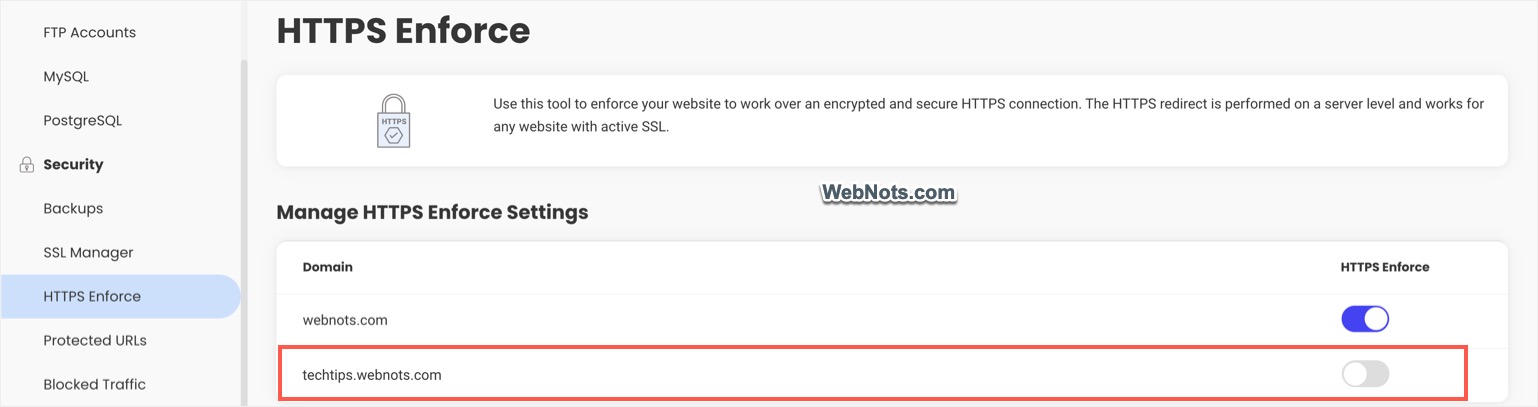
Remember that you should also enable HTTPS for the site address in your application’s admin panel. Also, CDNs like Cloudflare offers an option to always use HTTPS when the content is served through their server.
4. Setup DNS Records
By default, subdomain creation should add an entry in your DNS zone file if you are using the domain and nameservers from the hosting company. Sometimes you may use the nameservers of your advertising partner or CDN setup instead of the hosting company. In this case, you need to manually add a DNS record for the newly created subdomain where your DNS zone file is managed (in addition to your hosting DNS). Otherwise, content from subdomain will be served directly from the origin (hosting) server without CDN or advertisements will not show from the ad server.
For creating a DNS record, all your need is to create an A record pointing to your server’s IP address in your DNS zone file. Generally, A record is added for both www and non-www versions as shown below.

5. Add Subdomain to CDN
This is the last point to take care if you are using CDN setup with zones. You need to add the subdomain in CDN setup and assign a zone to use the edge servers. Otherwise, content will be served directly from origin instead of CDN’s edge servers. This is also important from security point of view to avoid revealing your origin server’s IP address.
If you are using Cloudflare or similar setup with DNS routing, then you need to add your subdomain to Cloudflare’s DNS setup as mentioned above.
Final Words
It is always a good idea to check everything is setup properly by opening the subdomain URL in browser. Here is a summary you should check:
- Open both www and non-www versions and the site should redirect as per your setup.
- Open your subdomain URL with HTTP and make sure it is redirecting to HTTPS version.
- Check the content from subdomain is served from CDN by verifying CDN server logs or reports.