PiP or Picture-in-Picture mode lets you pop a video out of its original window and keep it floating on top of everything else – perfect for multitasking. Whether you’re watching a tutorial, a meeting, or your favorite show, PiP in Microsoft Edge makes it easy to stay productive without losing sight of your video. Here are the different methods to use PiP mode in Edge. Also, learn how to use PiP mode in Google Chrome.
1. Use PiP Button on Videos
By default, Edge will show a PiP button on videos. Most major video sites like YouTube support Edge’s PiP feature directly.
- When the video is playing hover your move pointer over the video.
- You’ll see a small PiP icon (a rectangle with an arrow) showing on the video.

- Click the PiP icon and the video will pop out into a floating window.
- You can drag it anywhere on your screen and resize it to your preference.
- The floating video stays on top of all other windows so that you can keep watching while you work on other tasks.
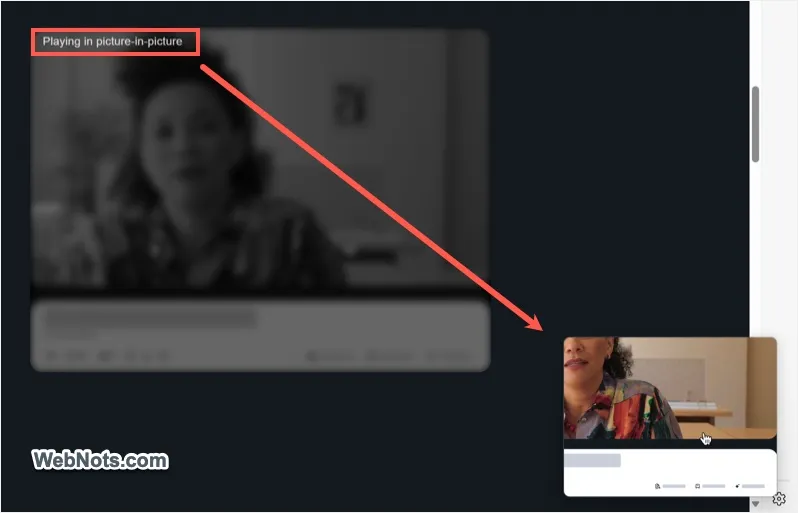
While you watch the video on PiP mode, the original video will show “Playing in picture-in-picture” with a blurred background.
1.1. Enable or Disable PiP Button on Videos
As mentioned, the PiP button or icon will automatically appear on all supported videos (like YouTube, Vimeo, etc.). If that doesn’t appear, follow the below steps to enable it.
- Open Edge and click the three-dots “Settings and more” icon (or press “Alt + F” keys).
- Select “Settings” from the dropdown menu that appears.

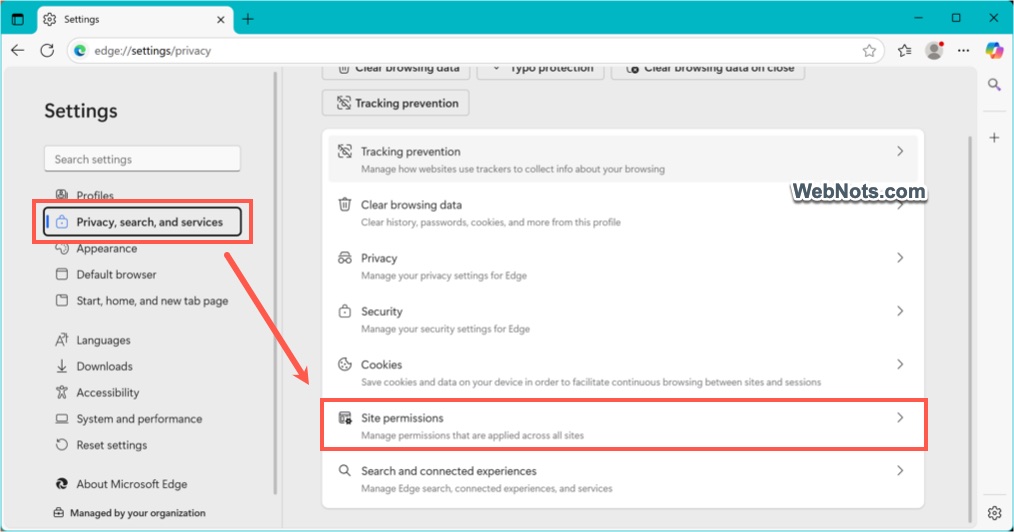
- Go to “Privacy, search, and services” section and click on “Site permissions” option.
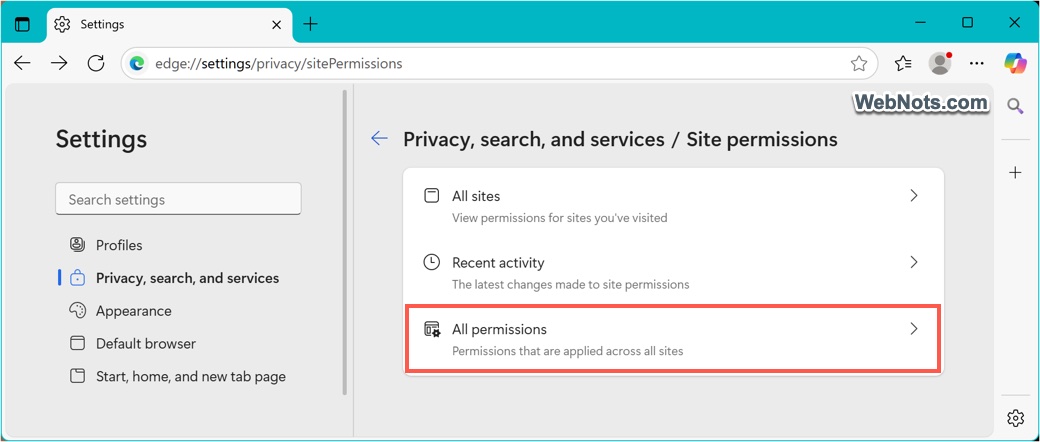
- On the next screen, select “All permissions” option.
- Scroll down and click on “Automatic picture-in-picture” option.

- Turn on “Show Picture in picture control inside video frame”.

Now, you can hover on any playing video and check the PiP icon appears.
2. Right-Click to Enable PiP
If the PiP button doesn’t appear or is not convenient for you, then you can use this method.
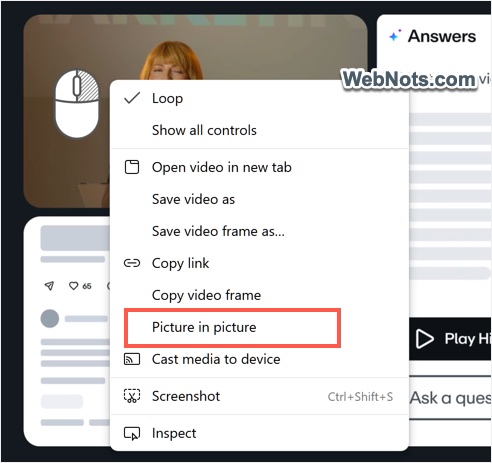
- Right-click on any playing video and select “Picture in picture” option from the context meu. This works on platforms like Vimeo.
- On some platforms like YouTube, you need to right-click twice on the video to see the PiP menu.
3. Use Tab Context Menu
Edge also offers another quick option from the tab.
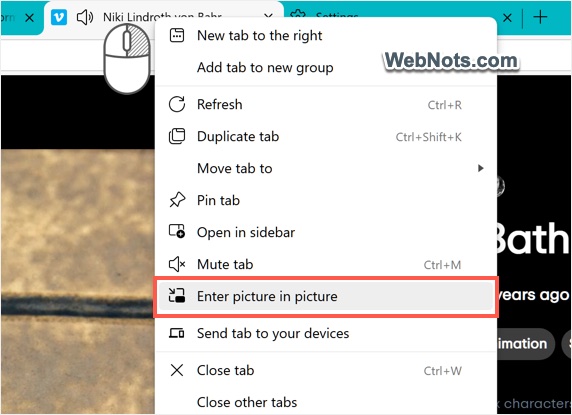
- The tab playing video in Edge will show a speaker icon indicating a media is playing.
- Simply right-click on the tab and select “Enter picture in picture” from the context menu.
4. Use an Extension
Though all the above methods are easy to use, some platforms like Netflix don’t support the default PiP mode in Edge. In this case, you can use a browser extension to add this feature.
- Go to Edge Add-on store and search for “pip”.
- Find and install an extension like “Smart Pip View”.
- Once installed, you’ll see a PiP icon on all videos similar to the default Edge function.
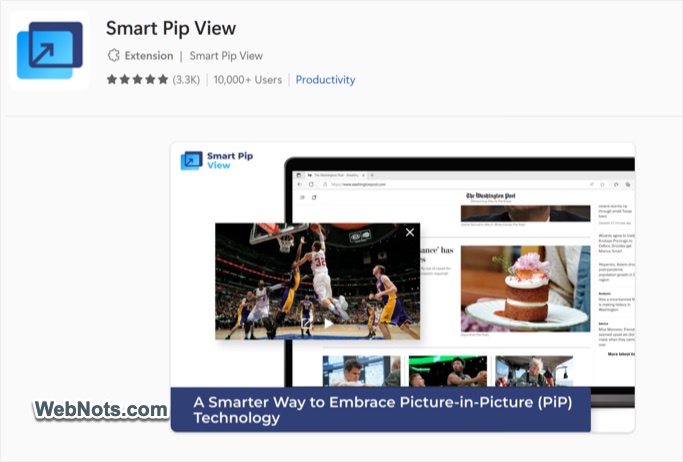
You can also use an extension to assign shortcut keys for triggering PiP mode for quicker access.
Final Notes
PiP mode works best with video content embedded via HTML5, which includes most modern sites. However, it doesn’t work with sites like Netflix where you can use an extension. With PiP in Edge, staying entertained or informed while juggling other tasks is simple. It’s a small feature that adds big convenience.