iPhone allows you to have multiple home screens and swipe across them easily. You can group app icons, folders and widgets on these home screens and access them conveniently. However, having too many home screens will make the iPhone clutter and difficult to find apps. Good thing is that there are multiple ways you can hide or remove the home screens.
Hiding or Removing Home Screens
Hiding a screen will not delete it and you can anytime unhide with all the apps as they are. However, removing will delete that screen and all the apps need to be accessed only from App Library. If required again, you need to create a new screen and arrange the apps manually.
Note that left end of home screens is the widget / suggestions area while App Library is located at the right end.
1. Hiding Screen Using Navigation
- Long press on the empty area on one of your home screens.
- The apps will start jiggling and you can the search box is changed to navigational dots.
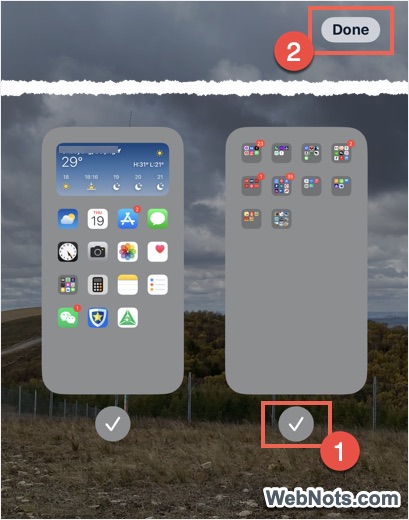
- Tap on those navigational dots to see the preview of all home screens on your iPhone.

- Now, tap on the check mark (to remove it) showing below the screen that you want to hide.
- Tap “Done” link to hide the screen. You can anytime follow the same steps and enable the check mark to unhide the hidden screen.
Note: Search box can be enabled or disabled under “Search” section from “Settings > Home Screen & App Library > Show on Home Screen”. If disabled, you will only see navigational dots on the home screens.
1.1. Removing Home Screen Using Navigation
- Follow the same steps as explained above to reach the preview screen.
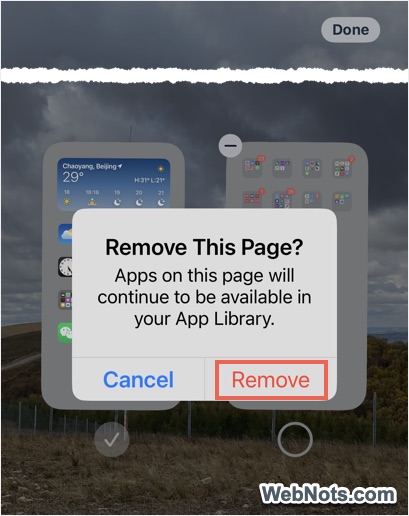
- Remove the check mark below the screen and iPhone will show a minus icon on top left corner of the screen preview.
- Tap on that minus icon and confirm your action by tapping on “Remove” option.

- This will permanently remove the unchecked home screen and all the apps can be accessed from App Library section.
2. Hiding Home Screen Using Customize Menu
This works exactly like the above method except that you need to have iOS 18 or later on your iPhone.
- Long press on empty area on the home screen.
- When the apps are moving, tap on “Edit” link showing on top left corner of the screen and select “Edit Pages” option from the menu.
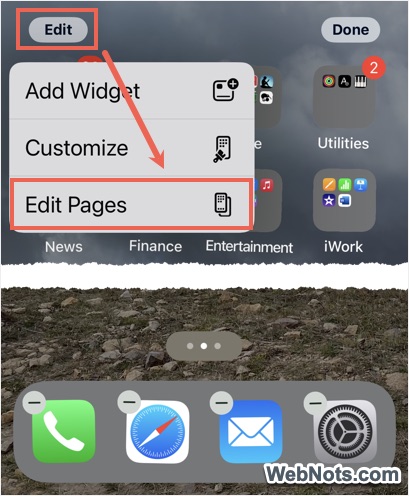
- This will open a screen showing preview of all your home screens.
- Uncheck the screen that you want to hide and tap on “Done” link showing on top right corner.
2.1. Removing Home Screen with Customize Menu
- Follow the above steps to reach preview screen view.
- Uncheck the home scree that you want to remove.
- Tap on the minus icon and confirm your action by tapping on “Remove” option.
3. Manually Removing Home Screen
This is an easy way when you only have few apps on the home screen that you want to remove.
- First, tap and hold on an app till all the apps on the screen are started jiggling.
- Now, tap on other apps to add them to your selection.
- Drag all the apps together and move to App Library or to another home screen.
- Leave your finger to drop the apps.
- Since all the apps are moved, the home screen will become empty and iPhone will automatically delete it (you can’t have empty home screen).

If moving multiple apps together is difficult, you can always move the apps one by one or make a folder and drag & drop to another screen or to App Library. Otherwise, long press on an app to see the menu items and select “Remove App” option. Now, select “Remove from Home Screen” option.