If you are primarily using iPhone for reading news, checking emails, downloading games / apps from App Store, then this article is for you. The device comes with a wealth of hidden features and handy tools that even seasoned users may have overlooked. Unlocking these lesser-known capabilities can transform your experience, boost your productivity, and help you get even more value from your device. Here is a list of 25 hidden iPhone features you should start using today.
Hidden iPhone Features
These features, tools and apps are part of iOS and come preinstalled on your iPhone. So, you do not need to install any third-party apps for using these stuffs.
1. Use Back Tap
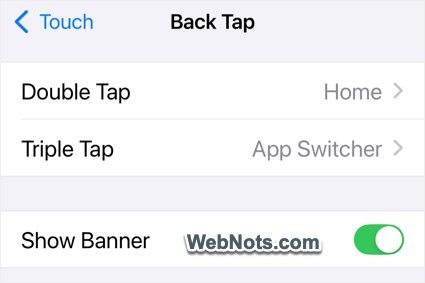
Back Tap is a clever accessibility feature introduced in iOS 14 that lets you trigger actions by tapping the back of your iPhone. Go to “Settings > Accessibility > Touch > Back Tap” and assign a double or triple tap to functions like taking a screenshot, launching the Control Center, or even go to the Home Screen. This tool is perfect for quick, one-handed gestures.
2. Hidden Keyboard Trackpad
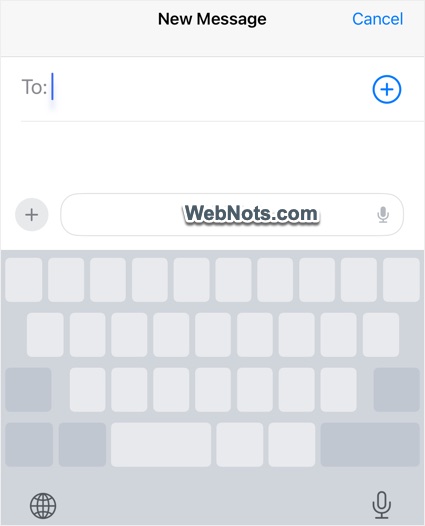
Editing text on your iPhone can be tricky, but there’s a secret trackpad hidden inside the keyboard.
- While typing, press and hold the spacebar.
- The keyboard letters will vanish and you can slide your finger to move the cursor precisely.
- This makes correcting typos and typing text much easier.
3. Measure App
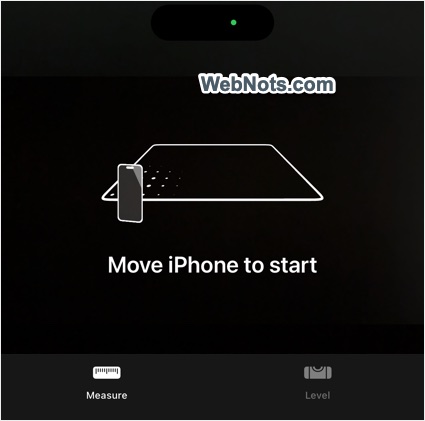
Your iPhone’s Measure app uses augmented reality to turn your phone into a digital measuring tape. Open the app, point your camera at an object or space, and follow the instructions to measure length, width, or even the level of surfaces. It’s surprisingly accurate for quick measurements around the house.
4. Custom Ringtones for Contacts
Make sure you know who’s calling without taking your phone out of your pocket by assigning custom ringtones to specific contacts.
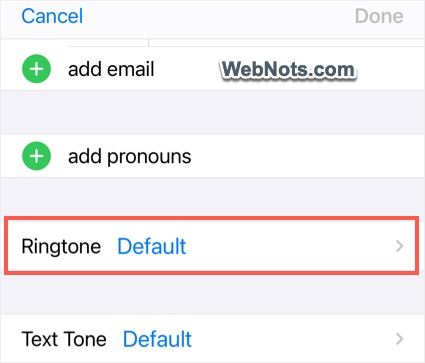
- Go to “Contacts” app and select a person from the list.
- Tap on “Edit” and go to Ringtone” option.
- Select a tone from the list.
5. Hiding Sensitive Photos
We all have photos we’d rather keep private.
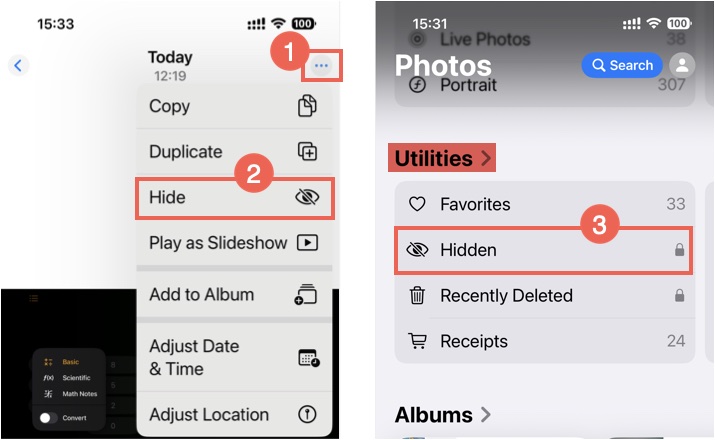
- In the Photos app, select any image and tap the three dots icons showing on top right corner of the screen.
- Choose “Hide” and confirm your action by tapping on “Hide Photo” option.
- The photo moves to a hidden album, which you can view by going to “Photos > Scroll down to Utilities > Hidden” and unlock the screen with Face ID.
This keeps sensitive pictures away from prying eyes. You can anytime unhide the phots and bring them back to the camera roll.
6. Silence Unknown Callers
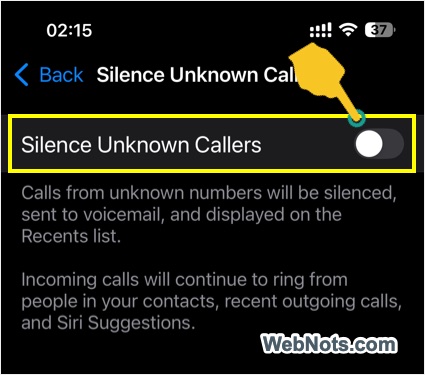
Tired of robocalls or spam? The “Silence Unknown Callers” feature (found in “Settings > Apps > Phone”) automatically sends calls from numbers not in your contacts, Siri Suggestions, or recent outgoing calls straight to voicemail. This helps keep your call log clean and your focus undisturbed.
7. Change App Icons Size and Color
Personalize your Home Screen by changing app icons size and color.
- Long press on the empty area on your Home Screen.
- Tap “Edit” button and select “Customize” option.
- Select the size and colors as per your preferences.
This allows for tailored themes or just a fresh look.

8. Child Lock
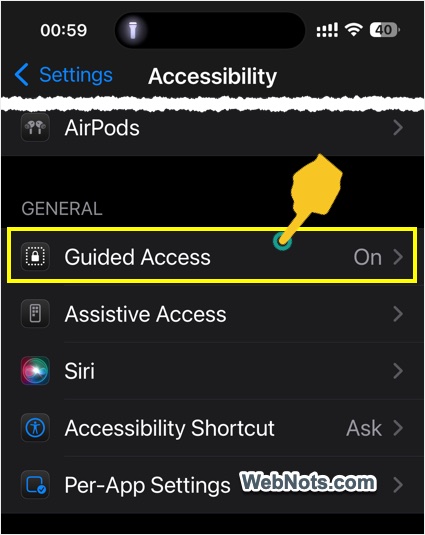
Guided Access is an invaluable feature for parents or anyone lending their phone. Enable it in “Settings > Accessibility > Guided Access”. Triple-press the side or home button in any app to lock your phone to that app. You can disable touch areas or the keyboard, and set a passcode to exit.
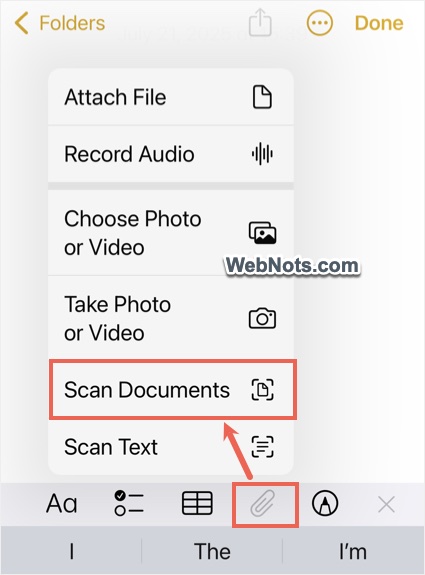
9. Scan Documents
Forget third-party apps – your iPhone can scan documents natively.
- Open the Notes app and select or create a note.
- Tap the attachment icon either appears on the bottom or just above the keyboard layout.
- Choose “Scan Documents” and scan your document using the camera.
- The app automatically detects edges, crops, and enhances your scan, letting you insert the scanned image in your note.
- You can easily share the document as PDF or save it on your iPhone.
10. Sound Recognition
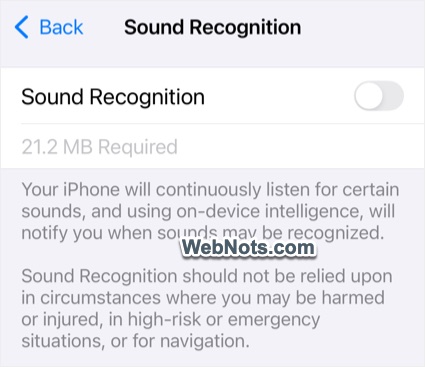
iPhones can listen for certain sounds like a doorbell, baby crying, or smoke alarm and alert you even if you’re wearing headphones or have hearing challenges. Enable this in “Settings > Accessibility > Sound Recognition” and select which sounds to monitor. It’s a life-saver for the hard of hearing, or when you want peace of mind.
11. Offload Unused Apps
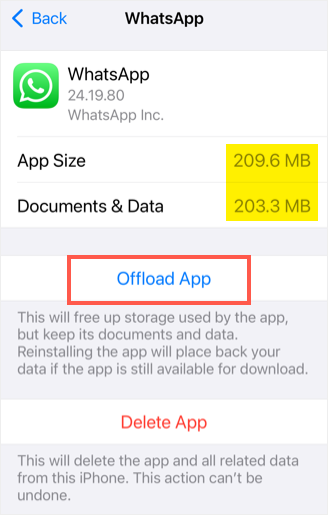
If you’re running low on storage, turn on “Offload Unused Apps” in “Settings > App Store”. This feature removes infrequently used apps but keeps their data, so you can reinstall them later and pick up right where you left off. You can also manually offload an individual app from “Settings > General > iPhone Storage > Select an App > Offload App”.
12. Find Your iPhone Even When It’s Off
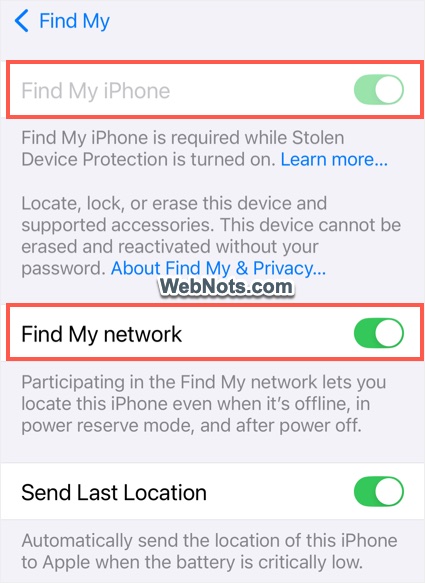
With iOS 15 and later, the Find My Network can help you locate your iPhone even if it has been powered off or the battery is dead. Ensure Find My iPhone and Find My Network are enabled in “Settings > Your Apple Account > Find My > Find My iPhone”. Your device will remain traceable, adding an additional layer of security.
13. Schedule Sleep Mode
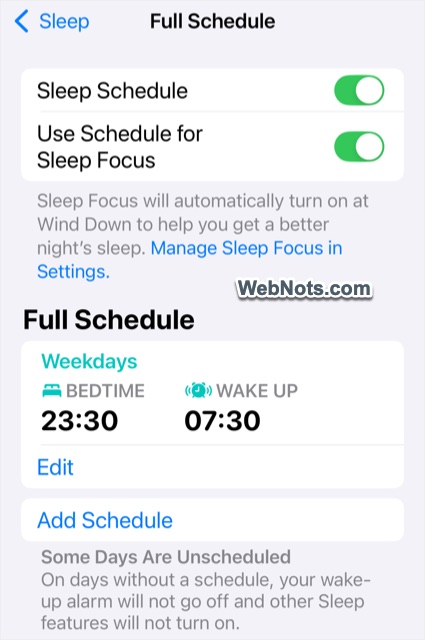
The iPhone’s Sleep Schedule (found in the “Health app > Browse > Sleep”) helps you establish healthy bedtime routines. It dims your screen, silences notifications, and tracks your sleep. You can set wind-down shortcuts for meditation, reading, or music to ensure restful nights.
14. Pin Messages and Conversations
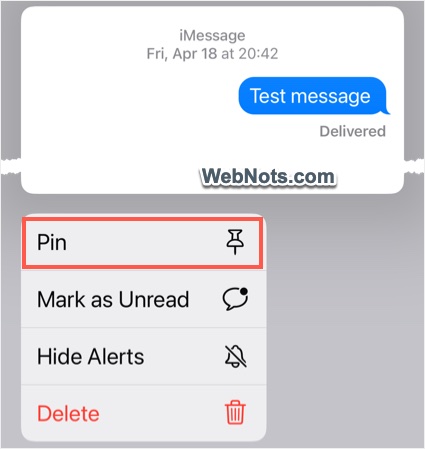
In the Messages app, pin important conversations to the top of your screen by long press on a chat and tapping the “Pin” option. This ensures you never lose track of your most essential contacts or ongoing group messages. You can anytime unpin the conversation to move it back per the timeline.
15. Use Your iPhone as a Magnifier
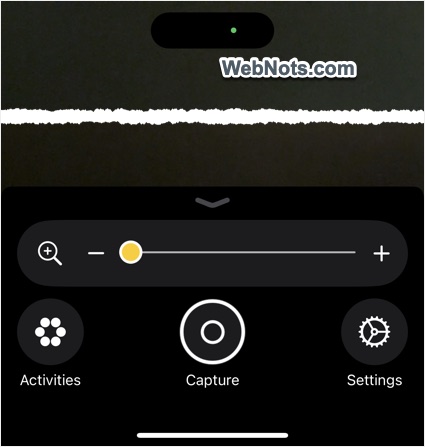
The Magnifier is a built-in accessibility tool that uses your iPhone’s camera to zoom in on text, labels, or small details. It comes as a separate app and you can add it to your Control Center for quick access. This is perfect for checking the menus in dim restaurants or reading fine print. You can also capture a picture and share instantly using Magnifier app.
16. Text Replacement Shortcuts
Save time on repetitive phrases by creating text shortcuts. Head to Settings > General > Keyboard > Text Replacement” and create your shortcuts. For example, type “omw” to instantly insert the phrase “On my Way!”.

17. Emergency SOS
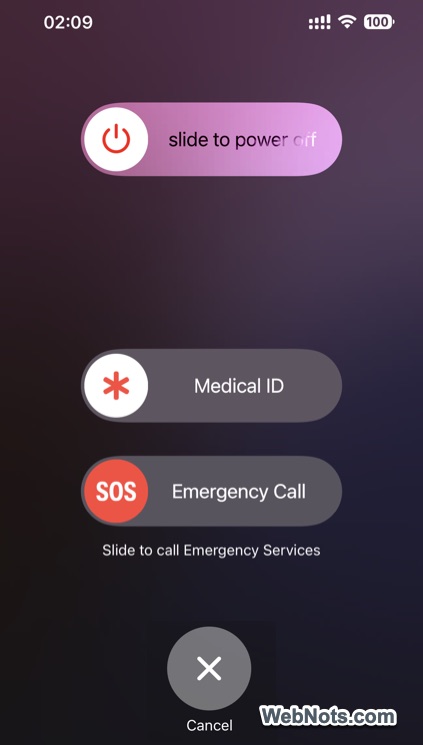
Press and hold the side button and a volume button (any one button) to view the emergency screen. Slide the “SOS” button on “Emergency Call” and your iPhone will call emergency services and share your location with emergency contacts. You can set up your preferences in “Settings > Emergency SOS” section.
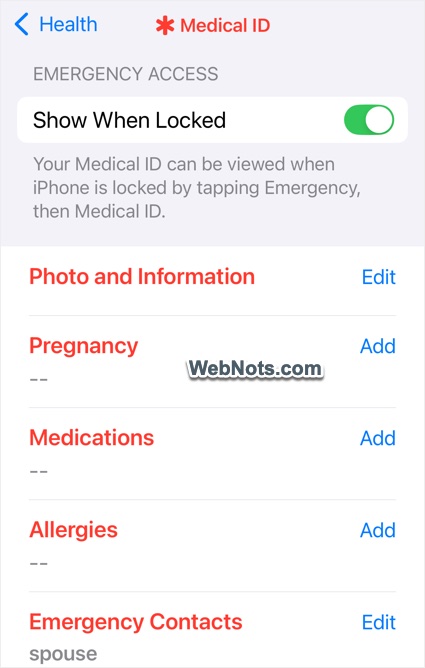
18. Medical ID
Store your essential health information and emergency contacts in your Medical ID. First responders can access this from your lock screen in a crisis. You can sete this by going to “Settings > Apps > Health > Medical ID” section.
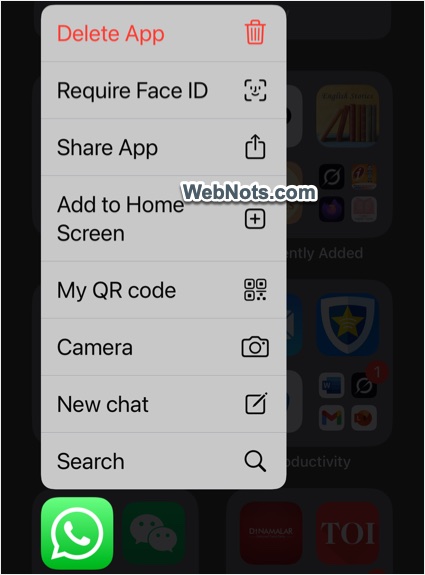
19. Interactive Widgets and Apps
iOS widgets and apps aren’t just for show – they’re interactive. Press and hold a widget or app on your Home Screen to customize what information it displays or to perform quick actions without opening an app. For example, you can directly open camera by long pressing on WhatsApp app icon.
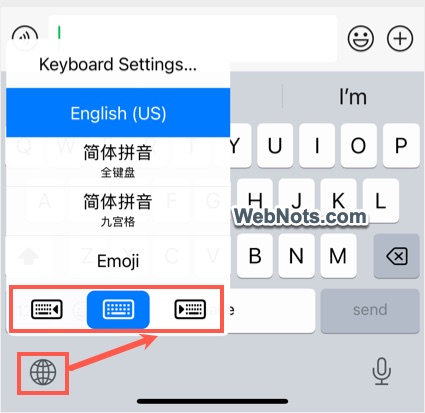
20. One-Handed Keyboard
Typing with one hand is easier than ever. On the keyboard, press and hold the globe or emoji icon and select the left or right-handed keyboard layout.
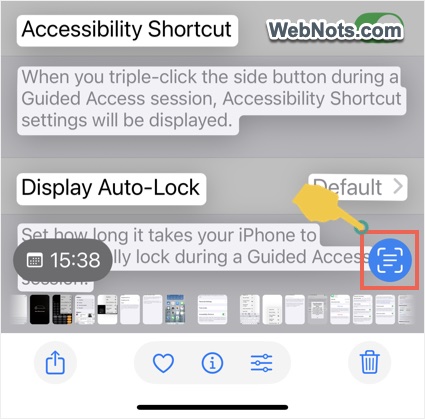
21. Grab Text from Images
Take a photo of text – or point your camera at it – and your iPhone can recognize and let you copy, paste, or look up words, addresses and phone numbers instantly.
22. Announce Calls and Messages
Enable your iPhone to announce who’s calling or texting when you’re using headphones or driving. This helps you stay hands-free and aware. Go to “Settings > Siri > Announce Calls” and turn on the required option.
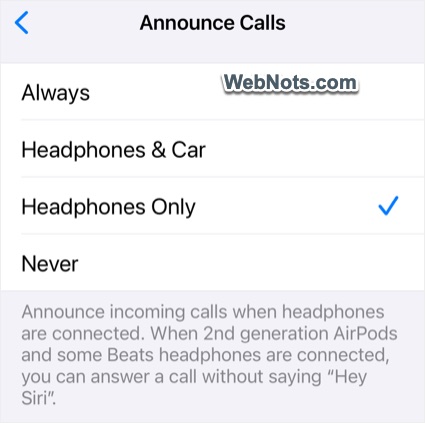
Similarly, you can turn on announcing message notifications under “Settings > Siri > Announce Notifications > Messages”.
23. Screen Recording
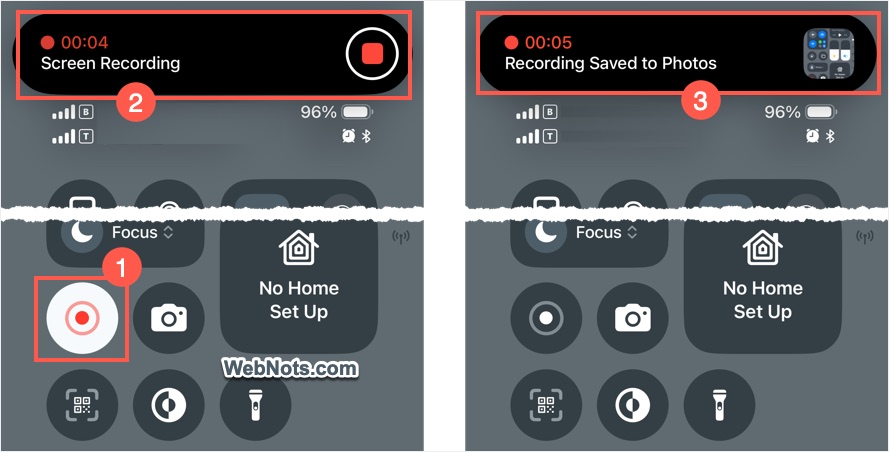
Make tutorials, bug reports, or save streaming content by enabling Screen Recording in Control Center. Start a recording and everything on your screen (and optionally your voice) is captured.
24. Hide Your Email
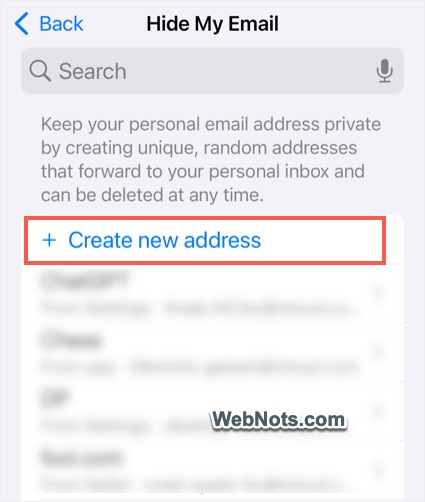
With iCloud+, use “Hide My Email” to generate random, unique email addresses for signing up for services, all forwarding to your real inbox. It’s privacy made simple. Go to “Settings > Your Apple Account > iCloud > Hide My Email” to create a new address.
25. Wi-Fi Password Sharing
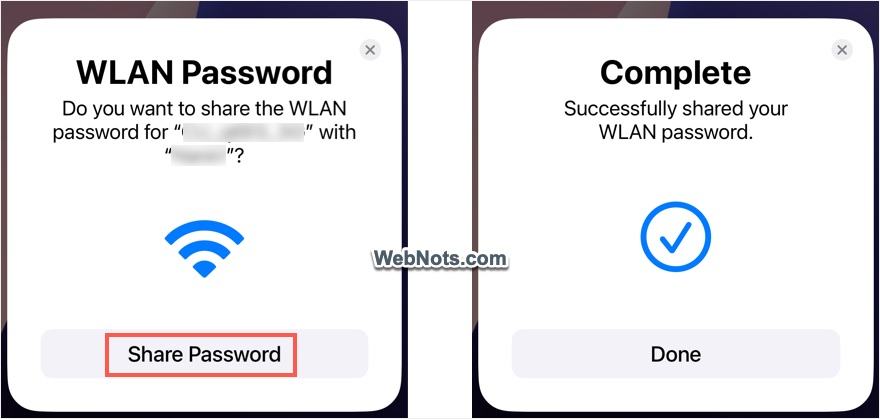
Connecting guests is a breeze. When a friend tries to join your Wi-Fi, your iPhone can share the password securely – no more awkward recitations or sticky notes.
Final Words
As mentioned, most of us focus on installing third-party apps for any specific needs instead of looking into iPhone’s settings at first. The device is packed with features designed to enhance your daily life and streamline your tasks. So, taking some time to explore the settings and playing around can yield surprising benefits. The next time you pick up your device, dig a little deeper – there’s always something new to discover.