The iMac is not just another desktop computer; it’s a fusion of cutting-edge technology, design, and functionality. Whether you use it for work, creativity, or entertainment, the iMac offers a host of features tailored to make your experience smoother and more enjoyable. With the latest models, including the new iMac with the M4 chip, Apple has packed in even more performance, visual clarity, and smart features, which makes it stand out as a premier desktop machine.
In this article, we will cover unique tips that can help you get the most out of your iMac – focusing on features and options that are specific to iMacs and not available on other Windows based desktop devices.
iMac a Unique Desktop
iMac is the only desktop offered by Apple with a complete package. It includes:
- Monitor including processor.
- Thunderbolt connection cable.
- Magic Mouse.
- Magic Keyboard.
The features explained in this article refer to the 24-inch iMac having four thunderbolt ports.
1. Customize Your Workspace with Vibrant Colors
One of the most striking features of the iMac is its vibrant, sleek design. Available in a variety of colors including blue, green, pink, silver, yellow, orange, and purple, the iMac allows you to choose a model that best suits your personal style and office decor. Whether you’re outfitting a modern studio or a cozy home office, the iMac’s color options add a fun and stylish touch to your workspace.
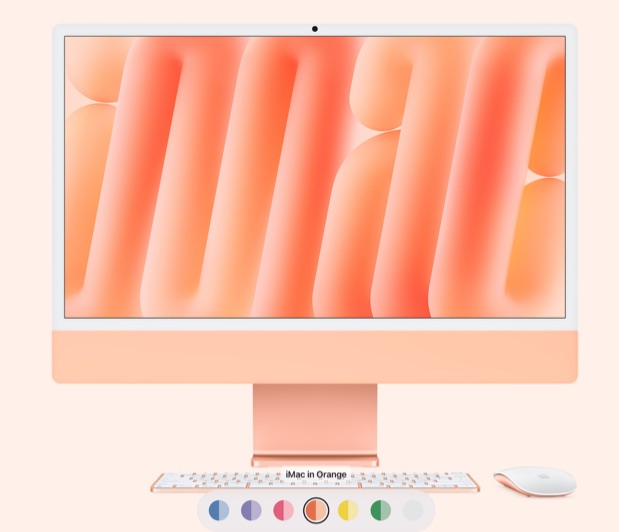
Good thing is that the entire package (monitor, cable, mouse & keyboard) will be in the same color making it easier for matching your home or office interior.
2. Maximize Your Display’s Potential with 4.5K Retina Resolution
The iMac comes with a stunning 24-inch 4.5K Retina display that offers exceptional detail, vibrant colors, and wide viewing angles. This display ensures that whether you’re working on graphic design, watching movies, or just browsing, the visuals are crisp and clear.
- The wide color gamut and P3 color support make this display perfect for photo and video editing.
- True Tone Technology display adjusts to the ambient lighting, making your iMac easier on the eyes, especially during long work sessions.
Tip: To further enhance your viewing experience, enable Night Shift in macOS for a warmer display during the evenings. This reduces blue light exposure and helps with eye strain.
3. Supports 6K External Monitors for Enhanced Multitasking
Unlike MacBook laptops, the iMac is designed to handle multiple monitors with ease. The latest iMac models allow you to connect to two additional 6K external displays (8-core CPU supported one and 10-core supports two). This is ideal for users who need more screen real estate for multitasking, design work, or even coding.
Simply plug in your external monitor via the Thunderbolt 4 ports. Go to “Apple Menu > System Settings… > Displays” section to arrange your displays in the preferred configuration. With this feature, you can have multiple apps and windows open at once, creating an efficient workflow. Whether you’re managing spreadsheets, editing videos, or designing, multiple screens can significantly improve your productivity.
4. Use the Built-in Desk View for Clearer Video Calls
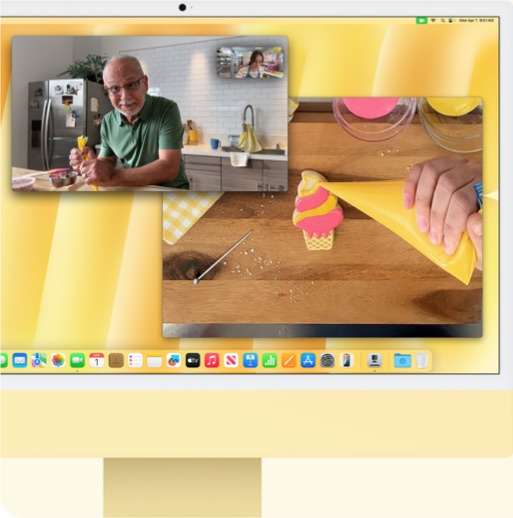
The iMac’s camera system is another game changer, especially for remote workers and video content creators. The 12MP ultra-wide camera comes with a feature called Desk View, which allows you to show your desk or workspace during video calls. This is particularly useful for presentations, unboxing videos, or when you need to demonstrate something physically.
The camera also supports Center Stage, automatically adjusting the frame to keep you centered, even if you move around during meetings.
5. Sound Like a Pro with Studio-Quality Audio
The iMac is equipped with an immersive audio system that includes studio-quality microphones and high-fidelity speakers. This makes it ideal for recording podcasts, voiceovers, or just enjoying music and movies with rich sound. The combination of spatial audio and support for Dolby Atmos creates a surround-sound experience that’s perfect for media consumption.
- While the iMac’s built-in speakers are impressive, you can further boost your audio setup with external speakers like Sonos or Bose for an even richer sound.
- If you’re into podcasting or video production, consider pairing your iMac with a high-quality external microphone like the Blue Yeti or Audio-Technica for professional-level sound recording.
6. Leverage Privacy and Security Features
Apple’s focus on privacy and security is one of the key reasons you can trust iMacs (and other Apple products). With built-in on-device processing, your data stays secure, and personal information is never shared without your consent. This is especially important for people who handle sensitive or confidential work.
You can use the Apple Intelligence AI features without compromising privacy which makes iMac a cool desktop solution. In addition to system-level protections, apps on macOS display privacy labels, which tell you how your data is used. Good thing is that you can use Microsoft Office and other popular apps on iMac to keep the compatibility issue away.
7. Perfect Your Multitasking with macOS Features
The iMac runs macOS, which offers numerous multitasking features that improve workflow efficiency. iMac users can take advantage of Split View and Spaces to keep their workspace organized and accessible.
- Split View: Drag a window to one side of the screen, and it will automatically snap to fill half the screen. You can then select another app to fill the other half, perfect for working with two apps side by side. Alternatively, go to “Window > Move & Resize” menu and select the required view option.
- Spaces: Set up multiple virtual desktops to organize different aspects of your work, such as one for research, one for design, and another for communication. To create a new Space, simply press F3 or double tap on the Magic Mouse to open Mission Content and click the + icon on top right corner.
8. Consider VESA Mounting for a Clean Desk Setup
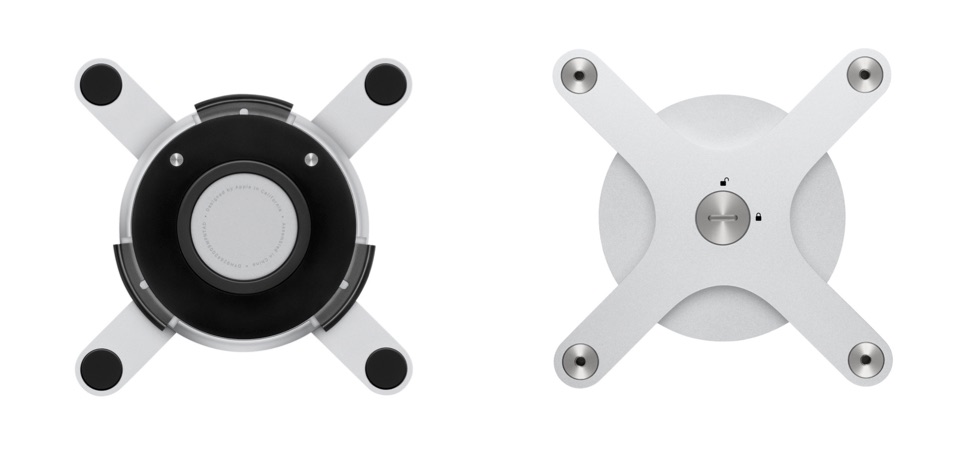
The iMac’s sleek design and adjustable stand make it an excellent candidate for mounting on a VESA-compatible mount. This is particularly useful if you want to free up desk space, adjust the height of your screen, or have a more flexible ergonomic setup.
- Mounting your iMac on a wall or adjustable arm will clear your desk for other equipment, such as a keyboard, mouse, and external storage.
- Mounting the iMac at eye level reduces neck and back strain, providing a more comfortable working position.
- A mounted iMac will give your desk a minimalist and clean appearance, without the bulk of a traditional stand.
9. Reduce Glare with Nano-Texture Glass
If you work in a bright environment, you may have experienced the glare that comes from reflective surfaces. The iMac offers an optional nano-texture glass finish, which helps reduce glare significantly while maintaining the sharpness and brightness of the 4.5K Retina display. This option is perfect for anyone who works near windows or in brightly lit rooms.
- No More Glare: Nano-texture glass diffuses light to minimize reflections without sacrificing display quality.
- Perfect for Creatives: For photographers, designers, and editors, this finish ensures that you get the most accurate and clear representation of your work, regardless of lighting.
10. Take Advantage of iCloud and Handoff for Seamless Integration
One of the best ways to optimize your iMac experience is by leveraging iCloud and Handoff. These features allow you to seamlessly sync your files and work across all your Apple devices, making switching between devices effortless.
- iCloud: Automatically syncs your files, photos, contacts, and app data across all your Apple devices. This means your work is always backed up and accessible on your iPhone, iPad, or another Mac, so you can pick up right where you left off, no matter what device you’re using.
- Continuity: With features like Universal Clipboard, you can copy content on one device (like text or an image) and paste it onto another seamlessly.
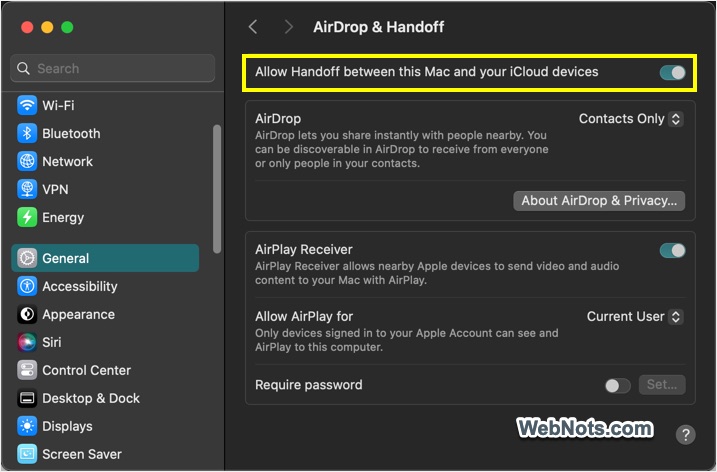
- Handoff: Allows you to start a task on one Apple device and pick it up on another. For example, you can start writing an email on your iPhone and finish it on your iMac without missing a beat. Enable Handoff from “Apple Menu > System Settings… > General > AirDrop & Handoff > Allow Handoff between this Mac and your iCloud devices”.
Conclusion
The iMac is an incredibly powerful and stylish desktop that’s built to enhance your productivity and creativity. With its stunning 4.5K Retina display, vibrant color options, advanced camera system, and unparalleled audio quality, it’s the perfect machine for a variety of tasks, from creative projects to professional work. By taking advantage of these iMac-specific features, you can create a highly personalized and efficient workspace that enhances your workflow and makes every task a little more enjoyable.