In recent years, Microsoft has steadily evolved the Chromium-based Edge browser from a basic web browser into a versatile productivity platform. While its clean interface is immediately noticeable, the browser also includes several lesser-known capabilities, ranging from AI-powered tools to performance enhancements. Here are 10 hidden features worth exploring to get more value from your browsing experience.
1. Vertical Tabs
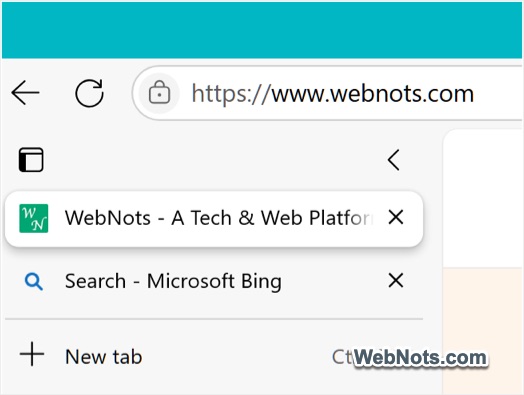
Managing multiple tabs can be a chaotic experience, but Microsoft Edge offers a refreshing solution with vertical tabs. Instead of the traditional horizontal layout, you can switch tabs to a vertical pane on the side of your screen. This feature not only saves space but also makes it easier to identify and organize tabs, especially if you’re juggling dozens of them.
- Click on the small arrow that shows “Search tabs” in the top-left corner of the browser and select “Turn on vertical tabs” option.
- You can anytime turn it off by clicking on the same icon.
2. AI-Powered Tab Organizer
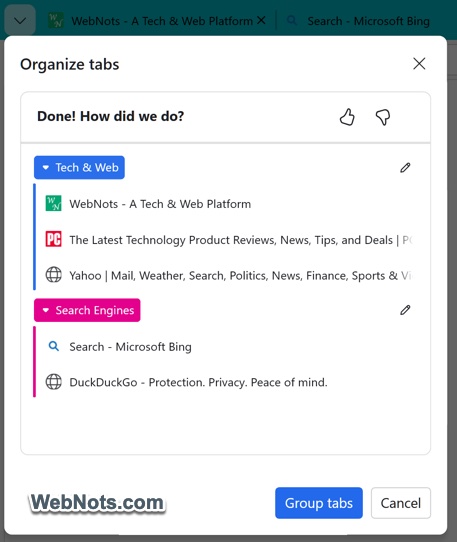
The latest browser version also adds an “Organize tabs” option next to the vertical tab. Now, you can analyze up to 40 open tabs and group them by automatically assigning a name with the help of AI. This will be super useful when you are dealing with too many open tabs and brings instant clarity to your browsing session.
3. Sleeping Tabs
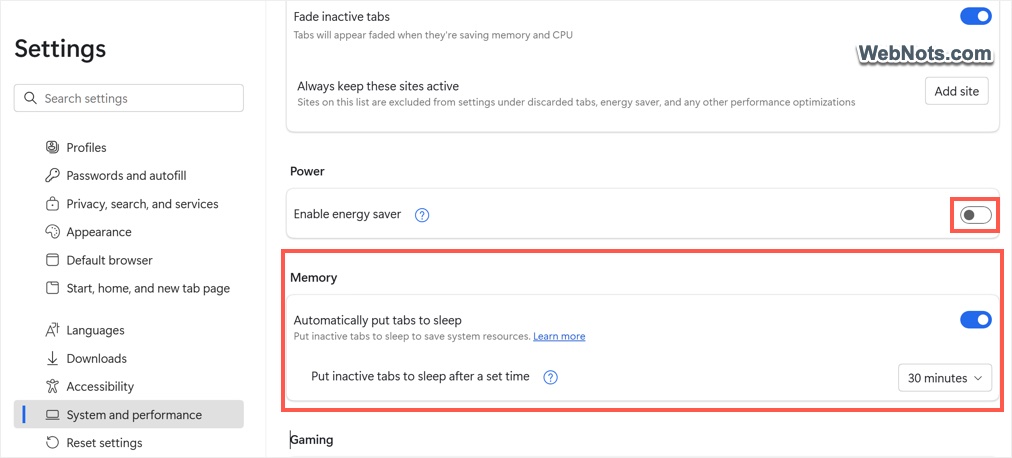
Do you have the habit of leaving numerous tabs open? Edge introduces the Sleeping Tabs feature to help manage resource consumption. Tabs that haven’t been used for a while automatically go to sleep, freeing up memory and CPU power. You can customize the inactivity period before tabs are put to sleep.
- Go to “Settings > System and Performance” section and turn on “Automatically put tabs to sleep” under “Memory” section.
- You should turn off the “Enable energy saver” option to set time period for inactive tabs to go to sleep mode.
4. Immersive Reader
For those who frequently read articles online, the Immersive Reader feature is a game-changer. With a click of a button, Edge removes distractions like ads and sidebars, offering a clean and focused layout. Additionally, it includes features like text-to-speech and adjustable font sizes, making it perfect for both casual readers and students. Look for the book icon in your address bar to activate this mode or click the “More actions” icon (three dots in a circle) at the end of the address bar and then select “Immersive reader”.

5. PC Gaming Boost
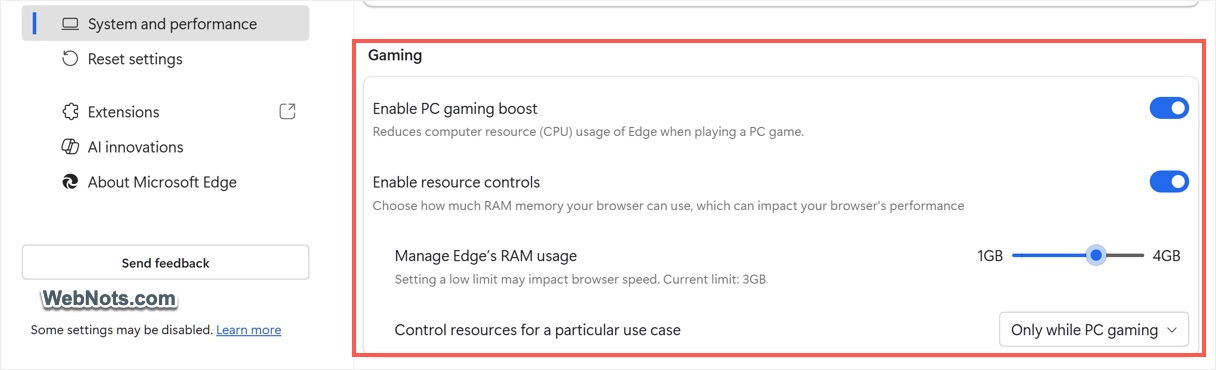
This renamed feature (formerly “Efficiency mode for PC gaming”) automatically reduces Edge’s resource consumption when you’re running a PC game. It ensures your browser stays accessible while your game gets maximum performance. You can also turn on the resource controls option to set a custom RAM usage while gaming (options are available under “System and Performance > Gaming” section).
6. Web Capture or Screenshot
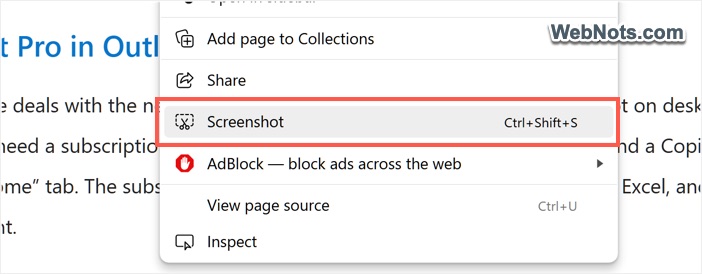
Taking screenshots has never been easier. The Screenshot (earlier called Web Capture) tool enables you to capture a portion of the screen or the entire webpage. But here’s the bonus: you can annotate your screenshots directly within the browser. This feature is perfect for sharing ideas or providing feedback on web designs. Simply right-click on the webpage and select “Screenshot” or use the shortcut “Control + Shift + S”.
7. Enhanced Privacy Settings
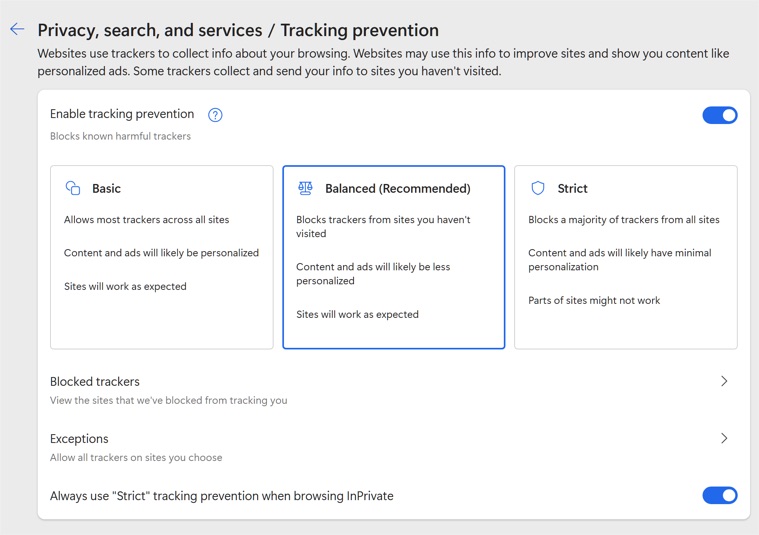
Privacy-conscious users will appreciate the robust tracking prevention tools built into Edge. You can choose between Basic, Balanced, or Strict levels of tracking prevention, giving you control over the amount of data websites can collect. To tweak these settings, go to “Settings > Privacy, Search, and Services > Tracking Prevention” and select your option.
8. Built-in Password Monitor
Edge takes online security seriously. Its Password Monitor feature scans the dark web for compromised credentials linked to your saved passwords. If any of your credentials have been exposed, Edge will notify you so you can take immediate action. With the Edge Wallet is phased out, this feature is currently accessible in “Settings > Profiles > Passwords and autofill” section.
9. Edge Search Bar
The Edge Search Bar is a convenient tool that allows users to search the web directly from their desktop. It provides quick access to search results without needing to open a browser window. This feature improves efficiency by reducing time and simplifying the search process.
- Press “Alt + F” keys or click the “Settings and more” three dots icon in top-right corner.
- Go to “More tools” menu and select “Launch search bar” option.
- Click the three dots icon in the search bar to customize its settings.

10. Edge Mini Menu
The Edge Mini Menu is a compact and efficient menu that appears when you right-click on selected text in the Edge browser. It offers quick actions such as copy, paste, search, and more. This feature is designed to improve user experience by providing easy access to commonly used functions. Simply select any text and the mini menu will appear.
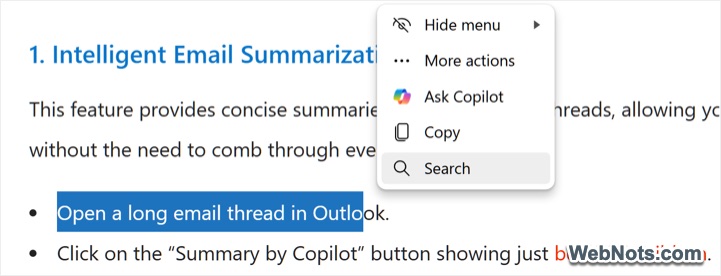
If the menu doesn’t appear, go to “Settings > Appearance > Context menus” and turn on “Show mini menu when selecting text” option.
Bonus: Read Aloud
Whether you’re multitasking or just prefer to listen, the Read Aloud feature is a fantastic tool for consuming web content. Edge reads the text on the screen in a natural-sounding voice, with options to adjust speed and choose from different voices. This feature is particularly useful for long articles or accessibility needs. Activate it using one of the below methods:
- Click the “More actions” icon in the address bar and select “Read aloud”.
- Press “Control + Shift + U” keys.
- Select text, right-click on it and then choose “Read aloud selection” to only read the selected content.
Conclusion
From productivity boosters like Vertical Tabs and AI Tabs Organizer to privacy enhancers like Password Monitor, these hidden gems can significantly improve your browsing experience. Microsoft also plans to integrate Edge Copilot with Outlook, to automatically open Copilot in the Edge sidebar when you click links from Outlook. So, take a moment to try these features, and you’ll quickly realize why Microsoft Edge has become a favorite among users.